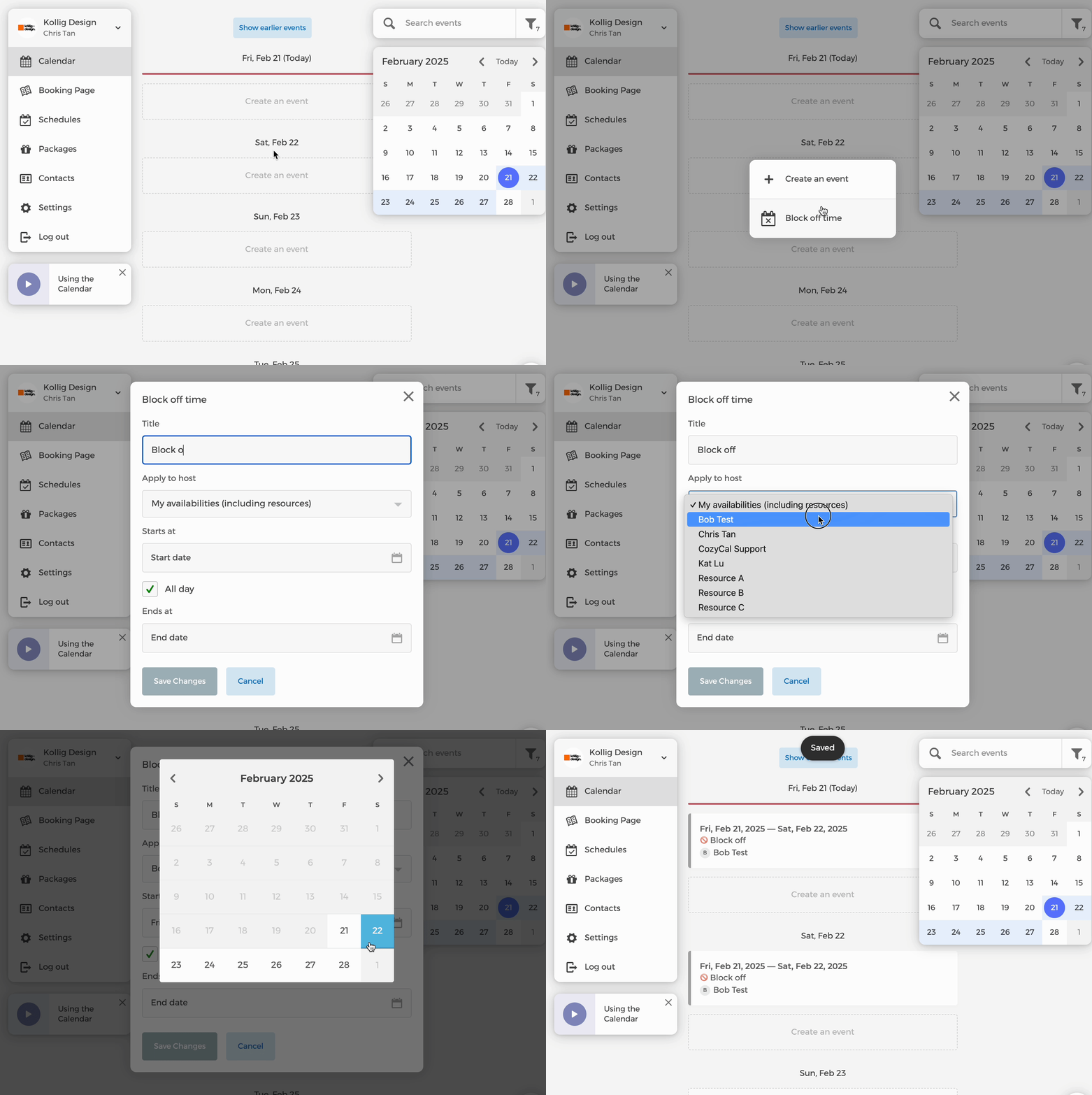
Here are some options for blocking off availability on CozyCal:
If you want to block off time on Google Calendar, Office 365, Clio, and more, see the Integrations section in the Knowledge Base.
Block off availability for team members and resources
- Go to your Calendar
- On the starting date of the period that you want to block, click on
Create an event, thenBlock Off Time - You can block off availability for a specific team member, or for your entire account (including resources that you own).
Please note blocked off period applies to all event types on your booking page.
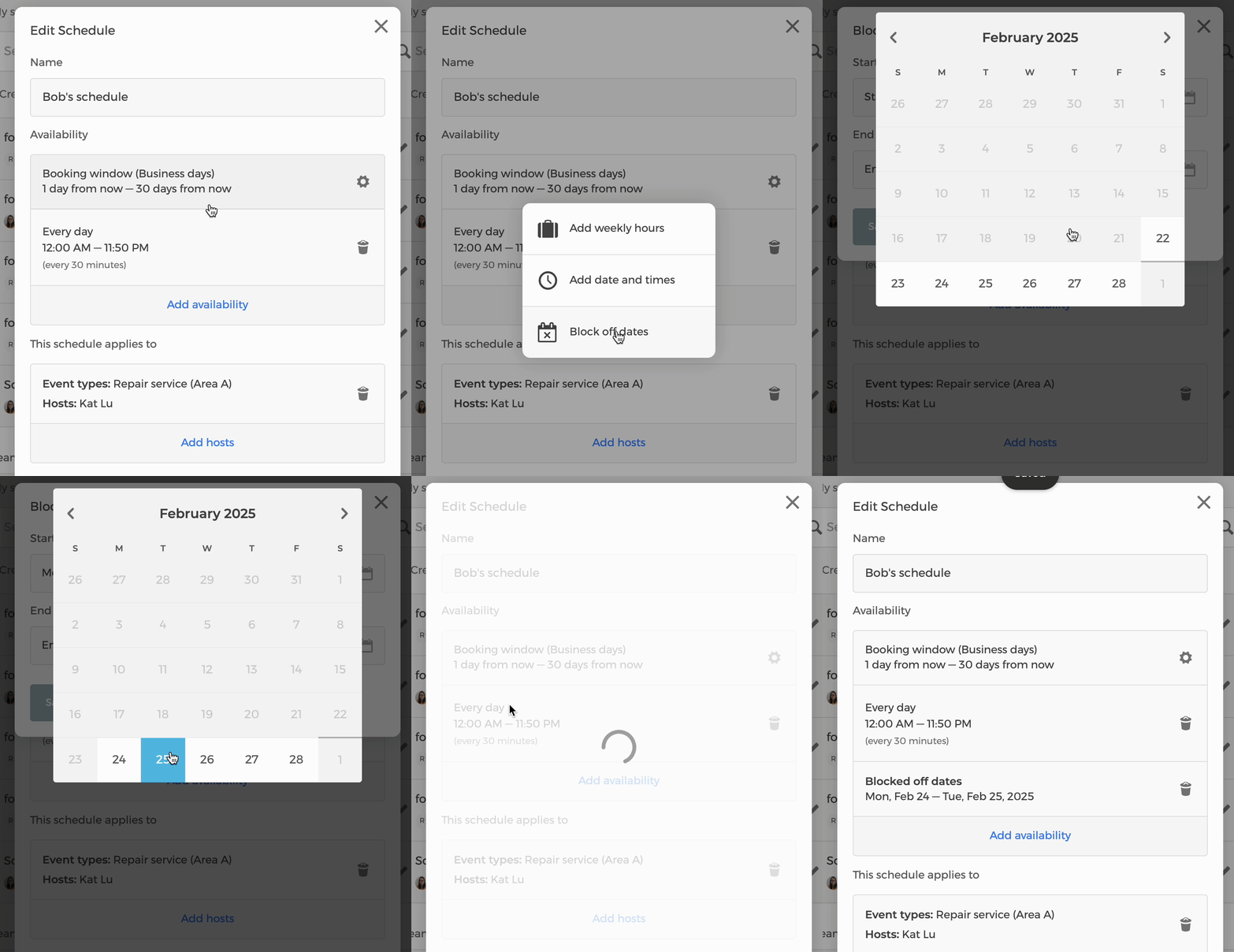
Block off availability within a Schedule
You can also block off availability within a Schedule, which gives you more precise control over your availability. This is especially useful when you want to block off time for specific event types while keeping others available.
To do this, edit a schedule and click Add availability → Block off dates.
You can access your schedule through the "Availability Settings" button on your event type's calendar or through your Schedules Page: https://cozycal.com/app/schedules