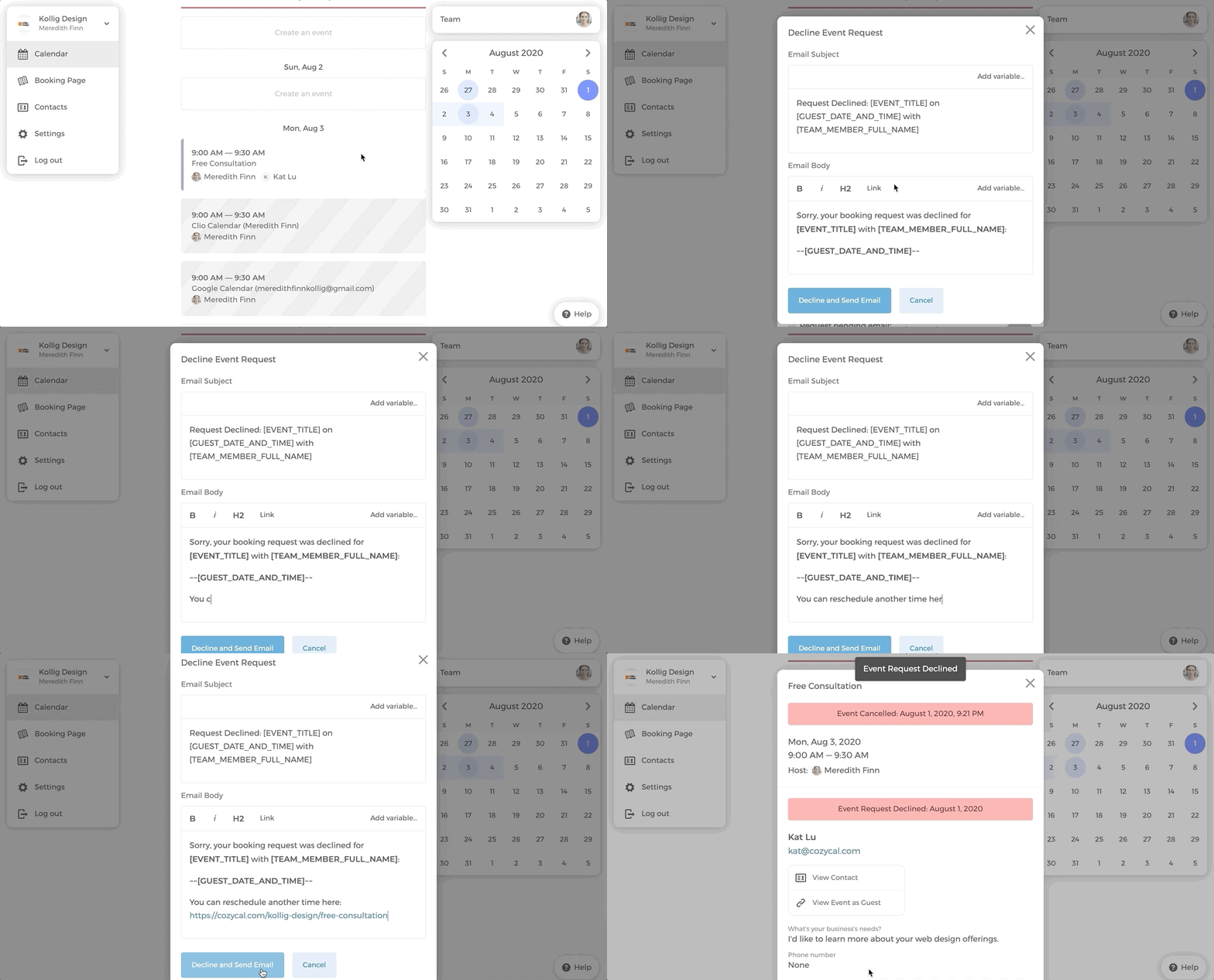
This feature allows you to manually accept or decline event requests and take full control of your schedule. It helps to:
- eliminate unwanted bookings from taking up your time slots
- reduce the need of having to reschedule meetings
- share your booking link freely without worrying about undesired bookings
In this article, you will learn how to:
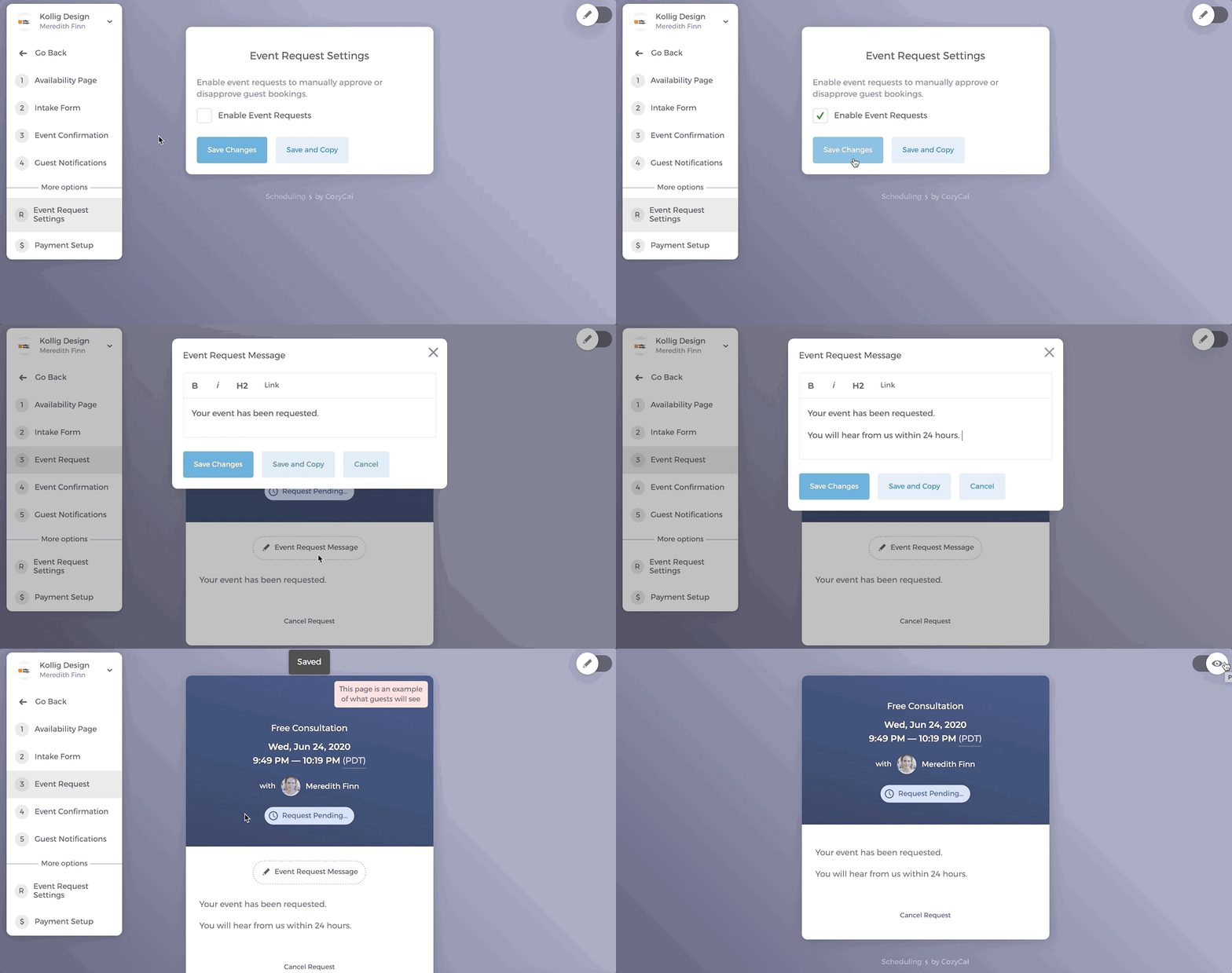
1. Enable Event Request feature for selected event types
- On your booking page, click on the event type that you want to manually accept or decline any requested events
- On the left hand menu, under the More options divider, click on
Event Requests. This opens theEvent Request Settingspage. - Check the box for Enable Event Requests, then you will notice that there is an extra numbered step appearing on the menu
(3) Request Pending - You can edit the event request message by clicking on
Event Request Message
Tip: Toggle the pencil icon at the top right to switch between preview and editor mode.
2. Customize Event Request email notifications
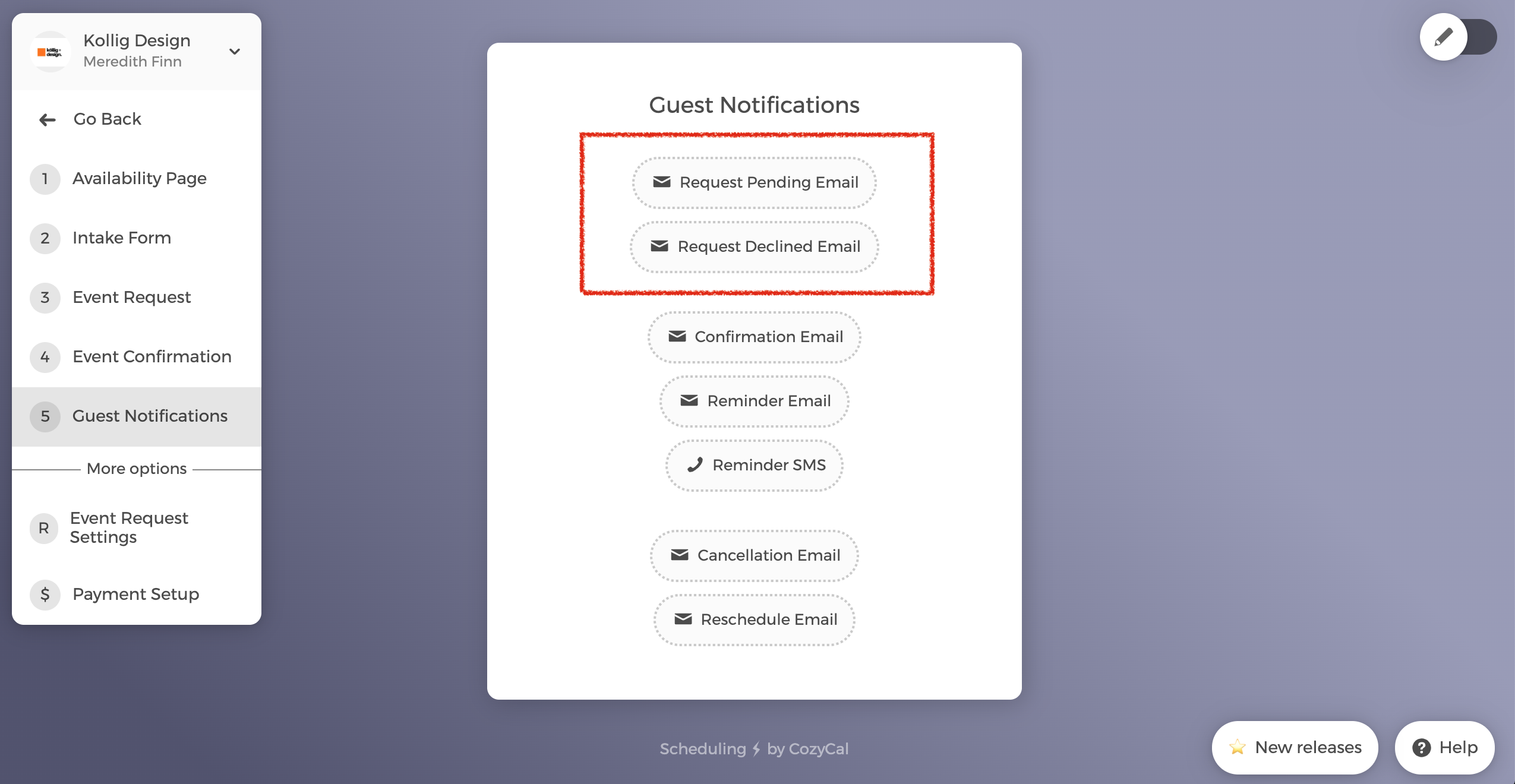
Now, when you click on (5) Guest Notifications, you will notice there are two additional email templates that you can edit:
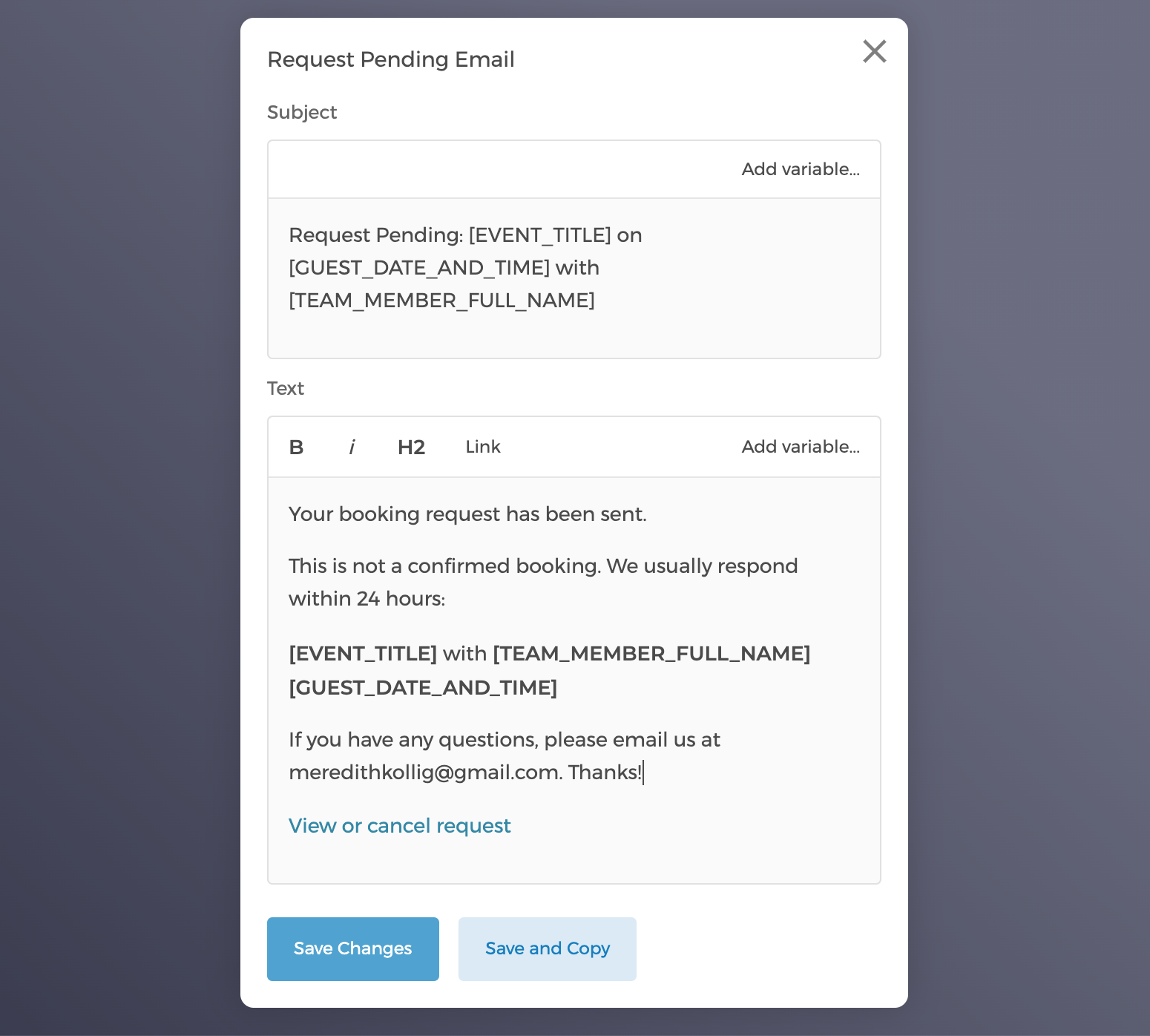
- Request Pending Email: guests receive this email after they select an event, time slot and send in the event request
- Request Declined Email: guests receive this email after you decline the event request
Once you approve an event request, guests will receive the Confirmation Email.
Each email comes with a default email template that you can edit according to your needs. For example, you can add a note such as "If you have any questions, please email us at ____"
3. Accept or decline events manually
When a guest sends you an event request, you will receive an event request notification email right away.
The email contains answers collected from the intake form, which makes it easy for you to see if the scheduled lead is qualified.
Simply click on Accept or Decline Guest in the email and you will be led to your CozyCal account where you can manually accept or decline the event request.
Whether you accept or decline the event request, your guests will receive emails notifying them of your decision.
Tip: You can further customize Request Declined Email or Confirmation Email when you accept or decline the event.