
This guide explains how to set up group events, such as workshops, webinars, or tours, allowing multiple guests to book a single time slot.
You can control the maximum number of guests per time slot and per booking, ensuring flexibility for events like bike tours or family bookings.
Step-by-Step Instructions
On the main booking page and select the event type you want to configure.
Click the
Availability Settingsbutton for the selected event type. Under Scheduling options, click on the settings window.Find the
Max guests allowed per time slotdrop-down menu.- Select the maximum number of guests allowed for the time slot (up to 500 guests). When this is set, each time slot can only be booked by one guest at a time. Example: For a bike tour, if the
Max guests allowed per time slotis set as 20, it means that the total capacity for the tour is 20 guests in this case. - Note: This setting keeps the time slot open until the specified limit is reached. For 1-on-1 events, leave this at the default of 1 guest to prevent double bookings.
Important: This setting applies to both new and existing events. Existing guests will not be removed if the limit is adjusted.
- Select the maximum number of guests allowed for the time slot (up to 500 guests). When this is set, each time slot can only be booked by one guest at a time. Example: For a bike tour, if the
If you want to allow a single guest to book for multiple attendees (e.g., a family member booking for a group of 4), click the
Max guests per bookingdrop-down menu.- Set the desired group size for a single booking. Example: For a bike tour, if the
Max guests per bookingis set as 5, it limits how many attendees one person can book for, in this case a family of 5. Multiple bookings can fill up the time slot until it hits the 20-guest limit.
- Set the desired group size for a single booking. Example: For a bike tour, if the
Click on
Save changesfor this service or click onSave and Copyto duplicate the same setting to other service types.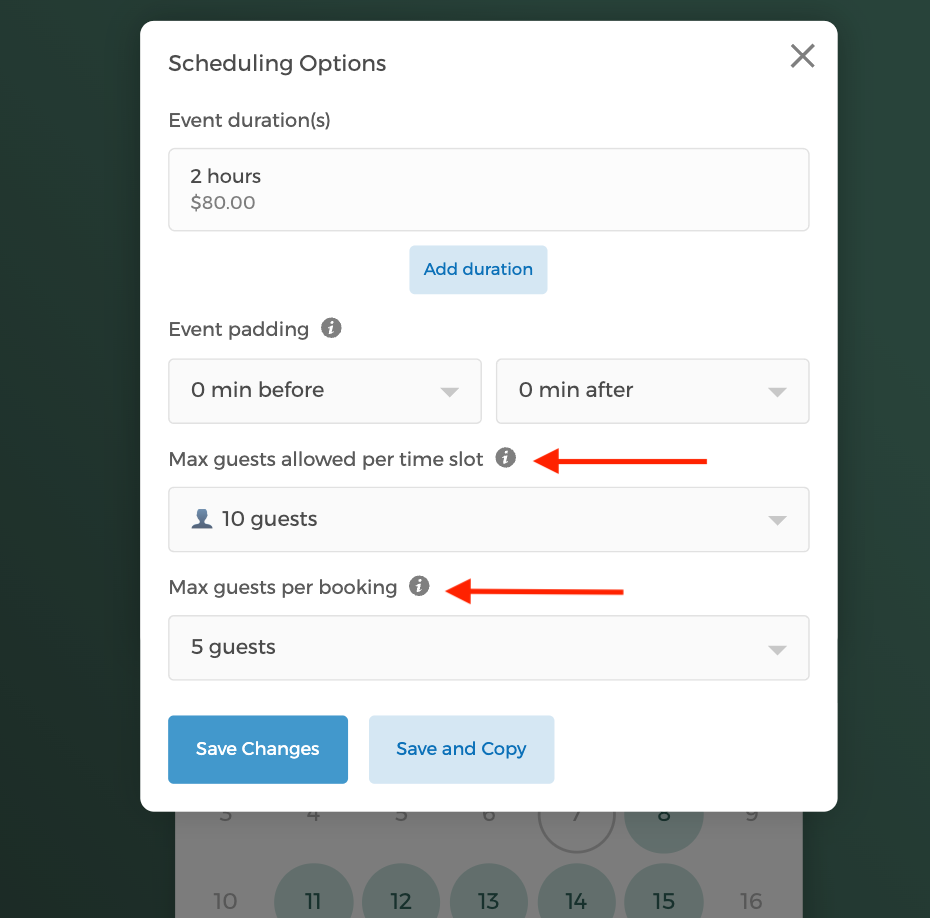
On the calendar, you'll see the drop-down menu that allows booking guests to select the number of attendees they want to book for the event.
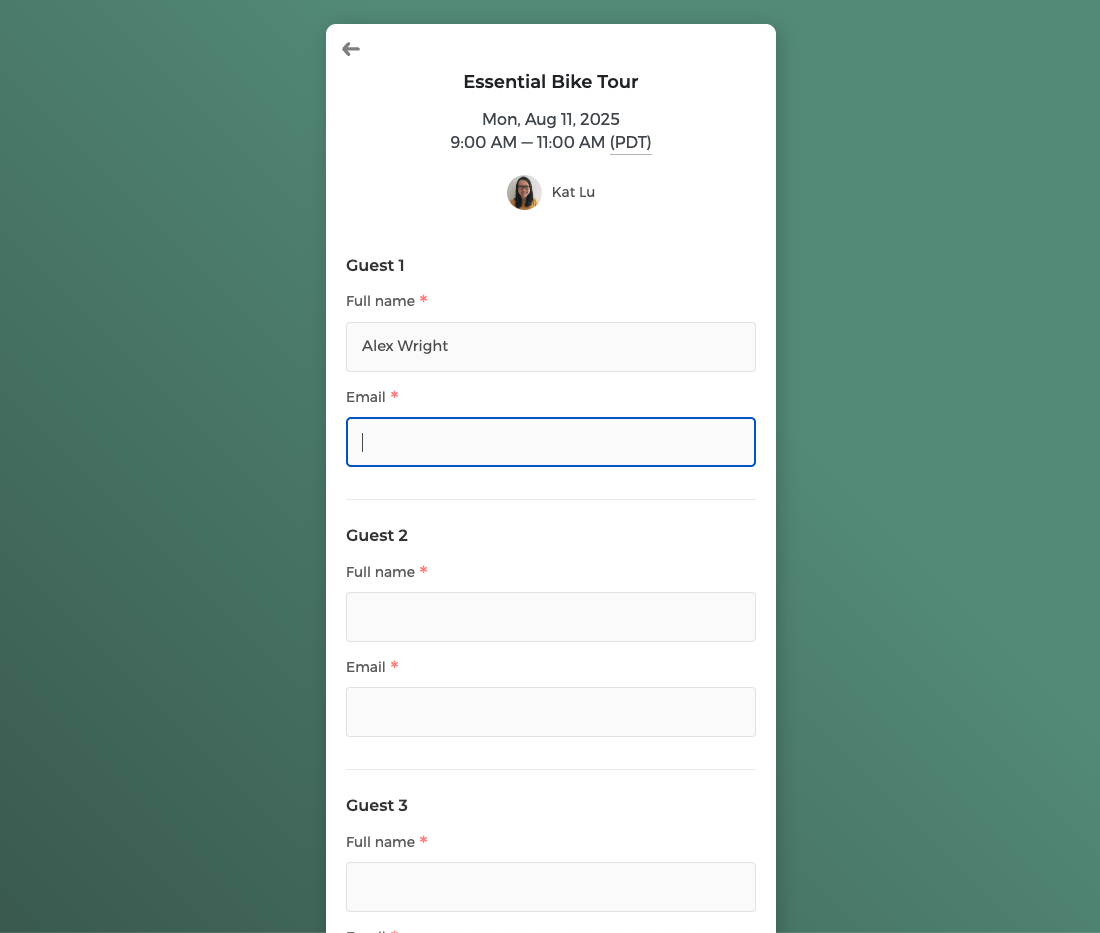
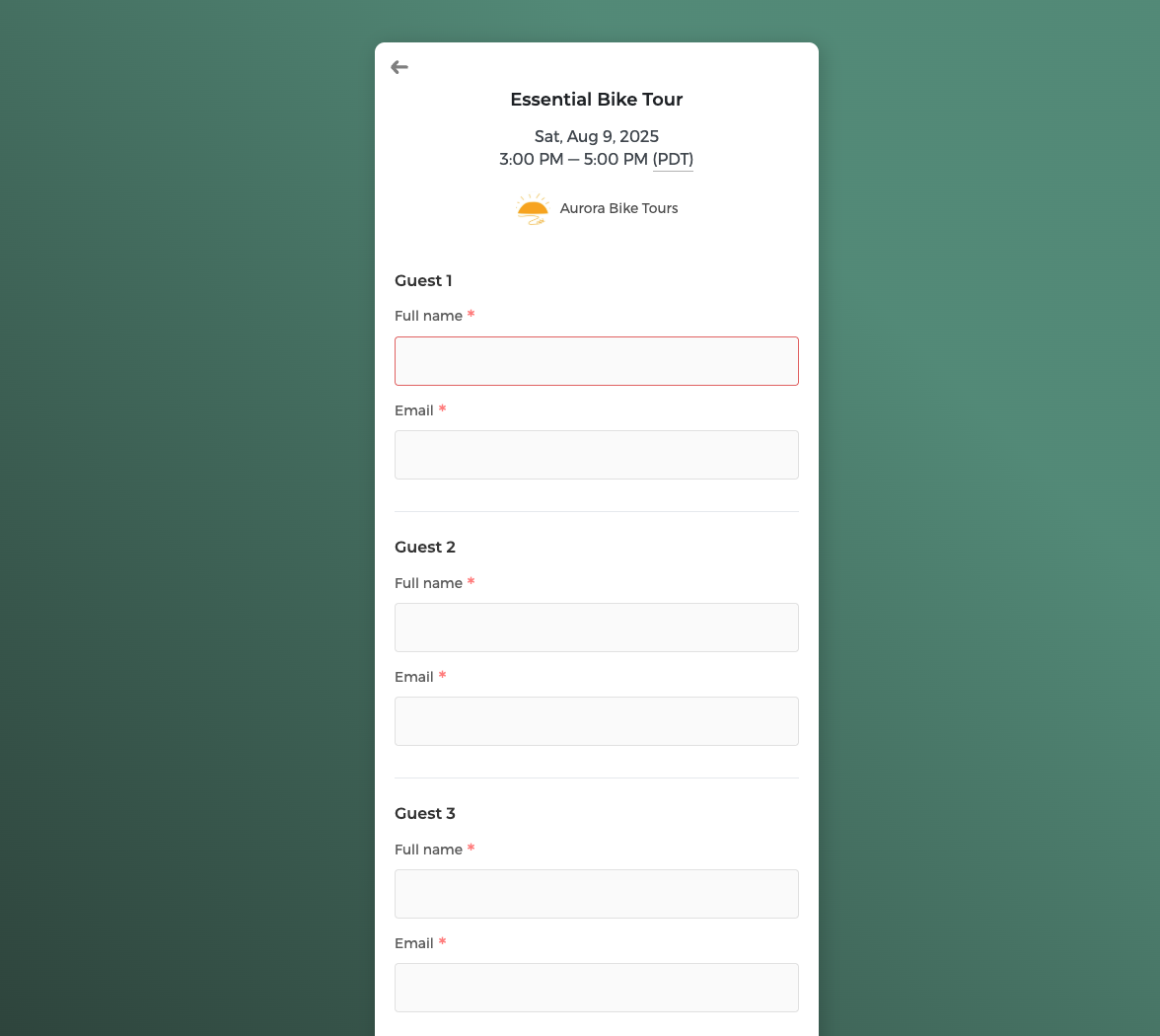
Once they select a time slot, they will land on the intake form. The booking guest will need to fill out the full name and email of each attendee. Each attendee will receive automatic email notifications about the booked event.
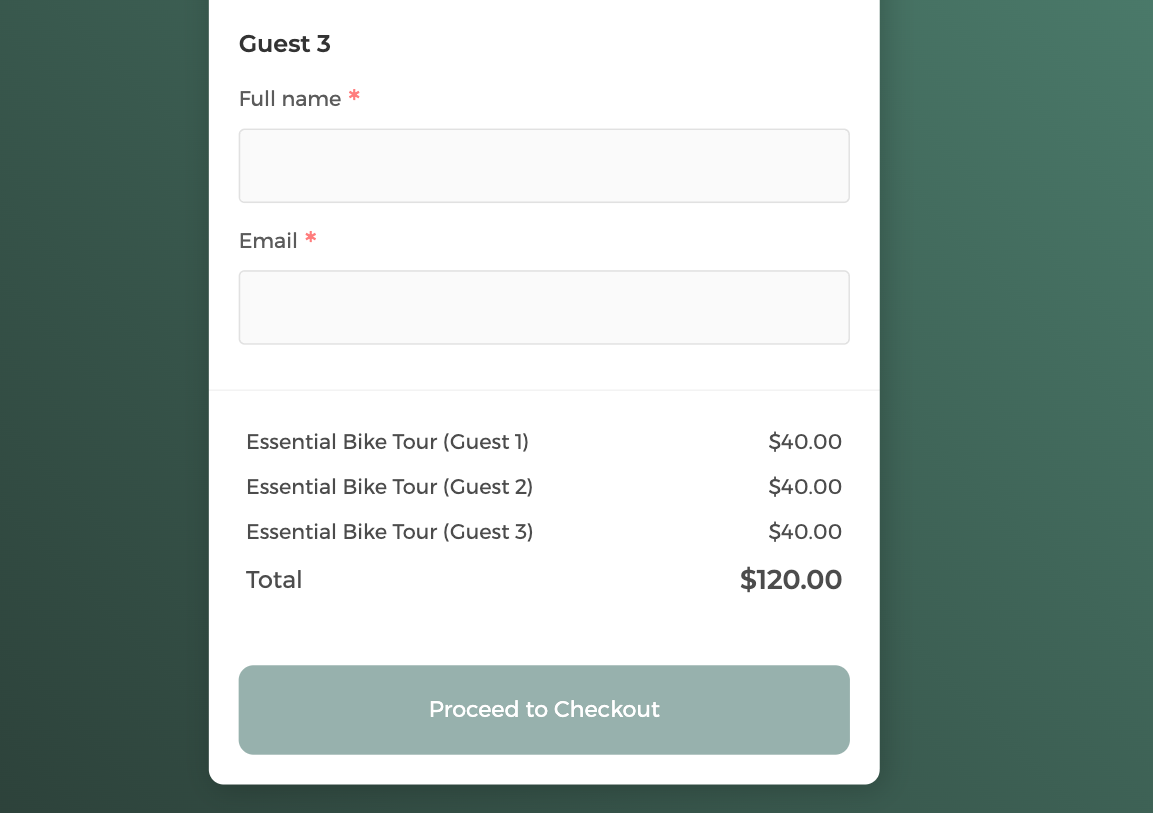
If you are charging a fee for the event, you will be paid on the number of attendees booked. For example, a family of 3 booking a bike tour will result in payment for all 3 attendees.
Additional Notes
Individual Guest Management
Each guest in a group booking is tracked separately with:
- Contact information and intake form responses
- Payment status and receipts
- Confirmation and reminder notifications
- Ability to cancel or reschedule independently
Smart Package Redemptions
When using service packages:
- Guests can choose to redeem package credits or pay directly.
- Package balances are automatically tracked per guest.
- Refunds and cancellations restore package credits appropriately.
Transparent Pricing
Each guest sees their individual charges clearly, including:
- Base event price
- Selected add-ons
- Package redemptions applied
- Individual payment receipts