
While CozyCal doesn't have a mobile app, you can add CozyCal's website to your home screen as a shortcut which makes it function just like an app. We've improved our navigation buttons on mobile devices, and now they're more accessible on tiny screens.
iPad or iPhone
- Launch "Safari" app. This does not work from the "Chrome" app.
- Enter into the address field the URL www.cozycal.com. Tap
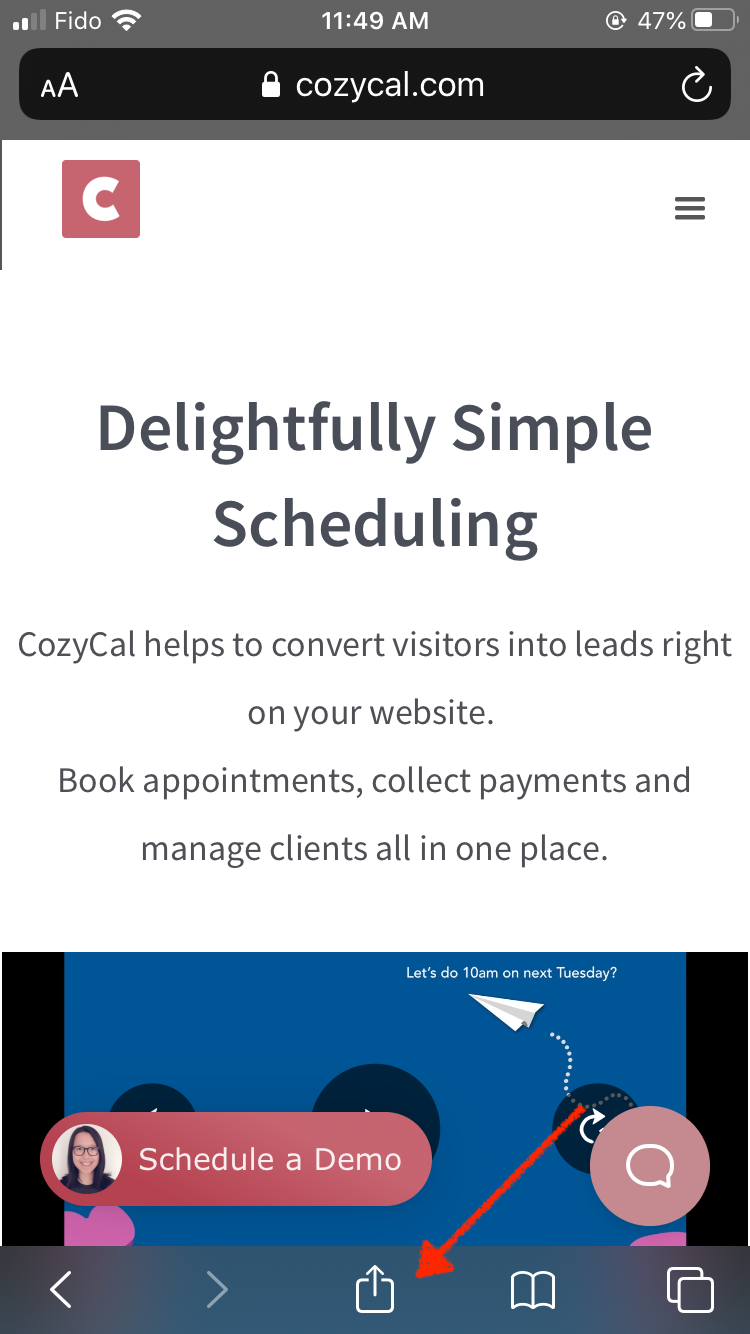
Go. - Then tap the Share icon at the bottom.
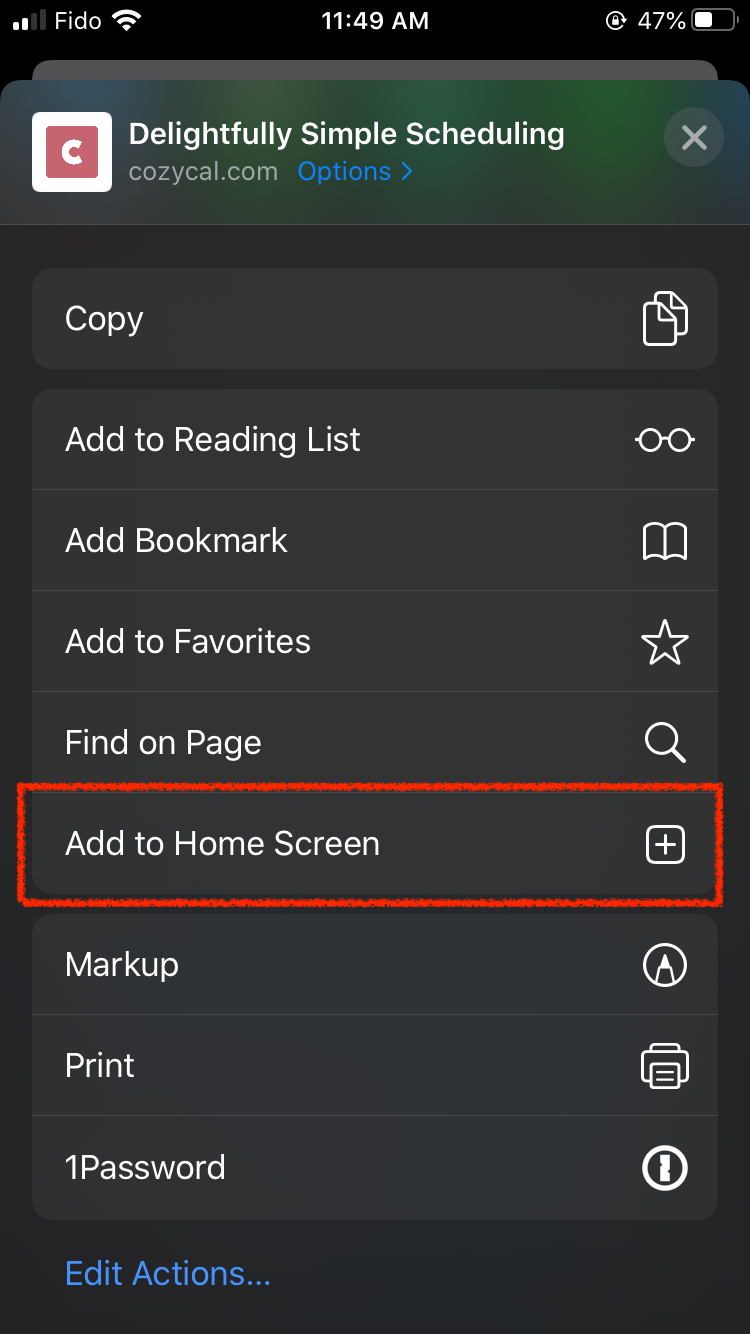
- Tap
Add to Home Screen.
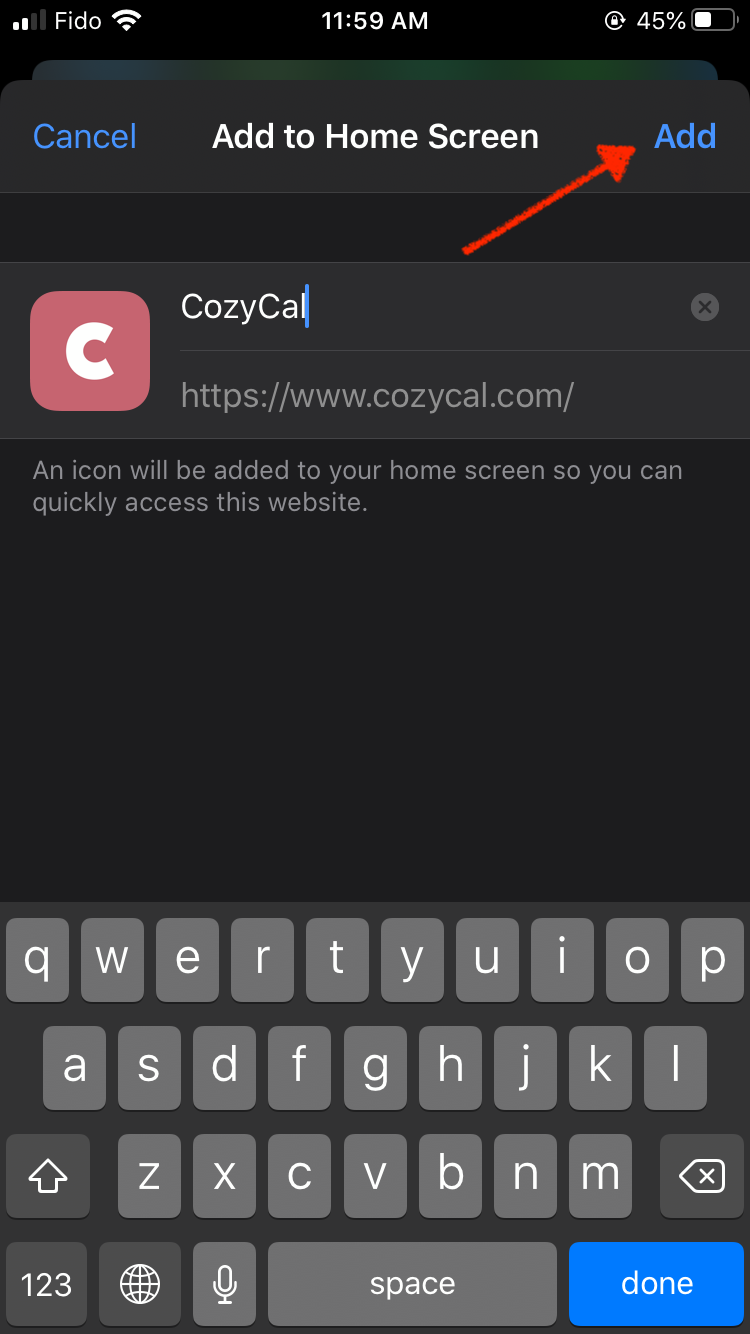
- Next, type in CozyCal for your shortcut and then tap the
Addbutton.
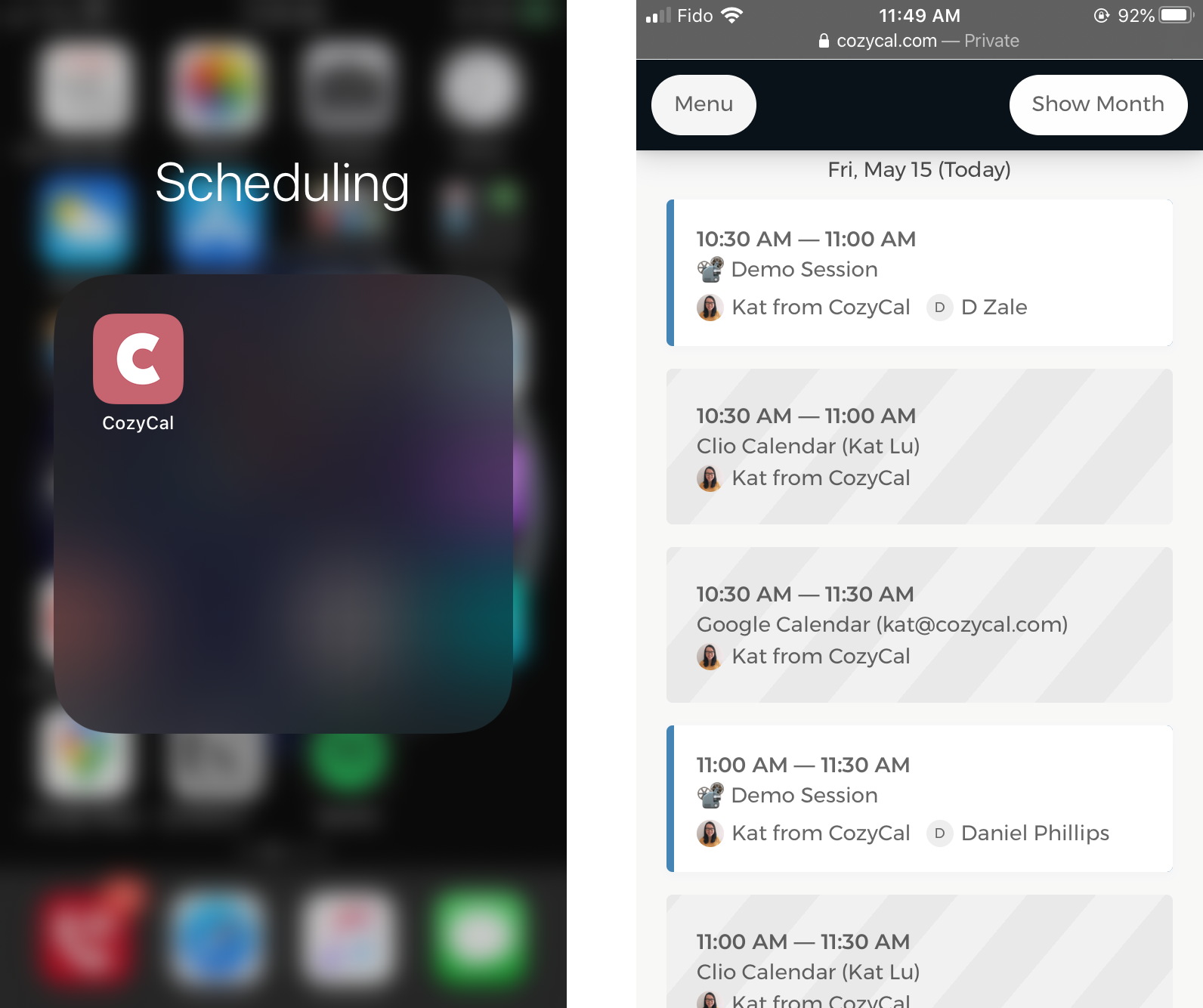
Now CozyCal's icon will be displayed as a shortcut on the home screen — just like an app. When you tap the CozyCal shortcut, log into your CozyCal account on Safari and view scheduled appointments with one glimpse.
Android
- Launch "Chrome" app.
- Open the www.cozycal.com.
- Tap the menu icon (3 dots in upper right-hand corner) and tap
Addto home screen. - Enter CozyCal for the shortcut and then Chrome will add it to your home screen.