Signed up with a Google account
By default, the Google calendar that is connected with the Google account you used to sign up CozyCal will be the calendar to which events are added.
- Click on "Settings".
- Under My Account Integrations, click on "Google Calendar & Meet".
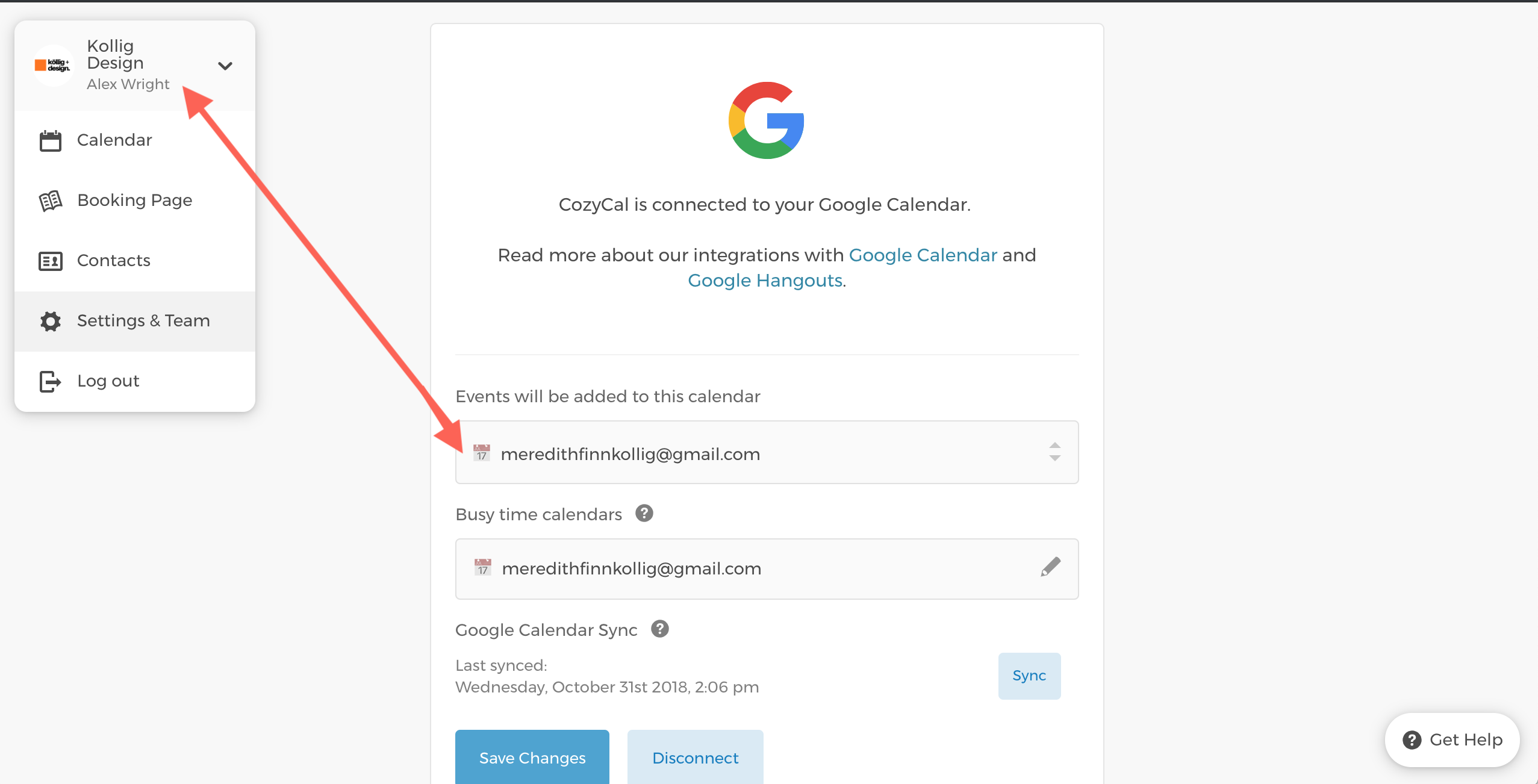
- You will see the Google calendar to which you can add the events.
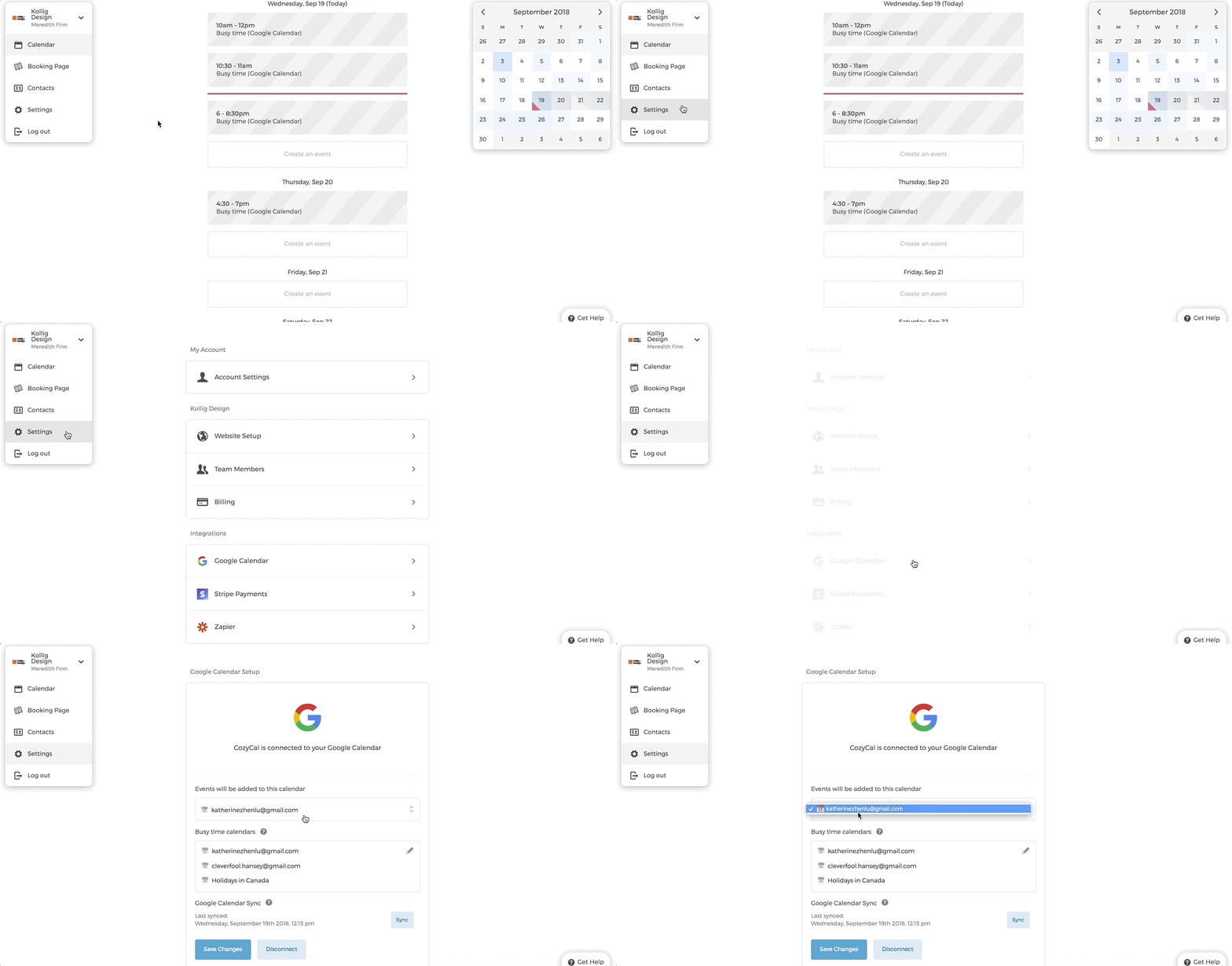
However, you can share and add other Google calendars as "Busy time calendars". In this way, any availability that overlaps with busy events in these calendars will not be shown to your guests.
You can learn more about sharing Google calendars in this post:
Share your Google calendar with others
Signed up with an email address
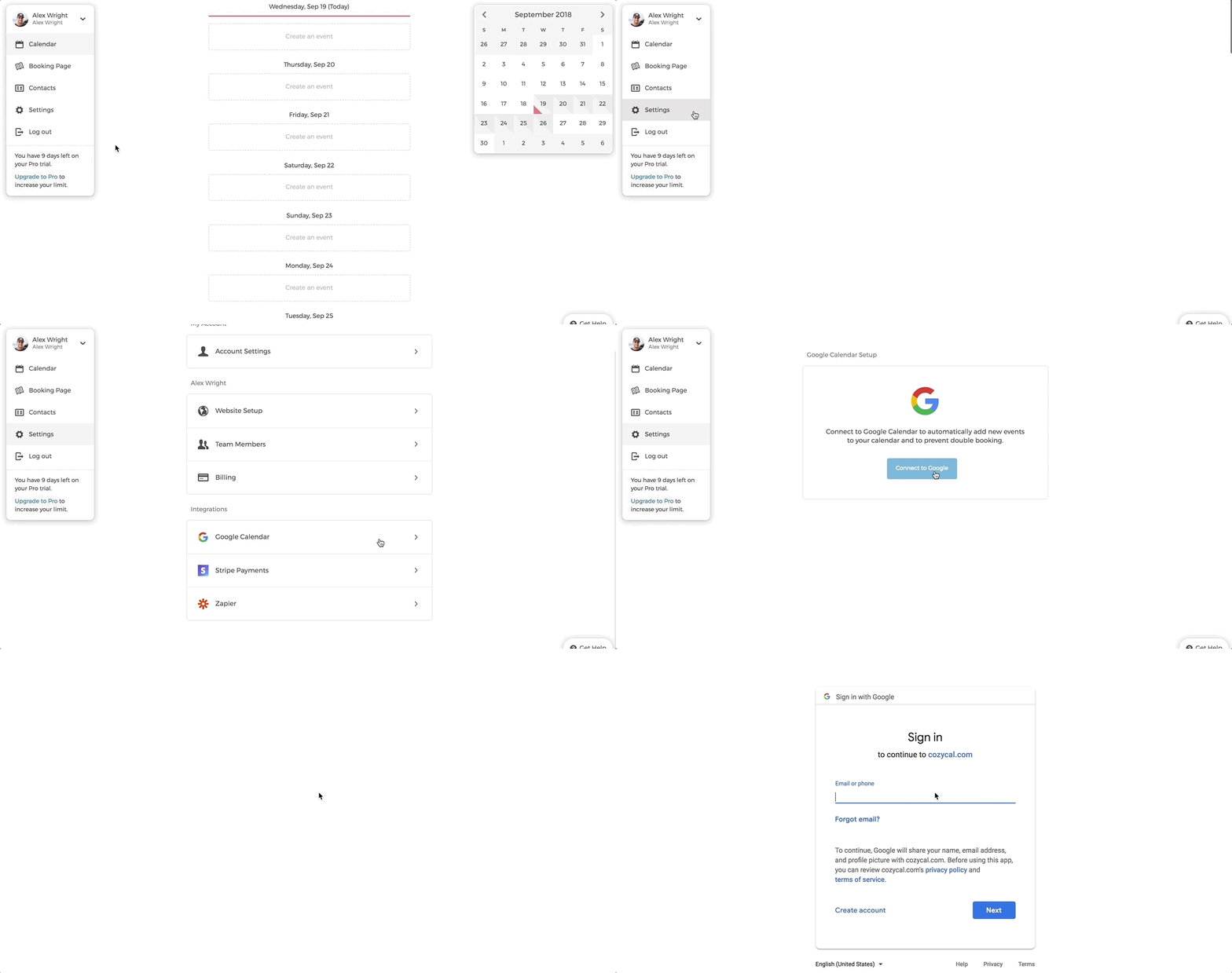
If you have signed up with your email account instead of Google account, you can choose to connect with a Google calendar within CozyCal.
- Click on "Settings".
- Under My Account Integrations, click on "Google Calendar & Meet".
- Click on "Connect to Google" and enter your Google account information.
Change to a different Google calendar
If you want booking notifications sent to a Google calendar different from the one you signed up with, you can switch it from your Google Calendar Settings.
In this example, Alex Wright wants his booking notifications sent to his teammate Meredith Finn's Google calendar:
- In
Settings, under My Account Integrations, click onGoogle Calendar & Meet. - Click on
Disconnect. - A notification will pop up — click
Ok.
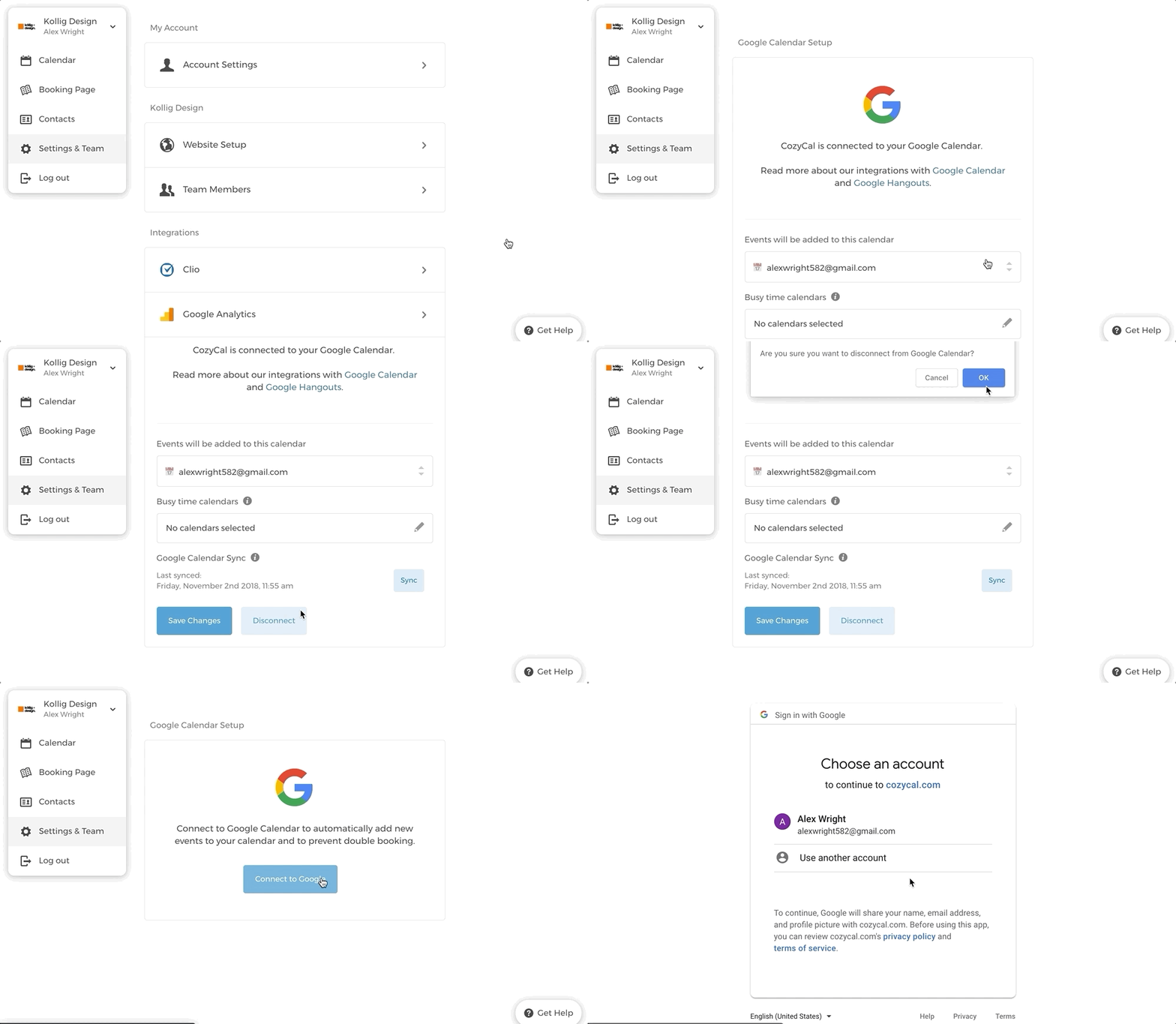
- Enter the email address and password for the new Google calendar you want to switch to.
- Click
Allowto grant CozyCal access to your Google account. - Click
Update Calendar List, thenSave Changes.
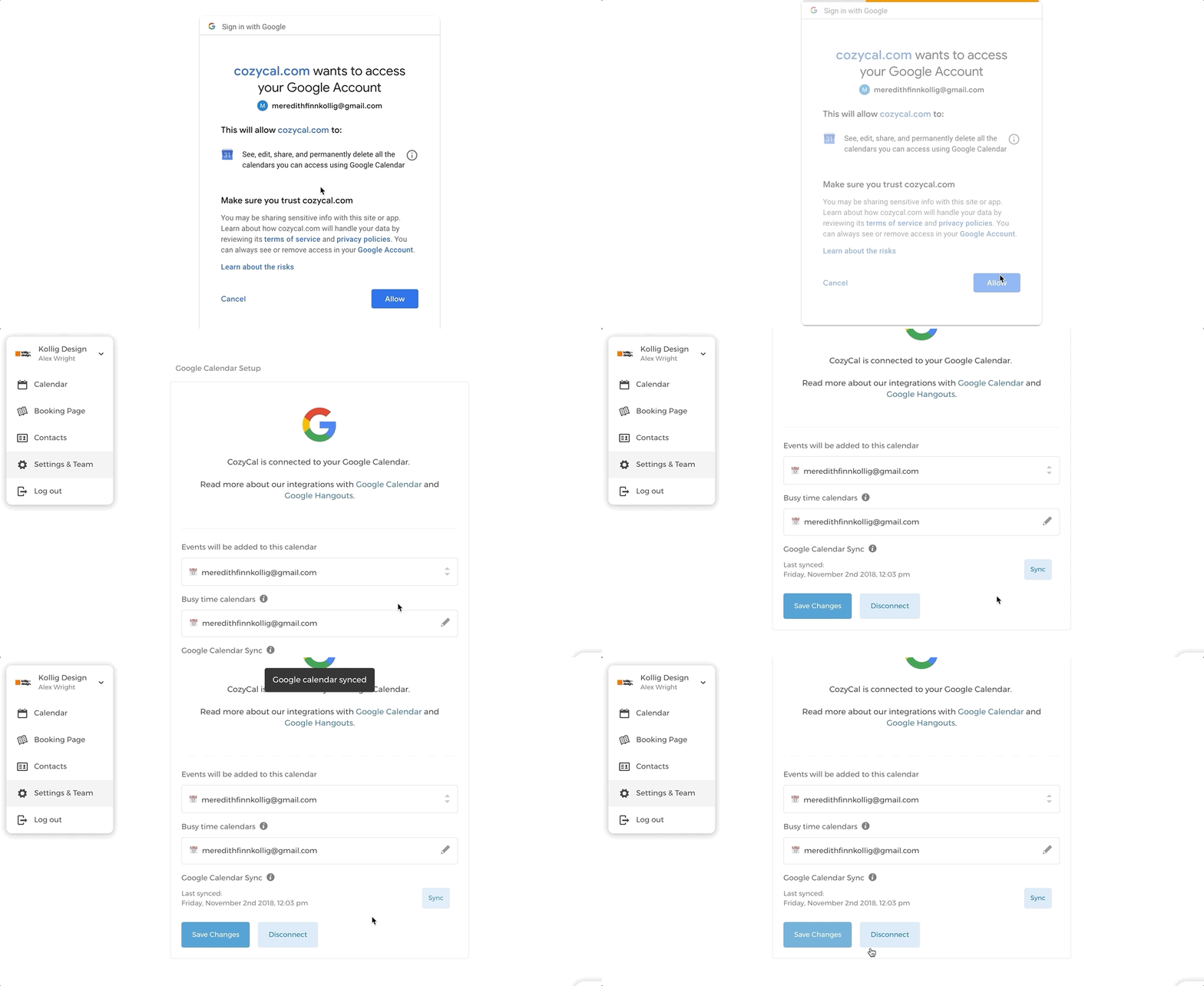
- Your booking notifications will now be sent to the new Google calendar.
To also forward email notifications to a different inbox, see How to forward Gmail using filters.