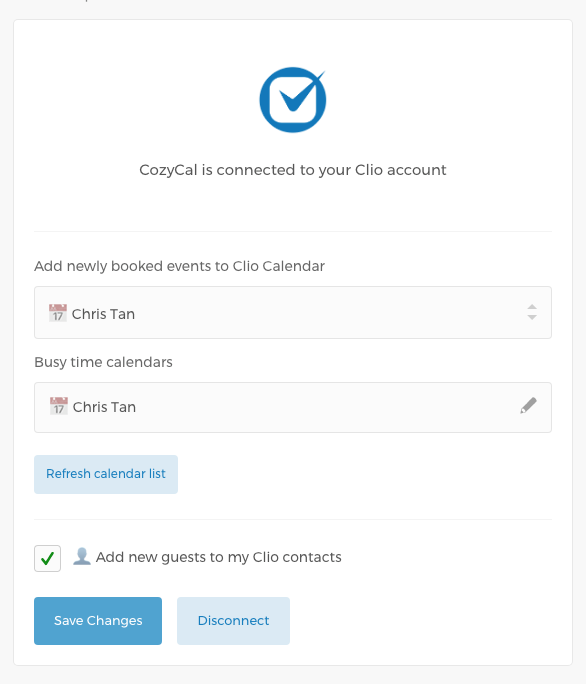
CozyCal integrates with Clio and lets you automatically add new guests to your Clio Calendar as well as optionally create a new Clio Contact.
The 2-way integration with Clio works as:
- If you delete a Clio calendar event that was created by CozyCal through Clio's dashboard, the event will remain in CozyCal. You will need to manually delete the event in CozyCal to make sure that time slot is freed up again on your booking page.
- If you cancel an event in CozyCal, then the associated Clio calendar event will be deleted.
- Booked events through your CozyCal booking page will be sent to your Clio calendar, and booked events on Clio will be shown on CozyCal.
Setting up Clio integration
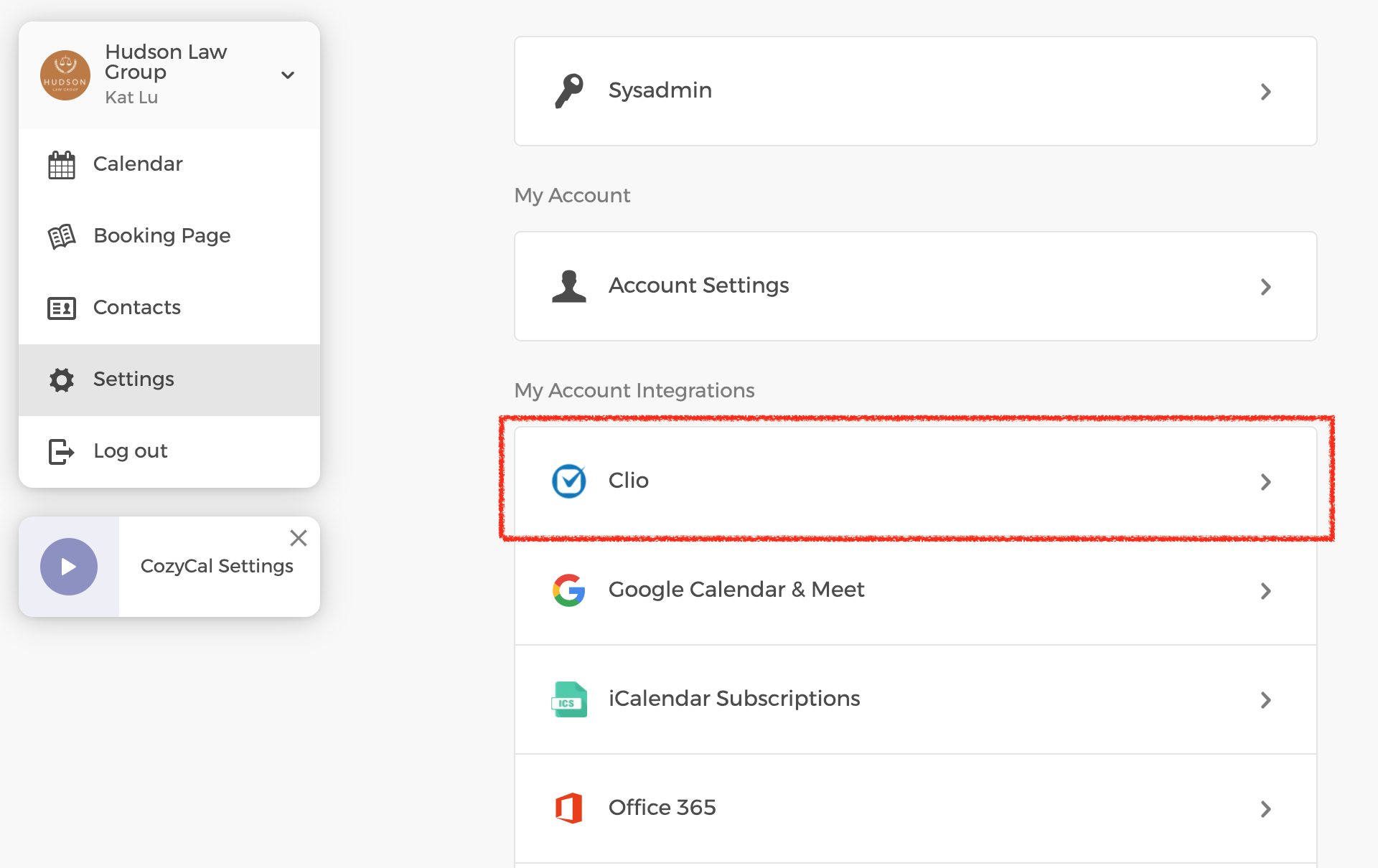
In your account, go to Settings > Clio
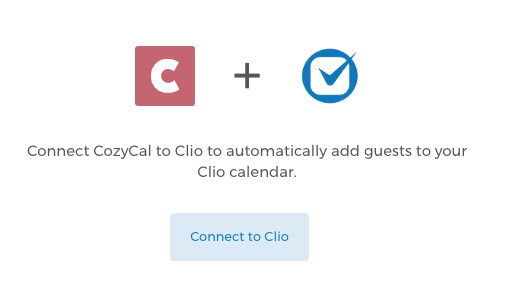
Next, click on the Connect to Clio button. You'll be asked to choose the region your Clio account is hosted in — select Connect to Clio USA, Connect to Clio Canada, or Connect to Clio Europe to match your account.
You'll be brought to a screen which asks you whether to allow CozyCal to connect to your Clio account. Click on Allow Access to continue.
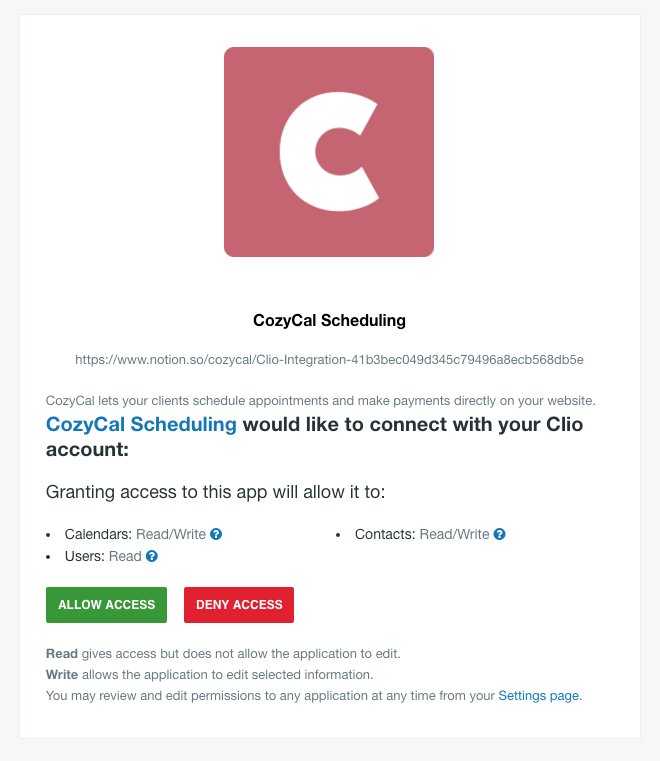
The following permissions are required:
- Calendars: used to add and remove events from your Clio calendars
- Contacts: used to add new guests to your Clio contacts
- Users: used to fetch your Clio User ID, in order to support account disconnection via Clio. For more information see Clio's article on deauthorization.
Once you have connected your account, you'll be able to choose which Clio calendar to add events to as well as the calendars you'd like to block off time from.