
To automatically add a Google Meet link to new events, you will first need to connect to Google Calendar.
Integrating CozyCal with your Google Calendar is easy.
- Go to your
Settings - Under My Account Integrations, click on
Google Calendar & Meet - Click on
Connect to Googleto connect with your Google calendar.
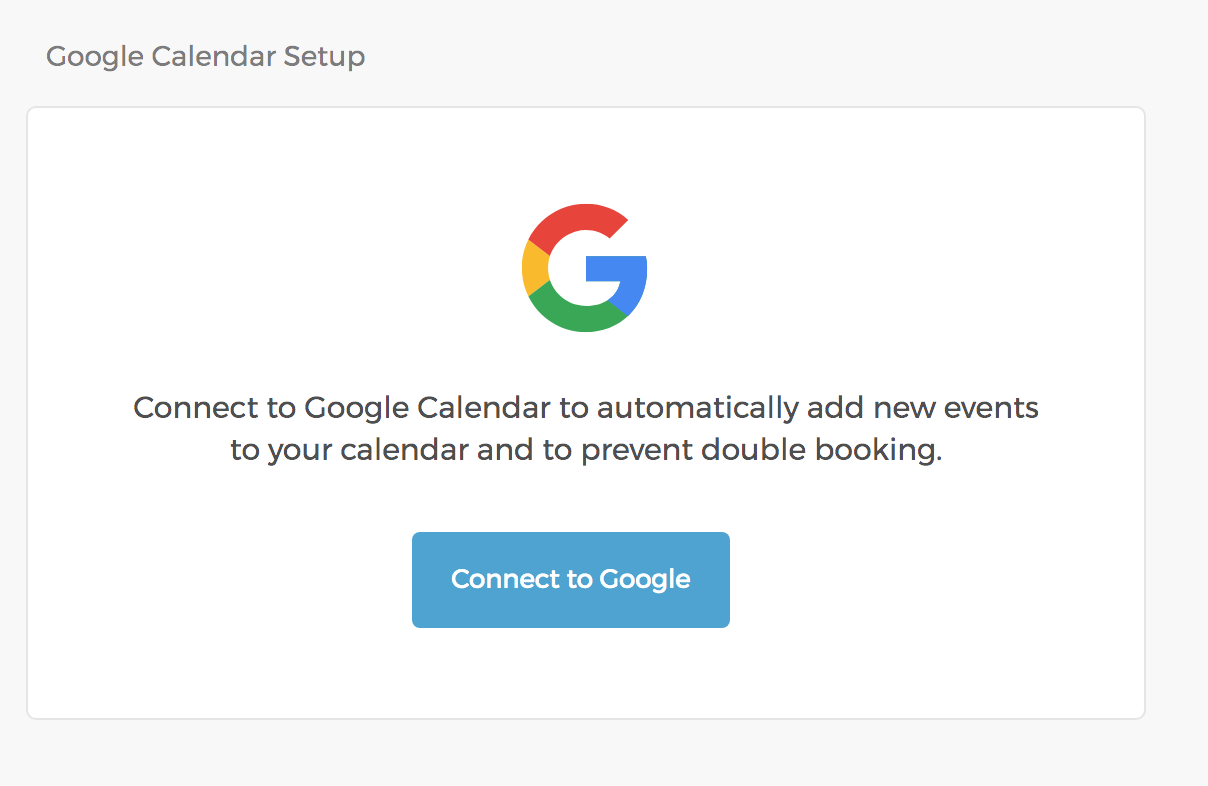
Once you've connected to Google, you'll be able to:
- Select a calendar where new events will be added.
- Select the calendars to be used to prevent double bookings.
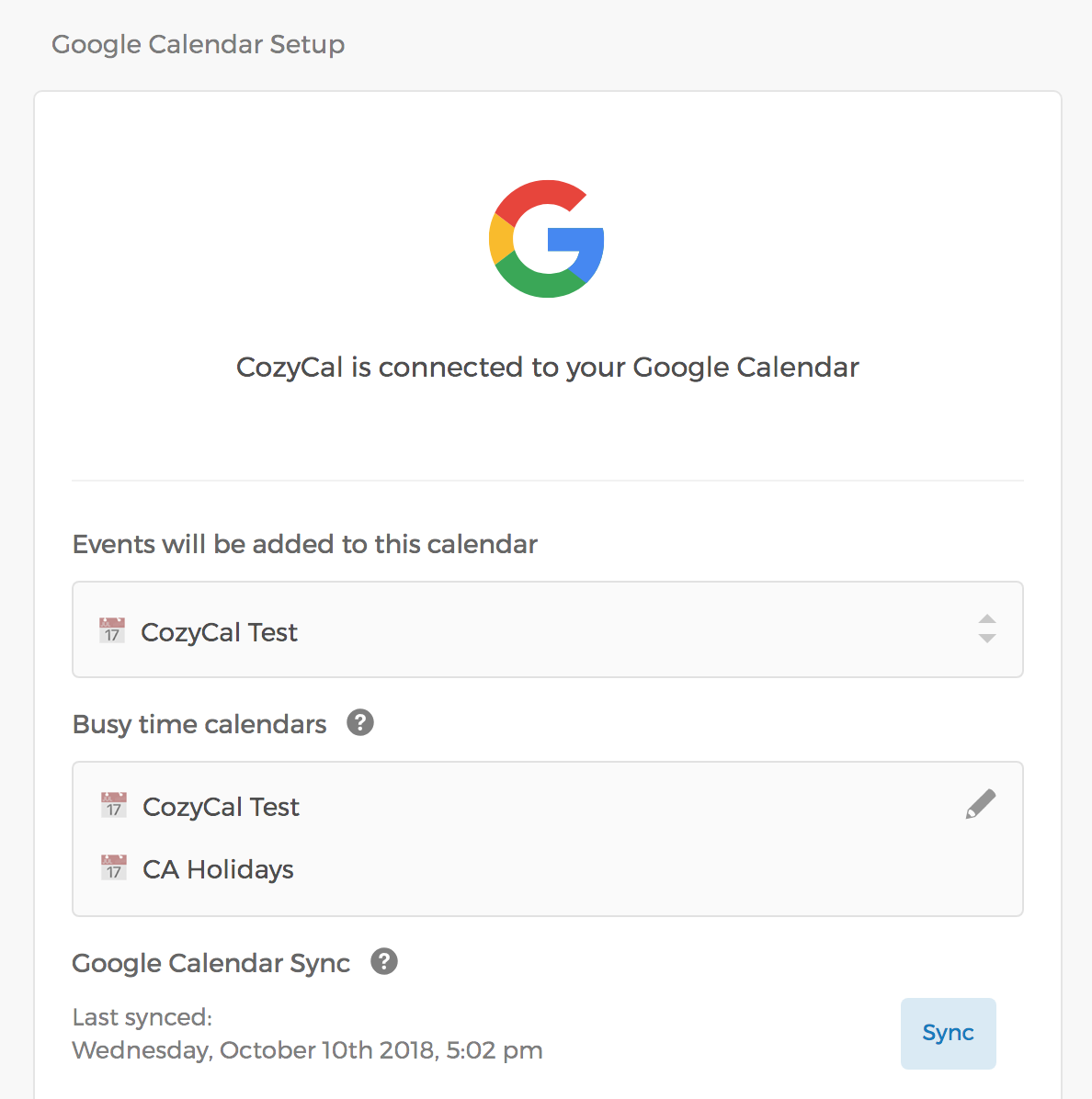
Google Meet links aren't enabled on this settings page — you turn them on per event type using the steps below.
Once you have connected to Google Calendar, you can set up Google Meet Integration by:
- Go to your booking page, select the event type that you want to add the Google meeting links.
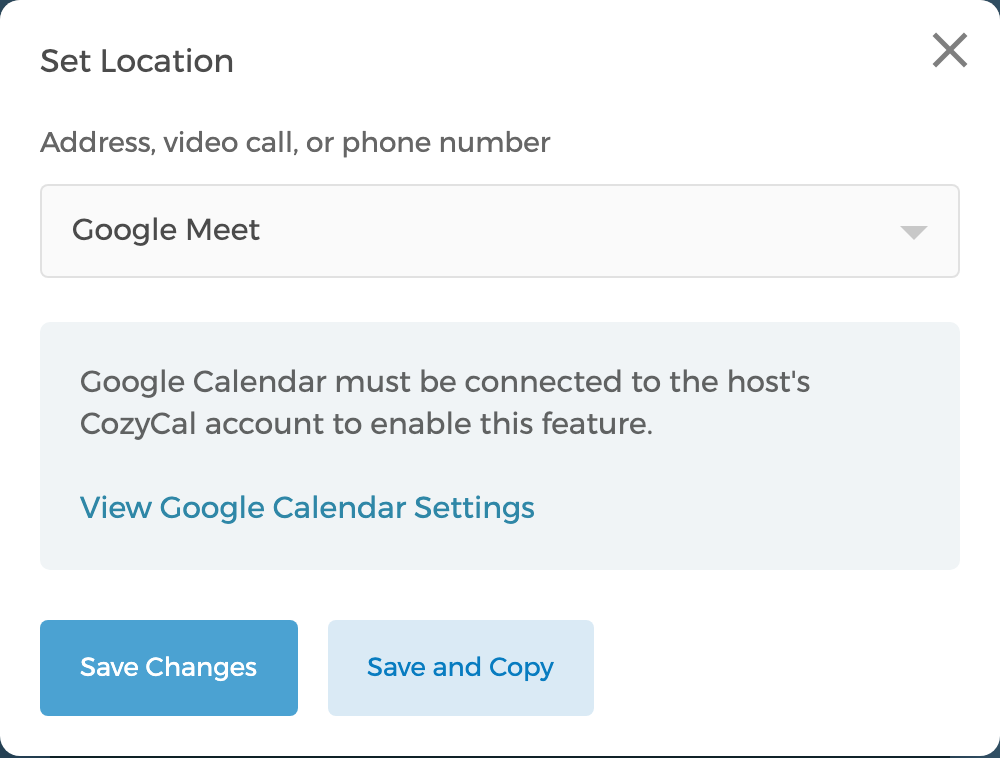
- On the navigation bar, click on Event Confirmation, then the
Set Locationbutton. From the Address, video call, or phone number drop-down menu, selectGoogle Meet, then clickSave Changes. - A unique Google Meet link will now be auto-generated each time a meeting is booked on that event type. (The host's Google Calendar must stay connected for the link to generate.)
A quick reminder that you can also click on
Save and Copyto duplicate the Event Location setting to other event types to save time.
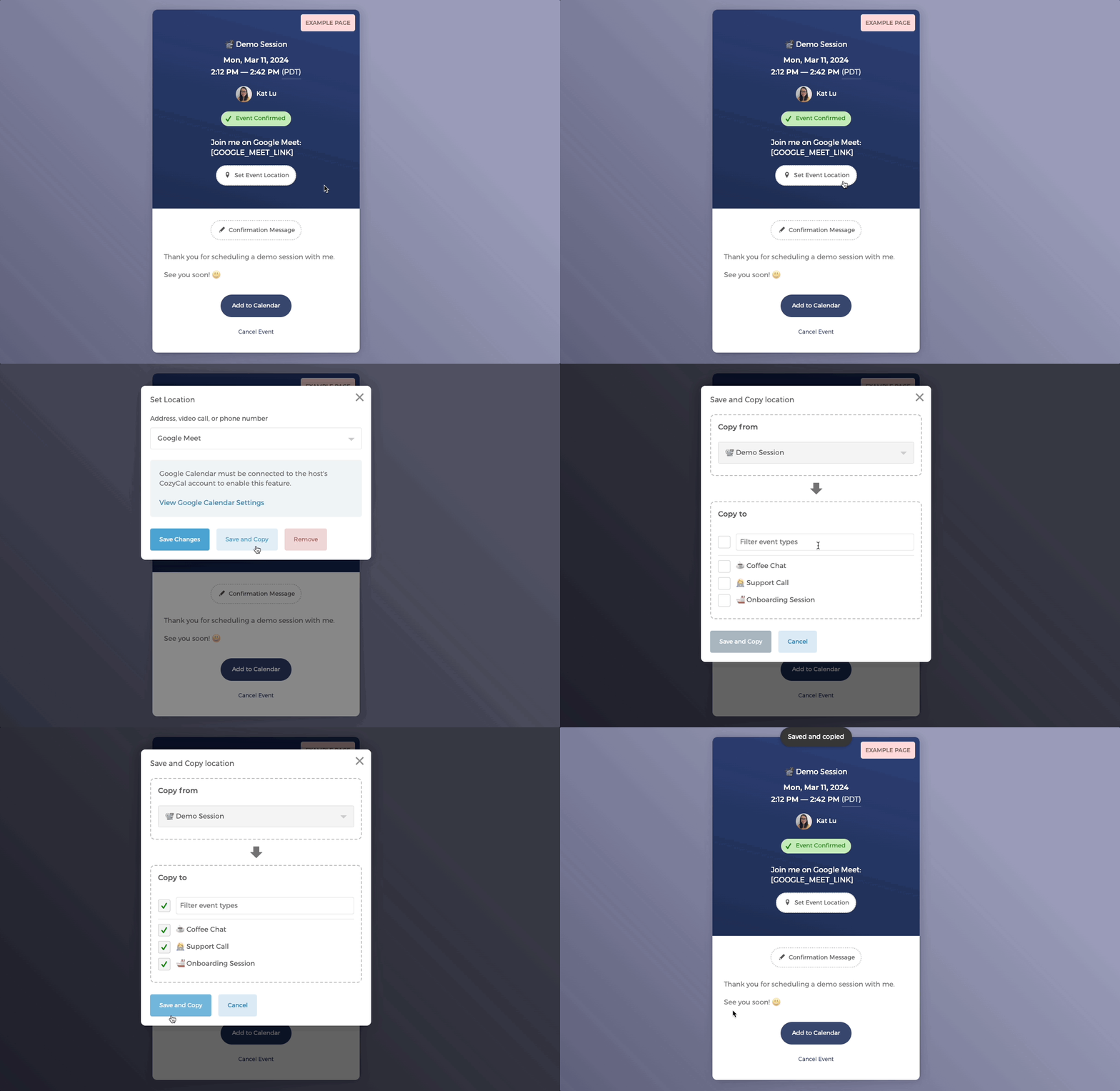
That's it! You and your guests will now see a Google Meet link whenever new events are booked on that event type.
Google Meet integration and notifications
- Notifications for guests:
When guests book an event with you, they will receive a uniquely generated Google Meet link:
- on their confirmation message
- calendar event description (if they choose to add the event to their calendar using the
Add to Calendarbutton)
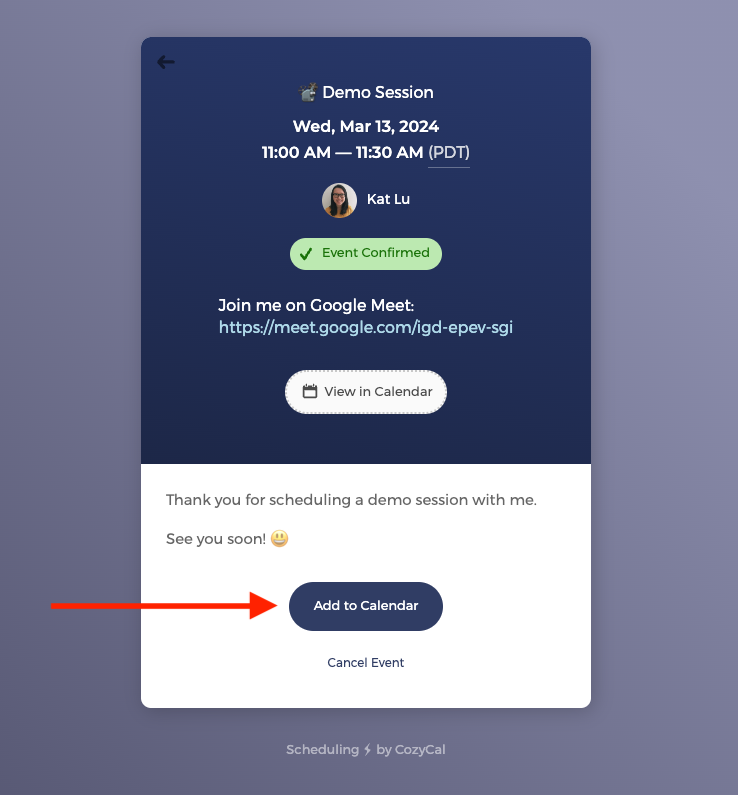
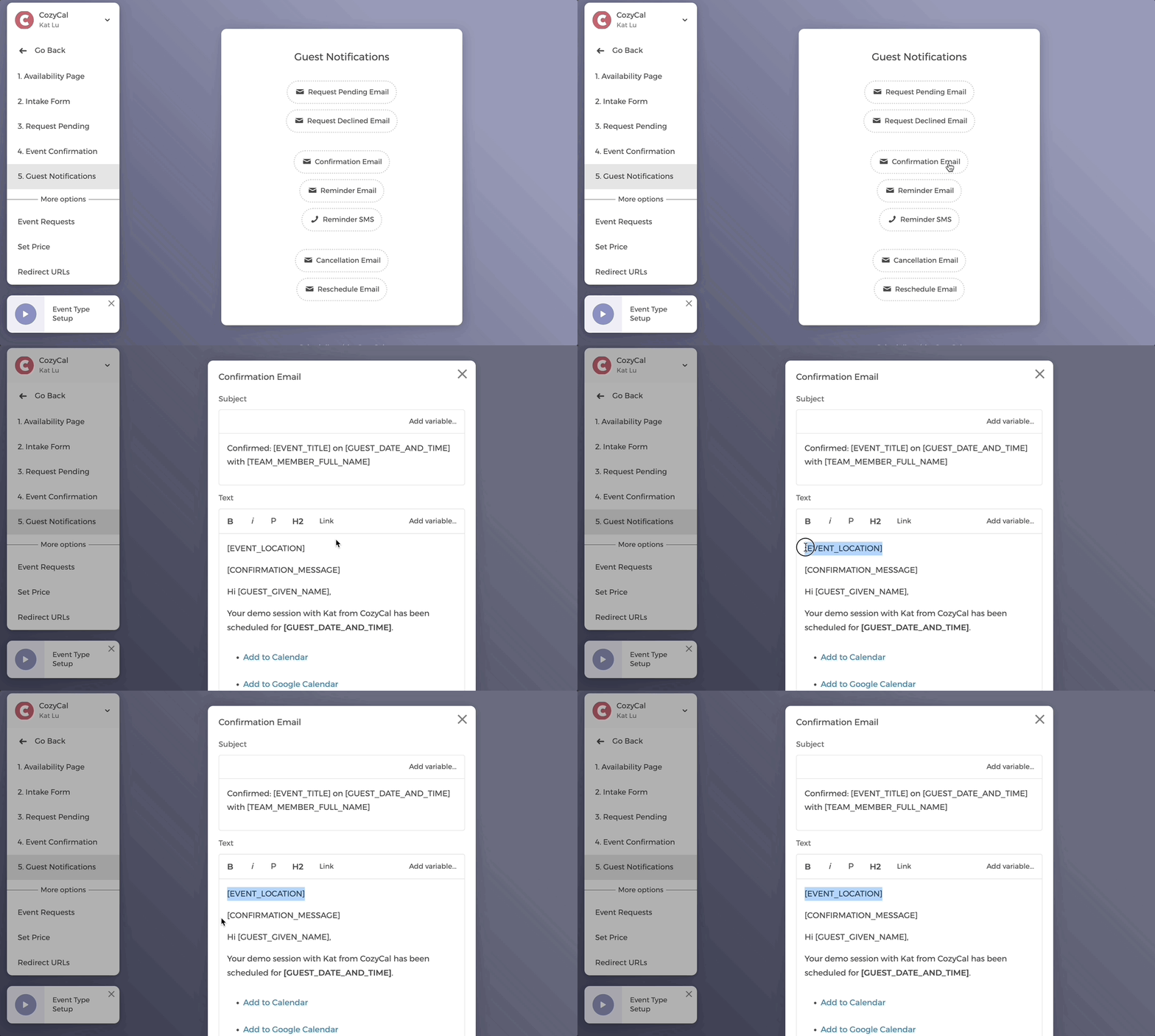
Notice that in the Confirmation Message, the message is included as the [EVENT_CONFIRMATION] tag in your email templates. So when your meeting information is included in the Confirmation Message, it will also show up in guests':
- confirmation email
- reminder email
- Notifications for hosts:
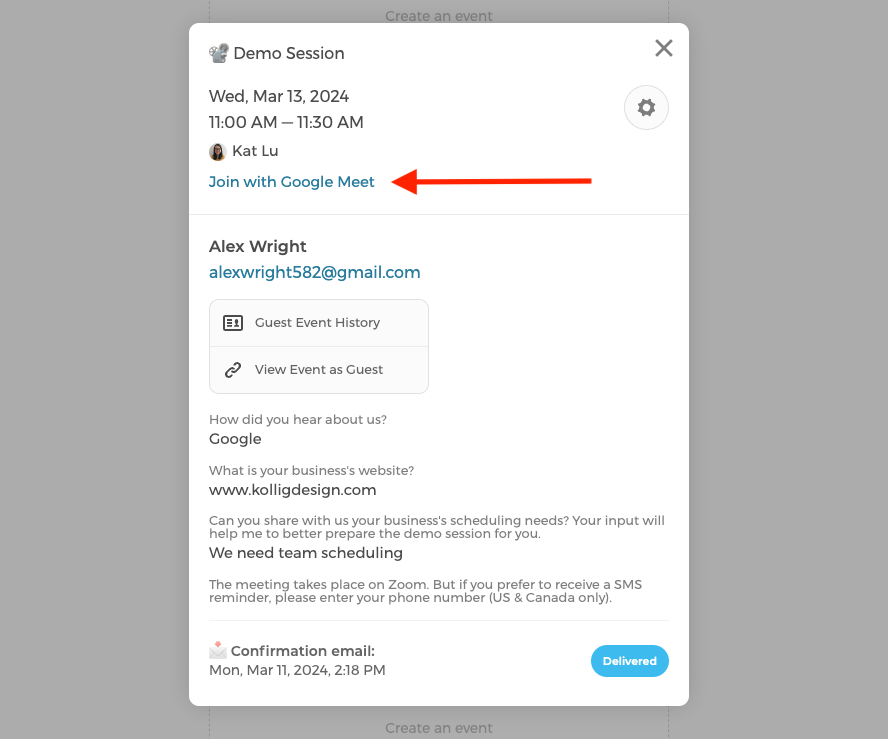
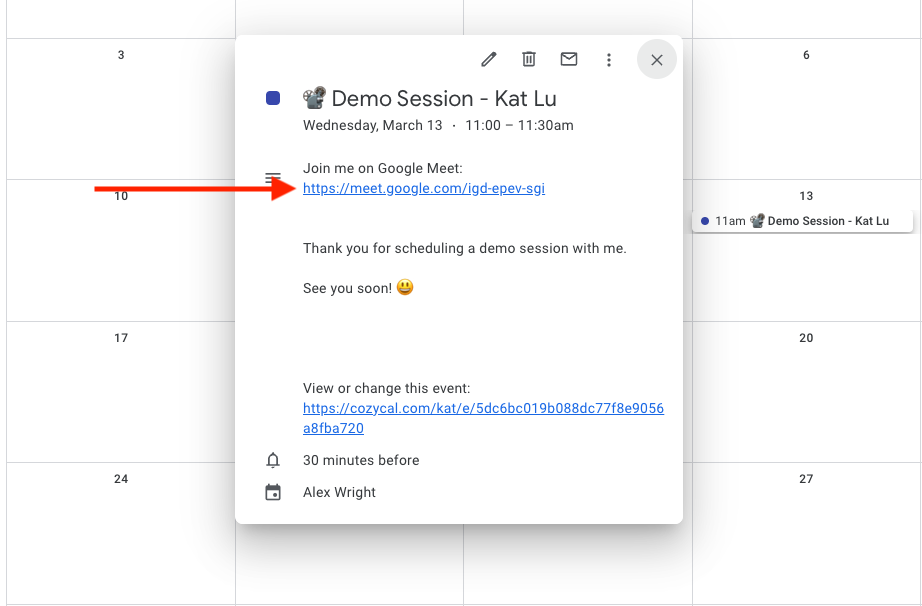
On your end, the Google Meet meeting information will be showing in your:
- CozyCal calendar's appointment event details
- Event description of your integrated calendar (e.g., Google calendar)
Google Meet integration for teams
If you have multiple members on your booking page, each team member can connect their CozyCal account with their own Google account separately. They will not need permission from the admin to integrate their CozyCal account with Google.