
With our Stripe integration, you can directly receive payments when guests schedule events through CozyCal.
Connect with Stripe
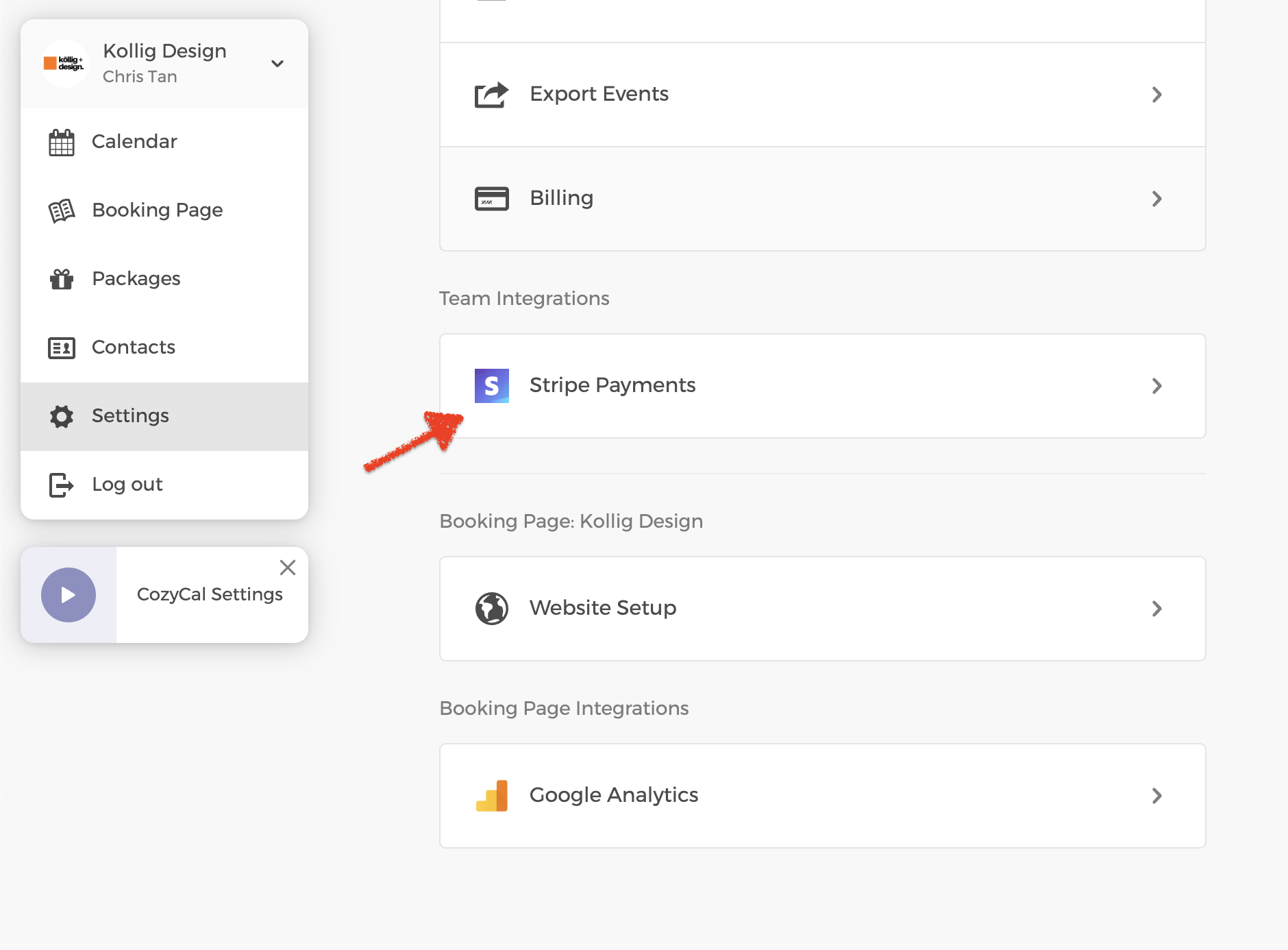
Go to Settings → Stripe Payments → Connect to Stripe
Add pricing to event types
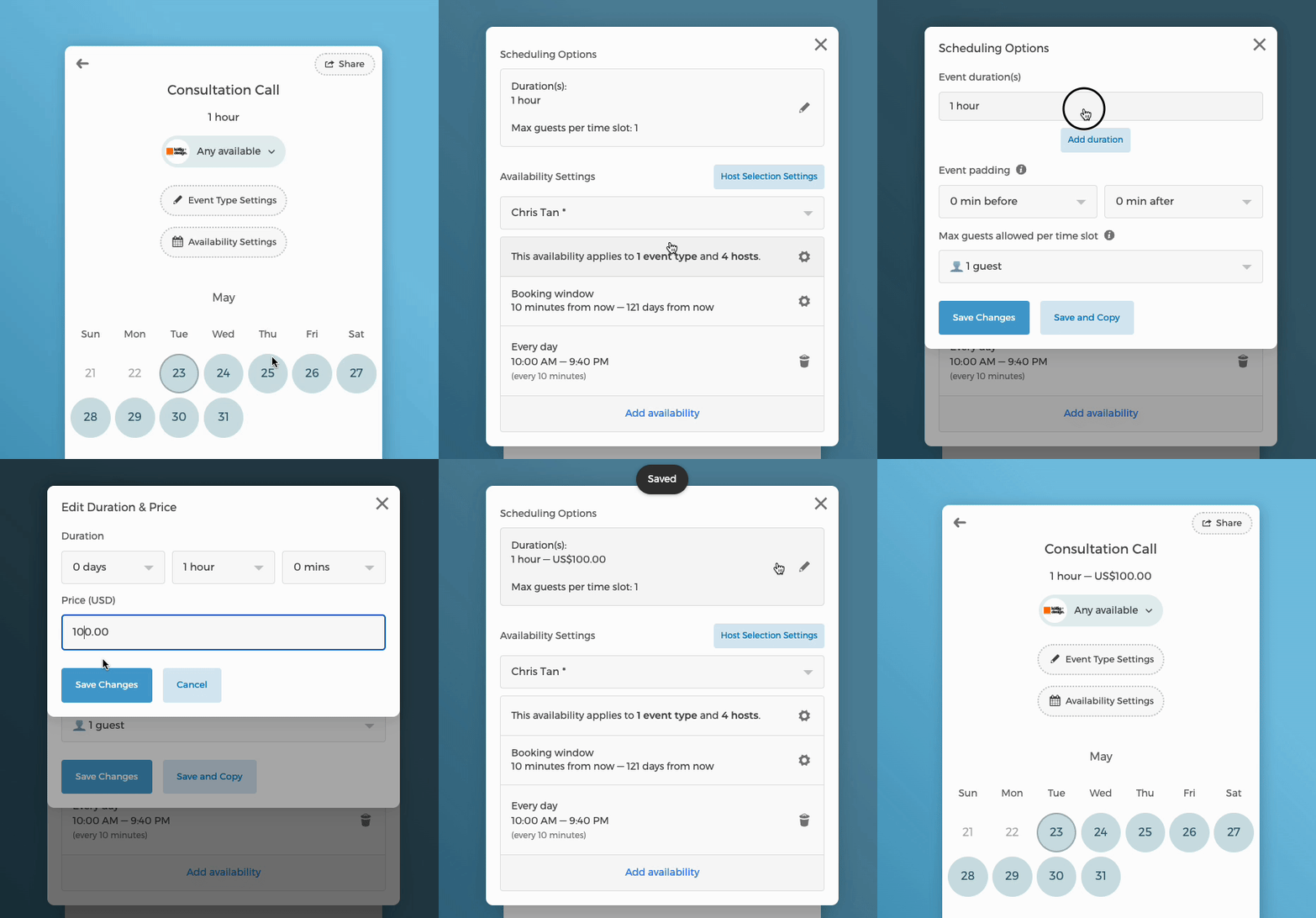
- On your home booking page, click on the event type that you want to set a price on
- In the event type's sidebar, under
More options, click onSet Priceto set the price for all durations at once - Alternatively, go to the
Availability Page→Availability Settings→ then add a price to the Duration - When you return to the booking page, you will see the pricing listed next to your event type
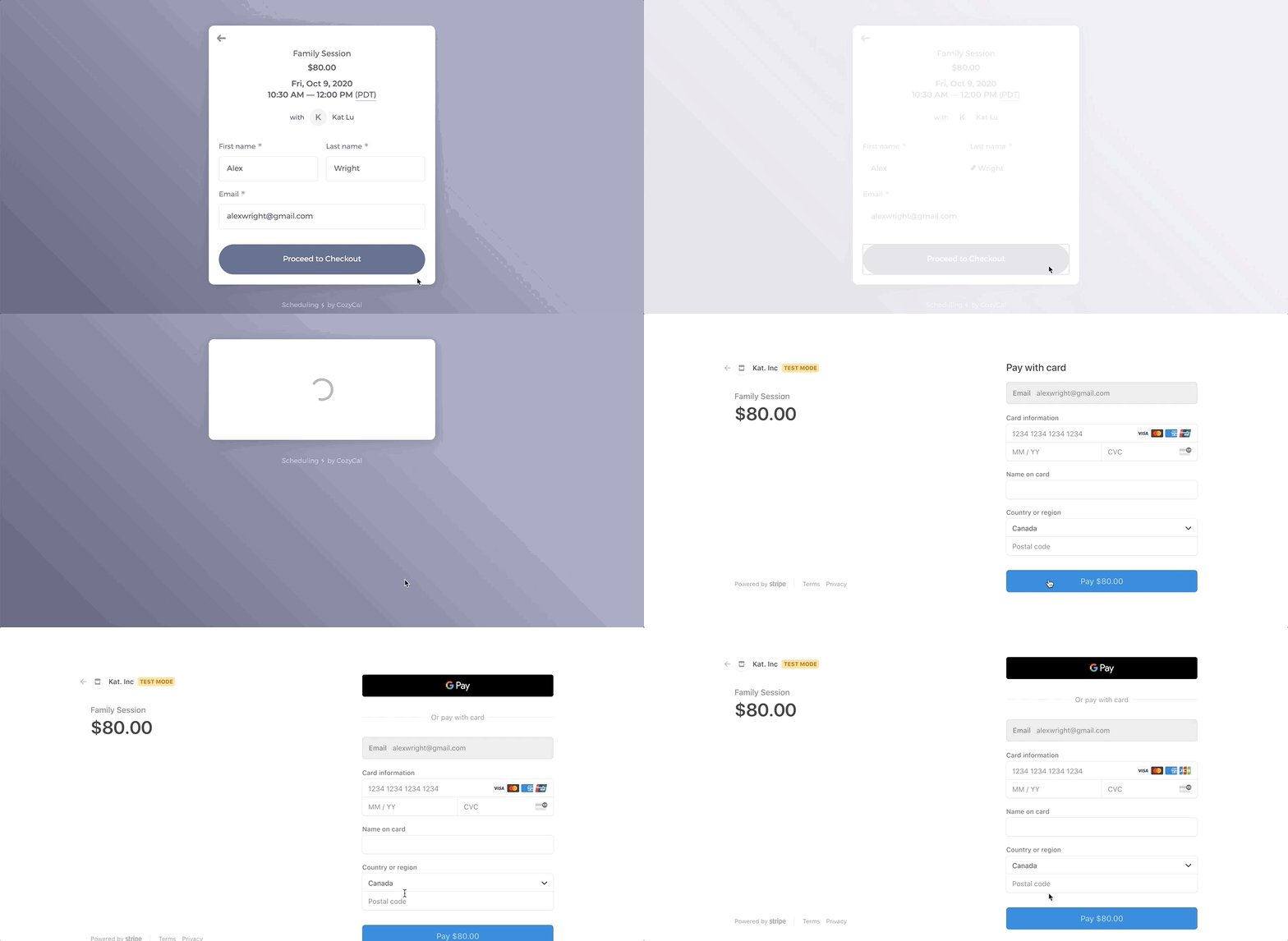
When your guest books an event type, they will be asked to proceed to checkout. Guests will be directed to Stripe's interface where they can fill out their payment information.
Paid Add-ons
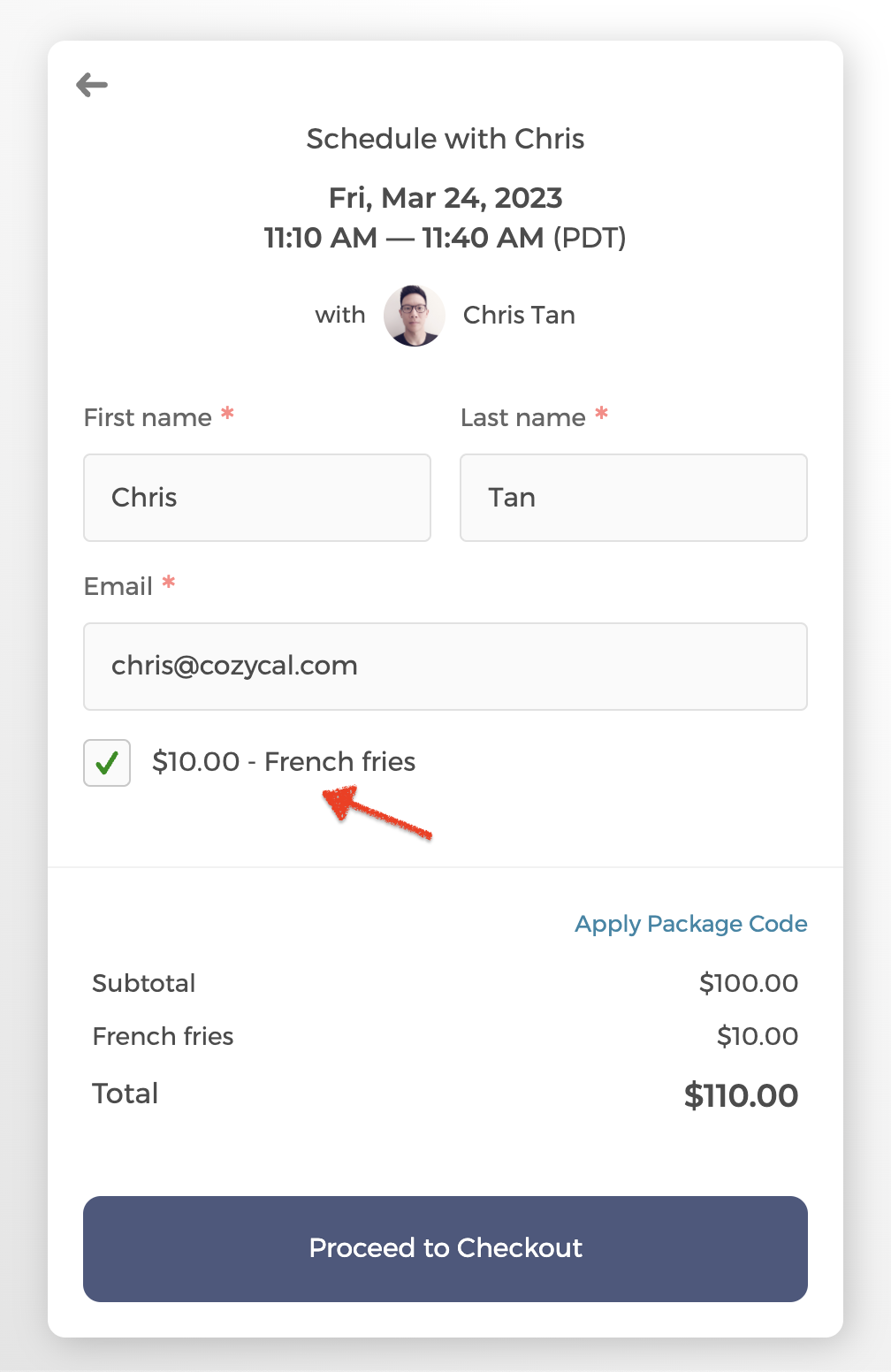
You can also set paid add-ons in your event type's intake form. This allows your guest to choose additional services or products for an extra fee.
To setup paid add-ons, go to your event type's Intake Form → Edit Intake Form. Next, click Add a Form Field and choose the field type Add-on.

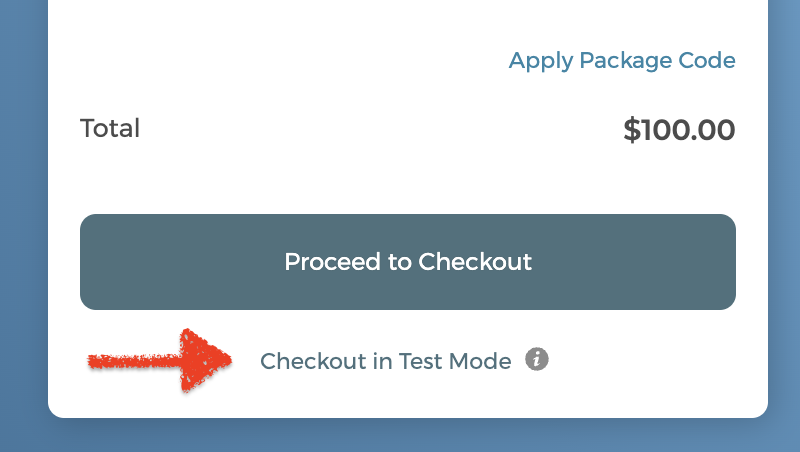
Checkout in Test Mode
To book a test event without charging a real card:
- Login as an admin
- Choose a time slot and fill out the intake form
- Click on
Checkout in Test Mode - You can use the card number
4242 4242 4242 4242
You can manage your payment methods (Credit Card, Apple Pay, Google Pay, iDEAL, etc.) on your Stripe Dashboard.