If you have more than one team member attending a scheduled meeting as hosts, you can pool the availability of all hosts and ensure that each team meeting is staffed efficiently and without conflicts.
Adding hosts to an event type
On your booking page, go to the event type that you want to edit.
On the "1. Availability Page", click on
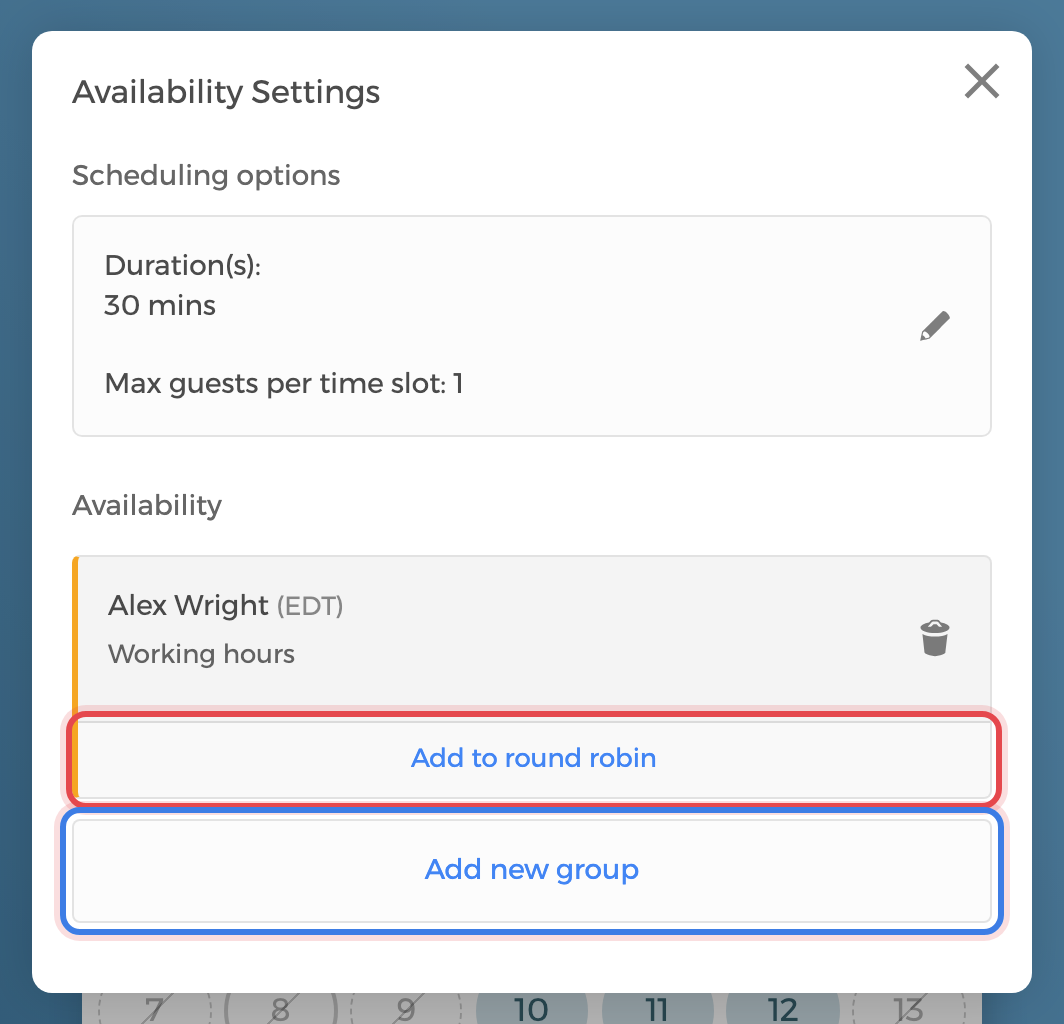
Availability Settings, and add your availability. If you haven't added any availability yet, follow this guide "Add availabilities to event types".Once at least one host has availability, two buttons appear at the bottom of the
Availabilitysection:Add to round robin— adds another host to the same group (the hosts in that group rotate).Add new group— adds a host in a separate group of their own.
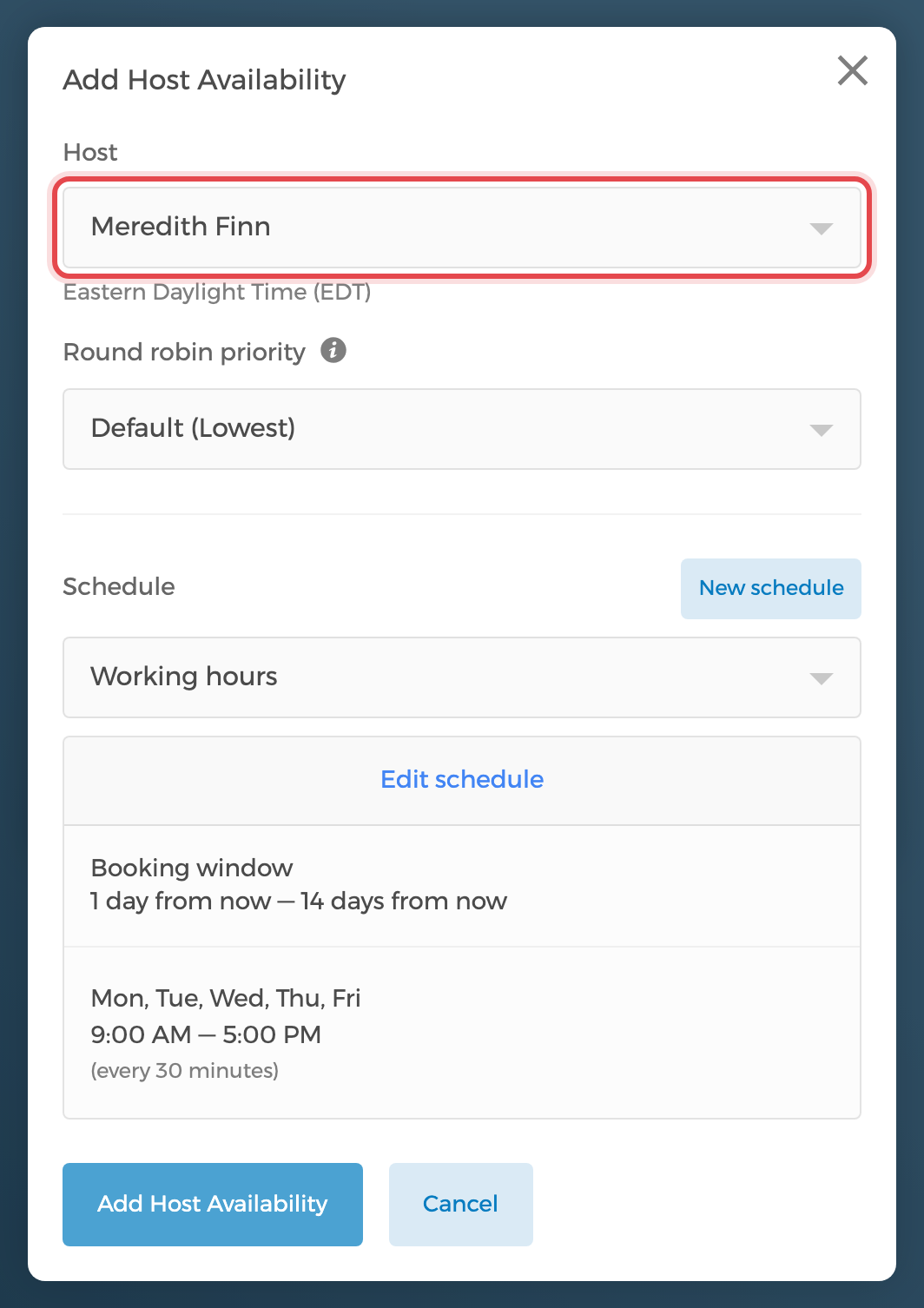
After clicking one of those buttons, the Host Availability editor opens. Under the
Hostdropdown, select the host you want to add — this is an important step. Pick (or create) a schedule for them, then clickAdd Host Availability.In this example, we're adding Meredith Finn as a host of the "Estate Planning" event.
Reserved vs. round-robin hosts
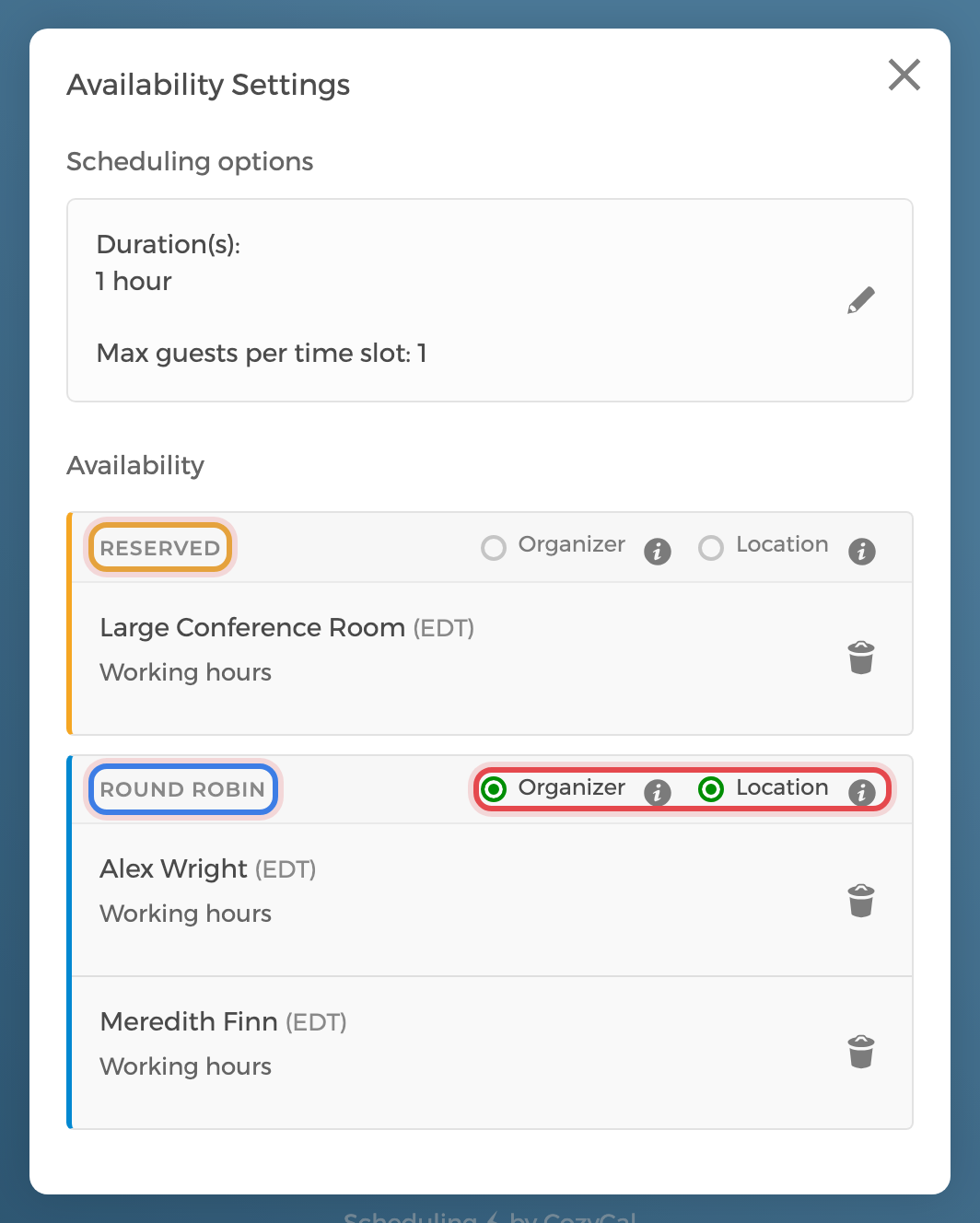
In Availability Settings, hosts are organized into groups, and the group layout determines how each host is assigned:
- A host that is alone in its own group is labeled
Reserved— they always attend every scheduled meeting. - Hosts placed together in the same group are labeled
Round Robin— one of them is auto-assigned to each booking in rotation, balancing the workload.
To make a host reserved, put them in their own group with Add new group. To make hosts rotate, place them in the same group with Add to round robin.
When more than one group exists, each group also has its own Organizer and Location radio toggles, which control who is set as the event organizer and whose location (e.g. Zoom or Google Meet link) is used. Don't forget your changes are saved automatically.
You can also add resources such as rooms — for example, a Reserved "Large Conference Room" that is always included in every booking. For details, see "Set up resource booking".
In the example below, the Large Conference Room is a reserved resource, while Alex Wright and Meredith Finn are in a round-robin group, with the round-robin group set as both organizer and location:
Round robin priority
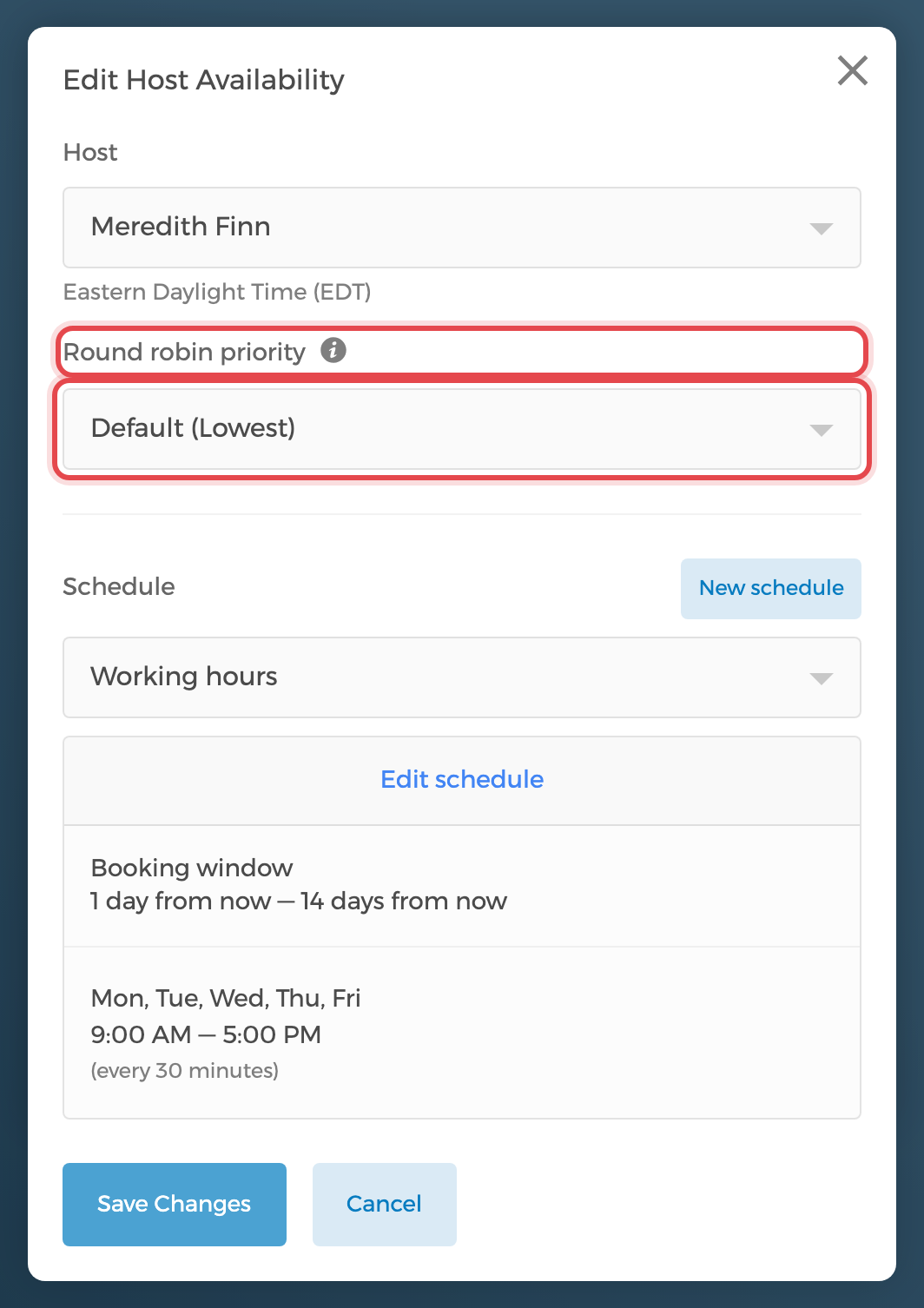
For hosts in a round-robin group, Admins can set a priority level so the most critical team members or spaces are favored when bookings are assigned. The available levels are Default (Lowest), Low, Medium, High, and Highest.
Note: Only admins can set priority levels.
To set round robin priority, go to the event type's Availability Settings, click on a host to open the Host Availability editor, and choose a level under Round robin priority.