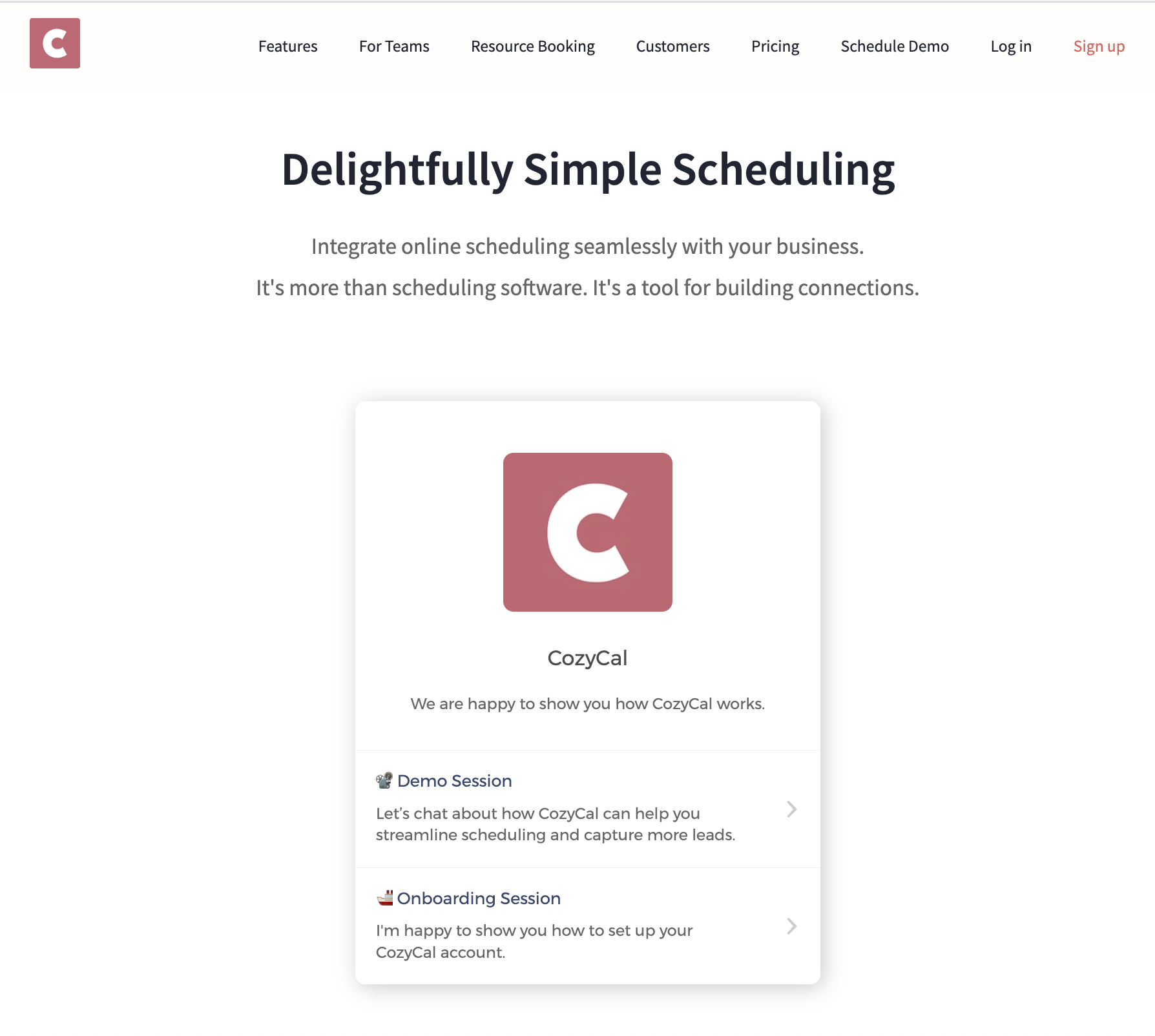
Website specific guides:
It's easy to add CozyCal to your website. Just go to your booking page (while logged in), then click on the Share button → Add to website
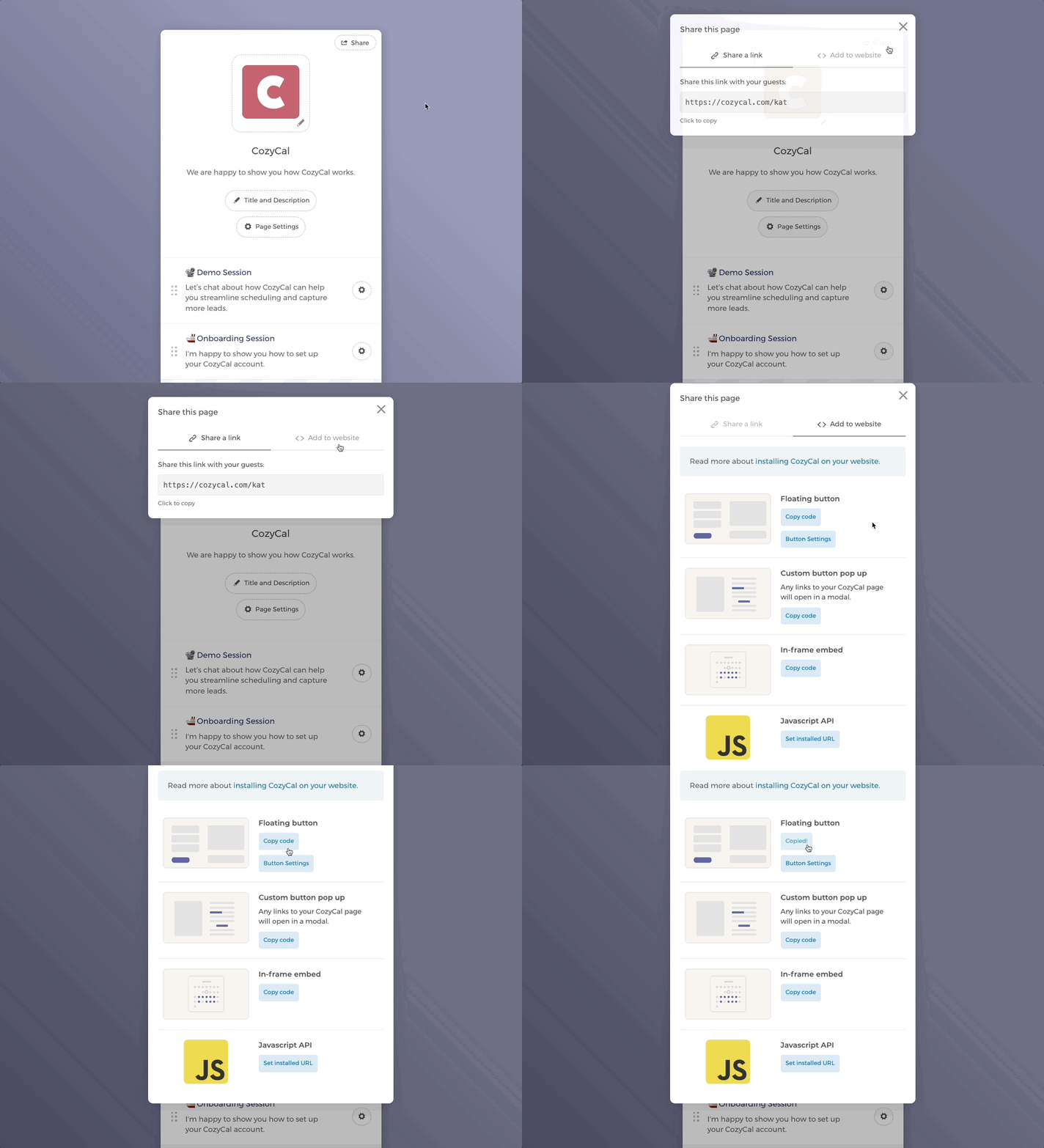
There are three embed options:
- an in-frame embed
- a custom button pop up
- a floating button.
The Floating Button
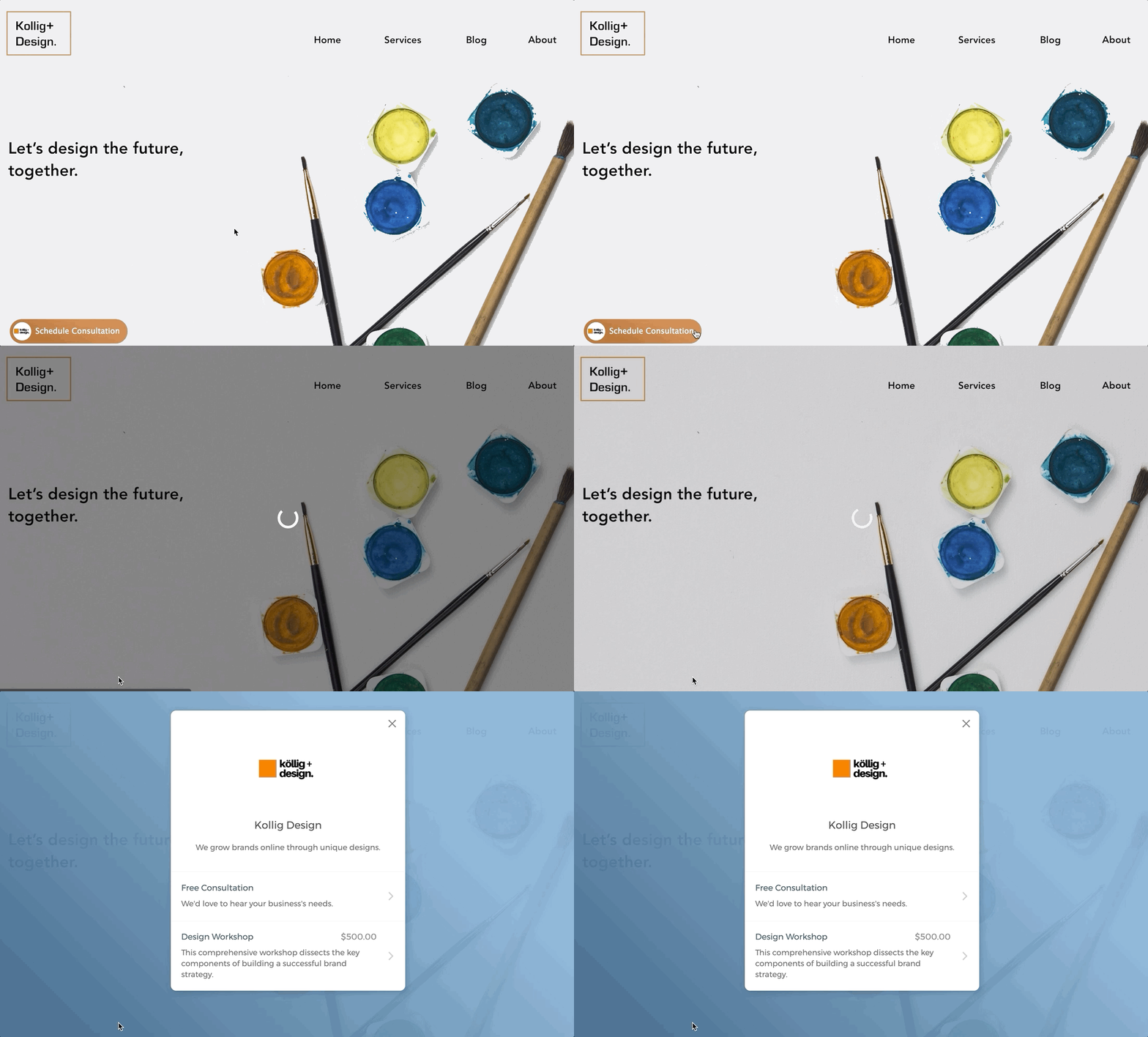
The floating button hovers at the bottom of your website. It is a quick and easy way to direct your website visitors to schedule an appointment.
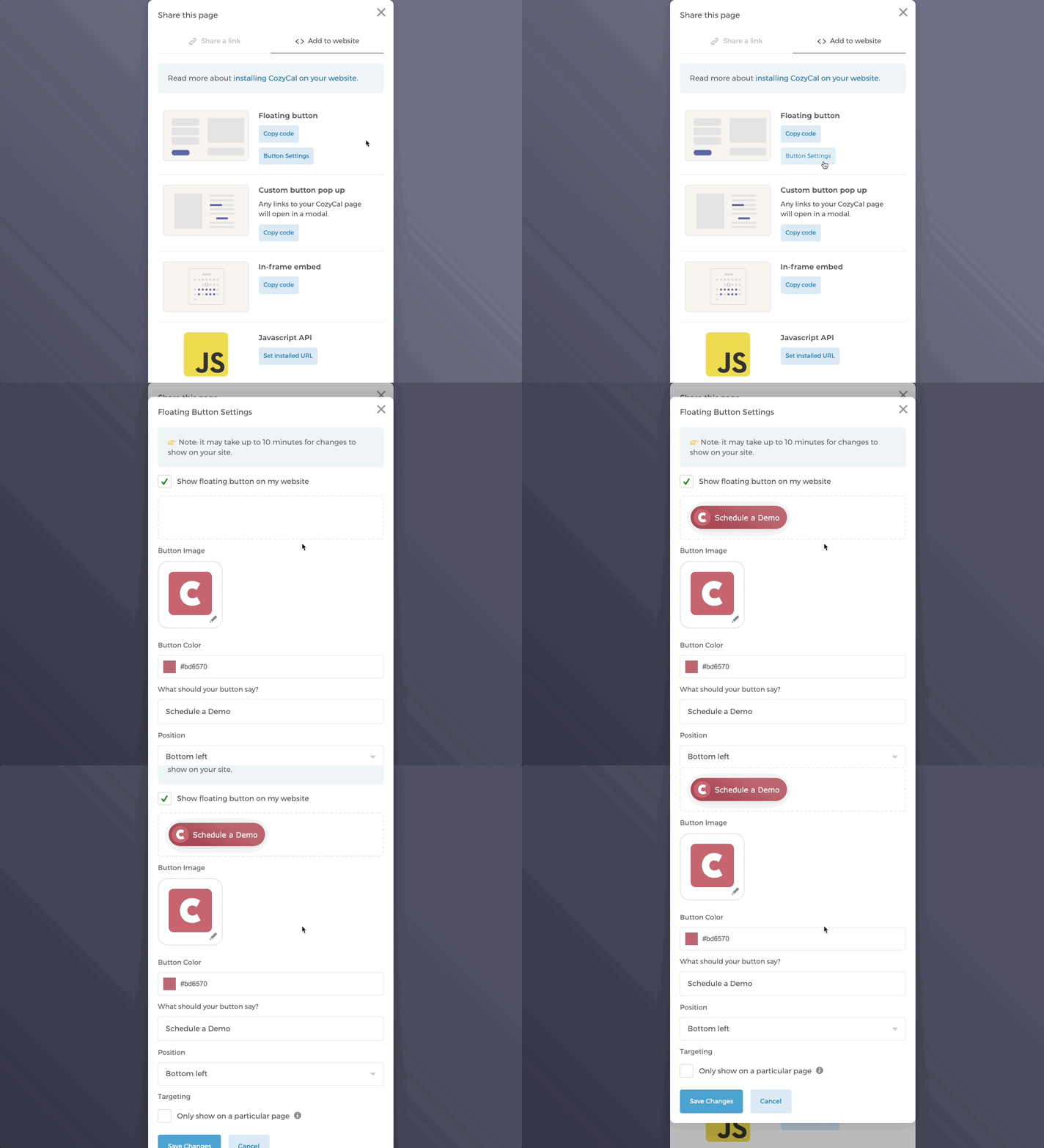
You can customize the floating button's setting by clicking on Button Settings right under Floating button.
Custom Buttons
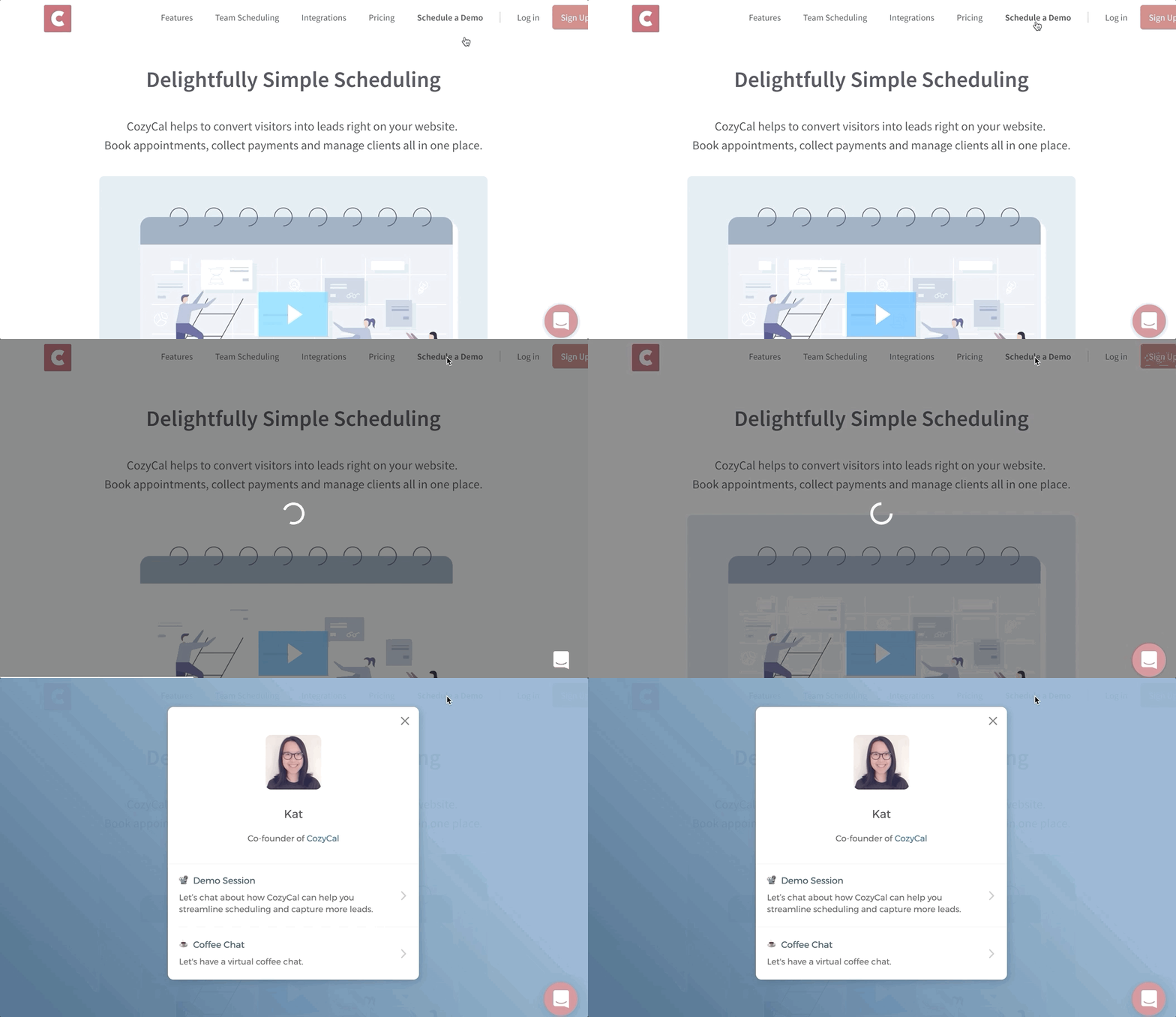
Adding a custom button is easy! CozyCal automatically detects booking page links on your website and opens them in a modal.
To get started, simply add the URL of your booking page (e.g. https://cozycal.com/kat) to any custom links on your website after installing the code.
<a href="https://cozycal.com/my-booking-page">
    Click here to schedule with me
</a>
Then your CozyCal booking page will pop up as a modal. You can also link to a specific event type to open it directly in a modal.
In-frame embed
Add an in-frame embedding option to your website to let guests schedule events. Includes auto height adjustment, no nested scroll bars. Add code by pasting CozyCal embed code at desired HTML location on website provider.
Here's an example of in-frame embed on our home page: