
You can create packages and offer a discount to appointments purchased in bulk.
By selling packages, clients enjoy your services at a discounted rate while you get paid for multiple appointments at once.
Let me walk you through how package scheduling works.
Create a new package
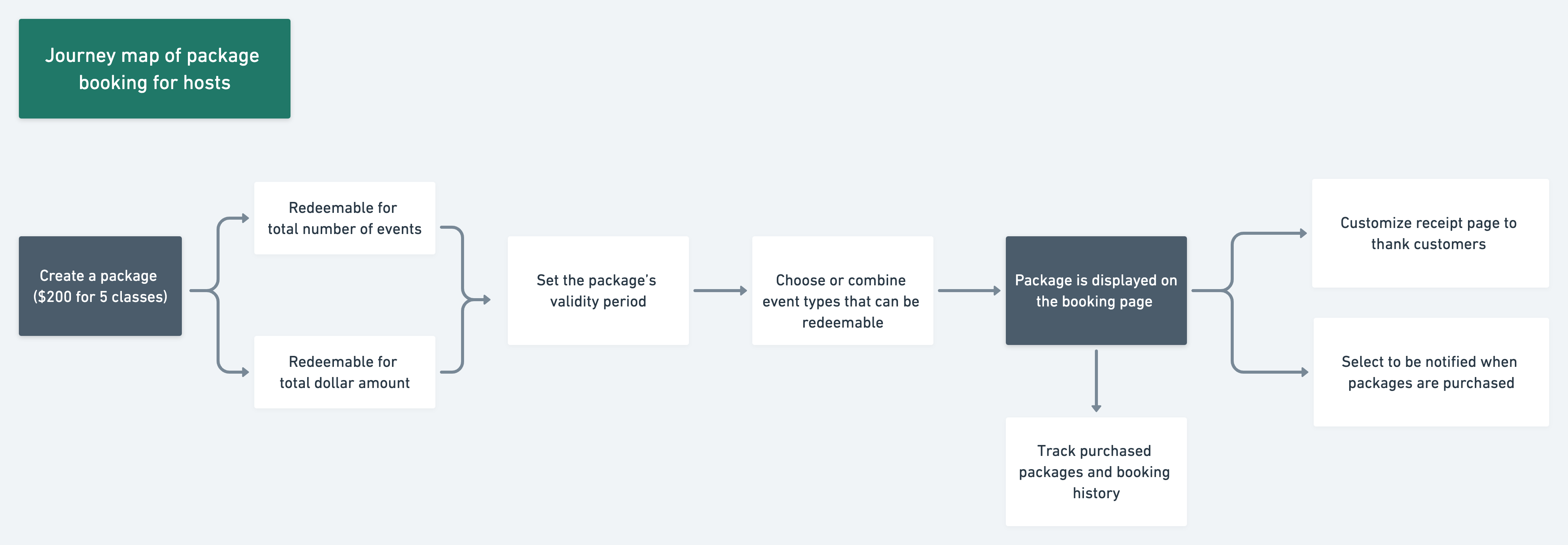
Create a package on the booking page
- On your booking page, click on the button
+ New Item, thenNew Package.
Note: Creating packages (
New Package) requires admin access. Only team admins can see and use this option.
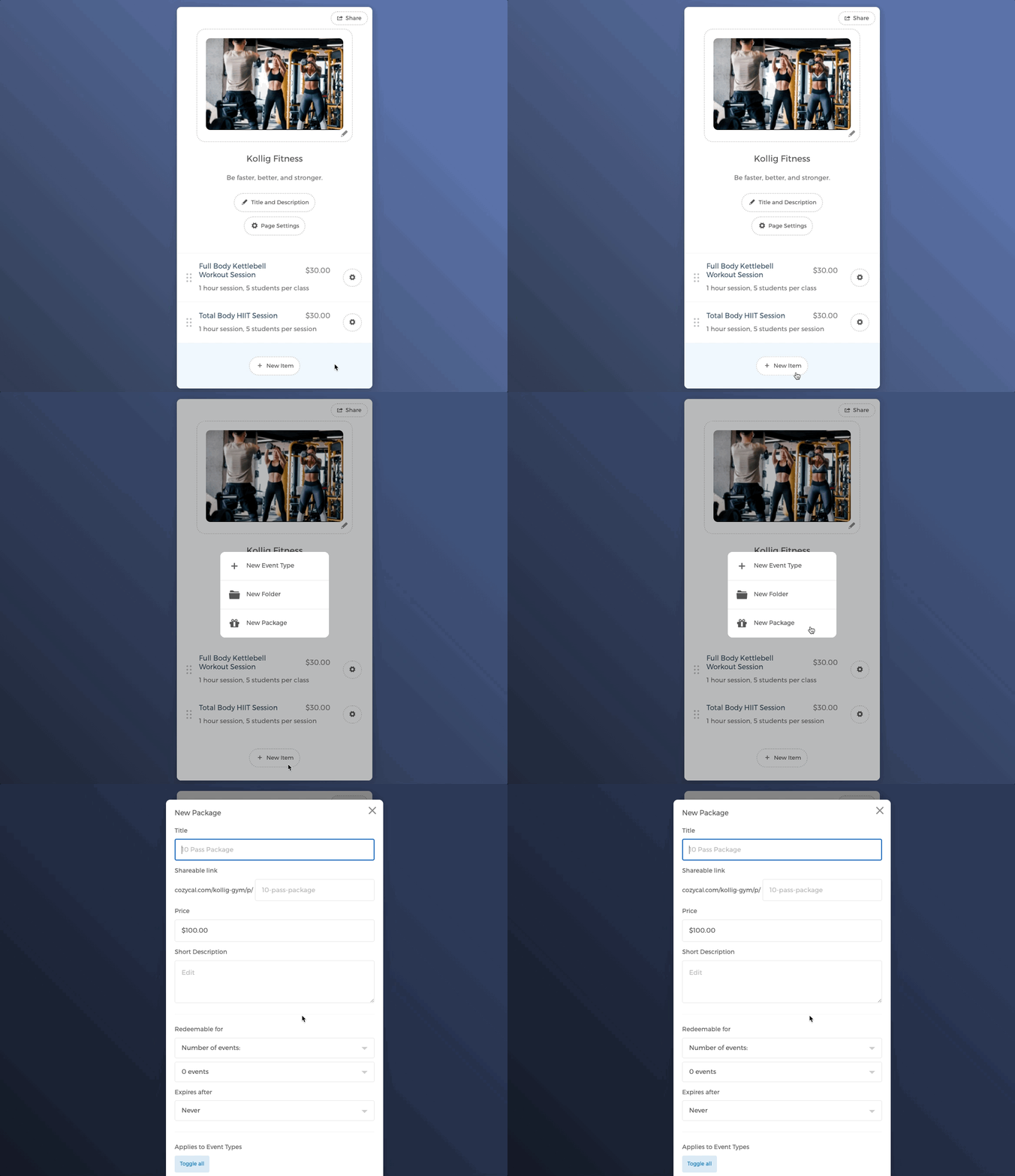
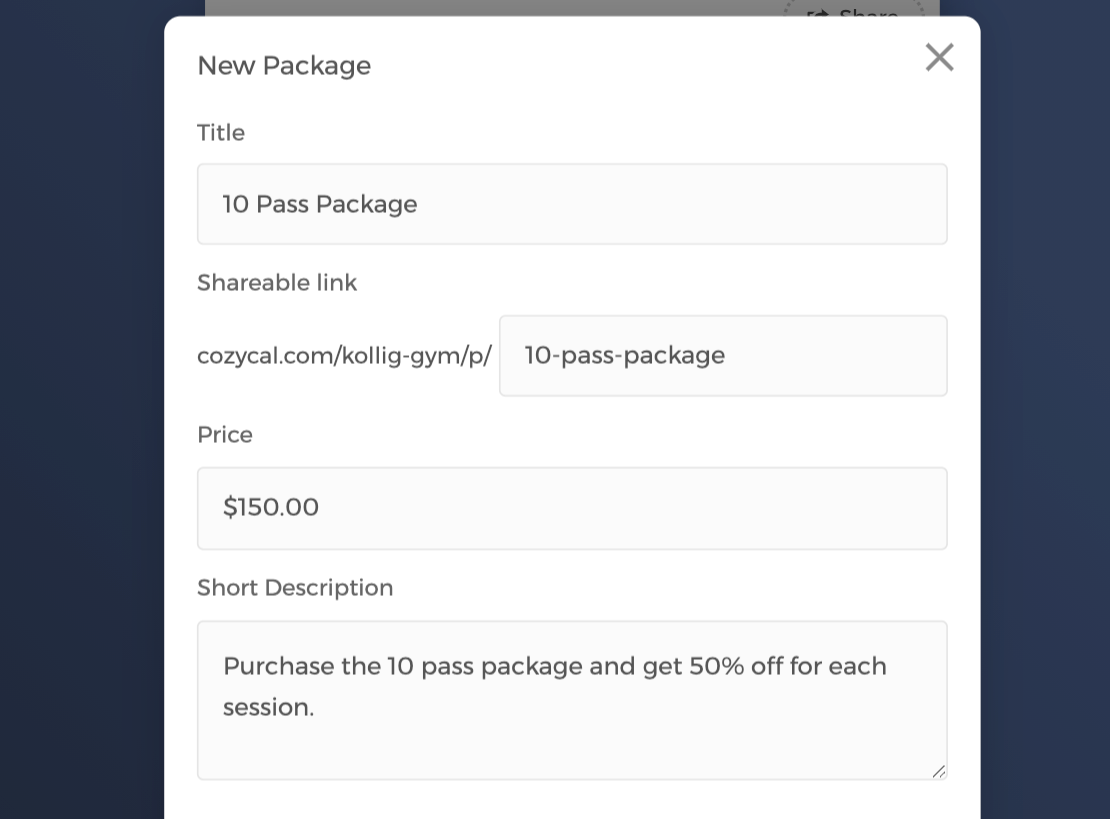
- You can enter the title of your package, adjust the sharable link, set the package's pricing and short description.
Scrolling to the bottom, you can set the package to be redeemable for
Number of events
Choose the number of events the package is redeemable for, and set the
Expires afterperiod.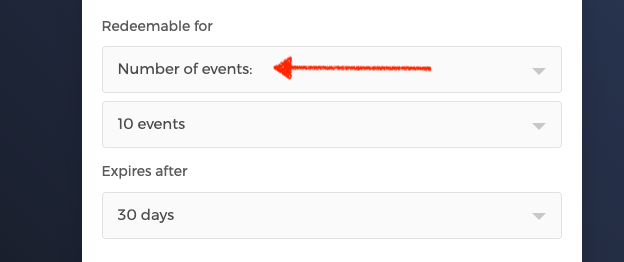
Total amount
Choose the total amount that the package is redeemable for, and set the
Expires afterperiod.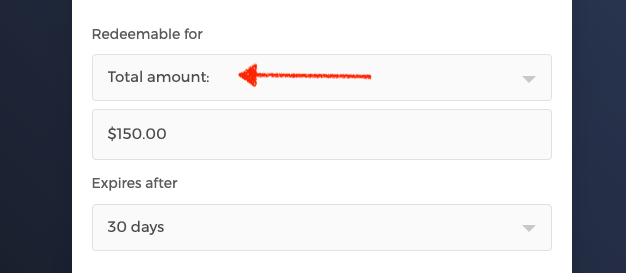
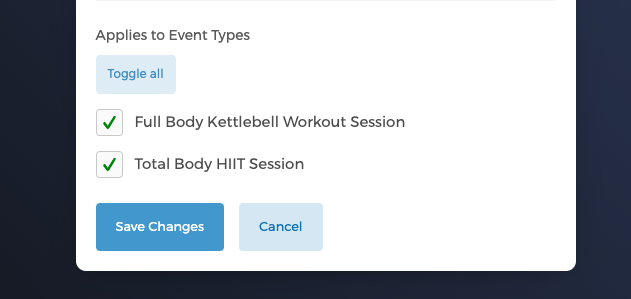
After the redeemable parameters are set, you can select the event types to which the package can be applied.
In this example, both event types are selected so that the "10-Pass Package" can be used to redeem and schedule either type of classes.
When you are done selecting the event types, make sure to click on Save Changes to create the package.
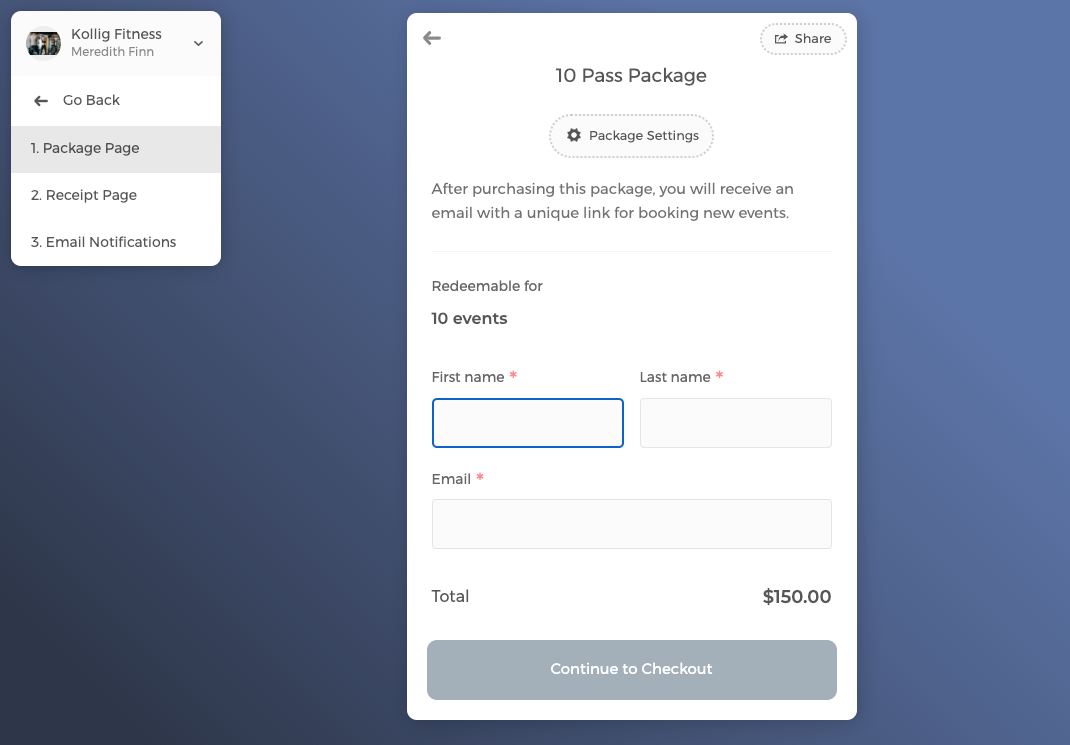
The package is now created. On the package page, clients can enter their information and proceed to purchase it.
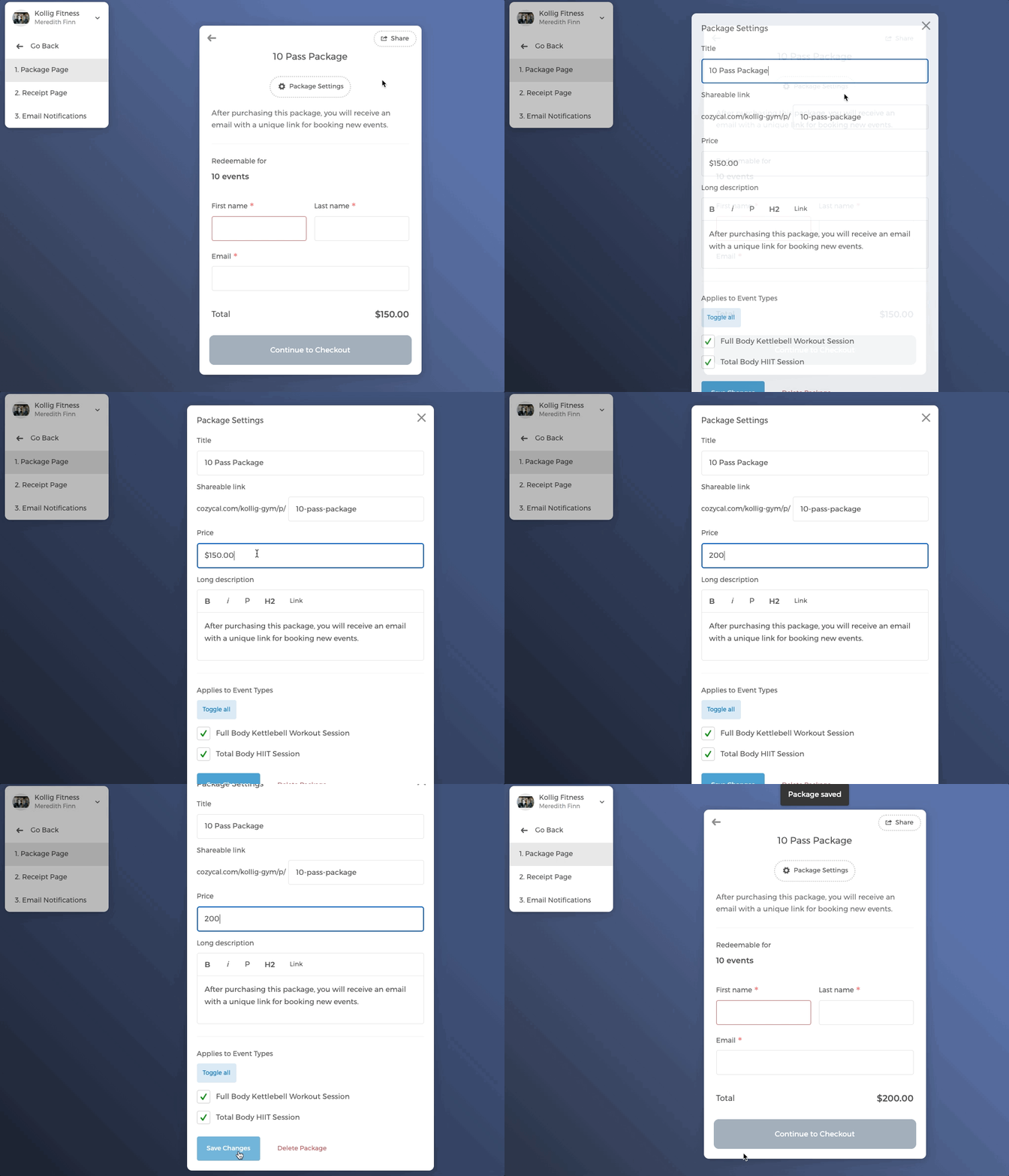
If you want to make any changes to packages, simply click on the Package Settings and make edits. For example, the 10 Pass Package's pricing is changed from $150 to $200.
Edit package email notifications
You can customize the package purchase notification email by opening the package's Email Notifications page.
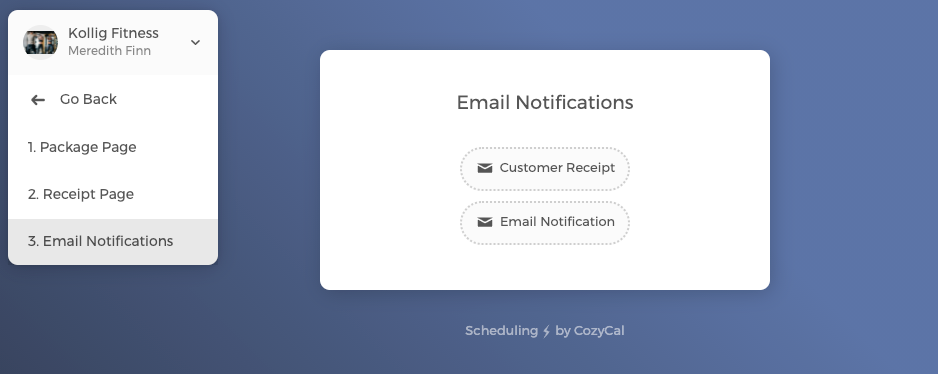
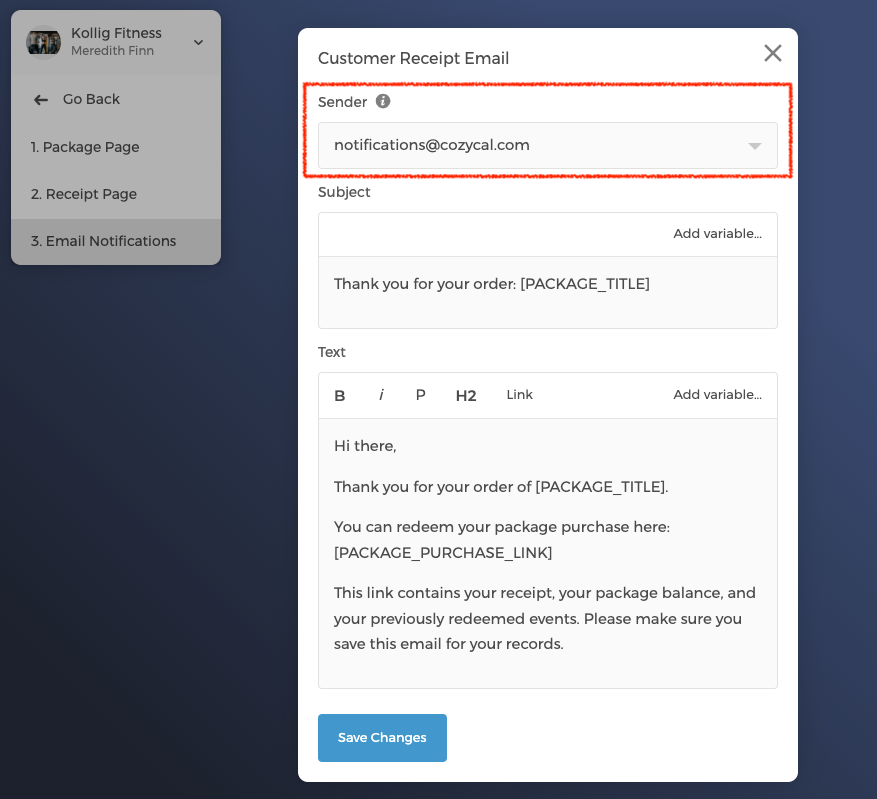
For Customer Receipt, you can edit the package purchase notification email that is sent automatically to clients.
Notice that you can choose the email address from which the notification email is sent. The default email sender is notifications@cozycal.com
But in order to set a team member's email as the sender, you will need to first enable the Email Domain feature for your team.
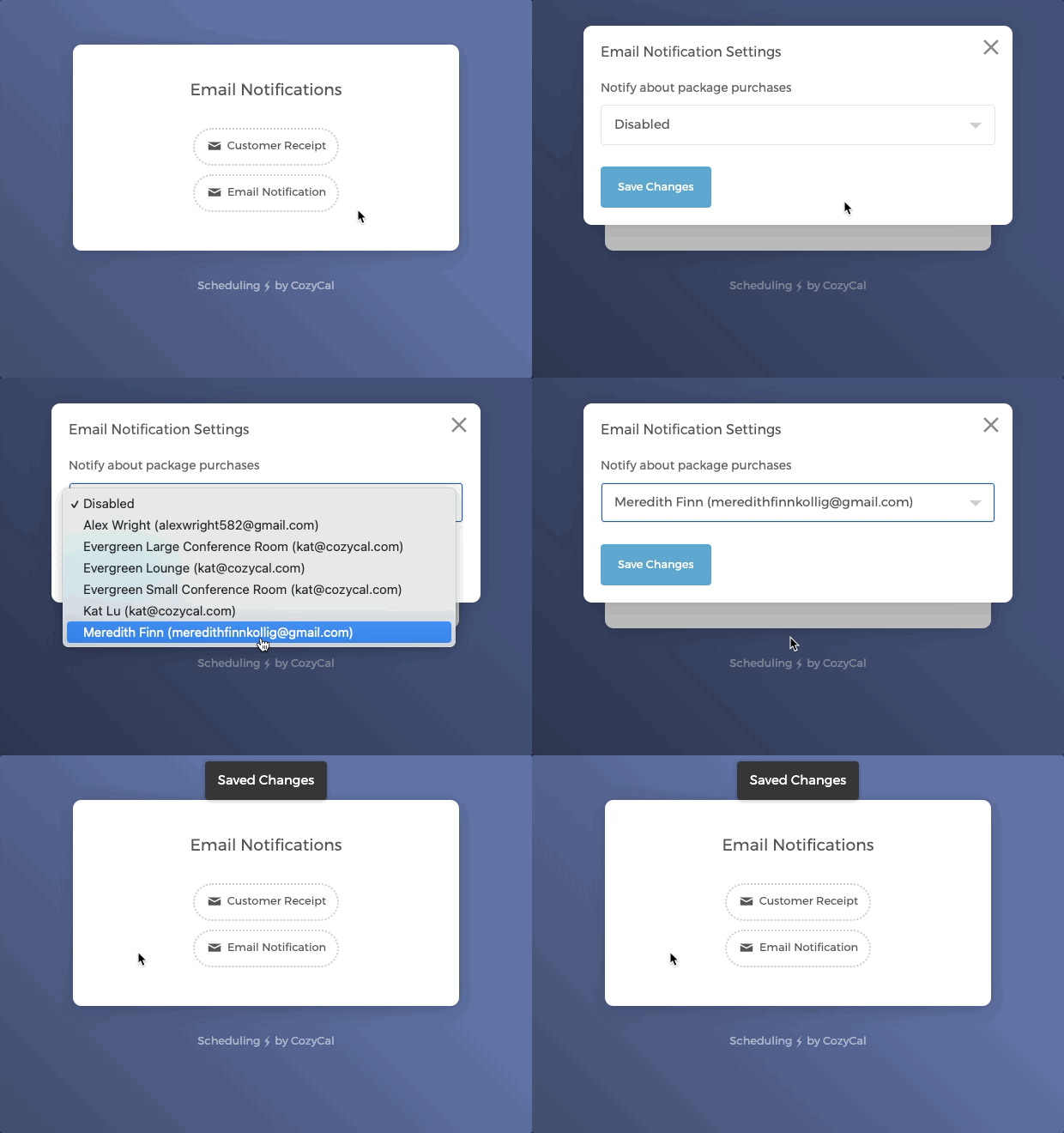
For Email Notifications, you can enable the package purchase notification email to be sent to a specific team member.
This is useful when a team's admin wants to be notified whenever packages are purchased across the team.
When you are finished with customizing email notifications, click on the back arrow, now you see that the newly created package is displayed on the booking page.
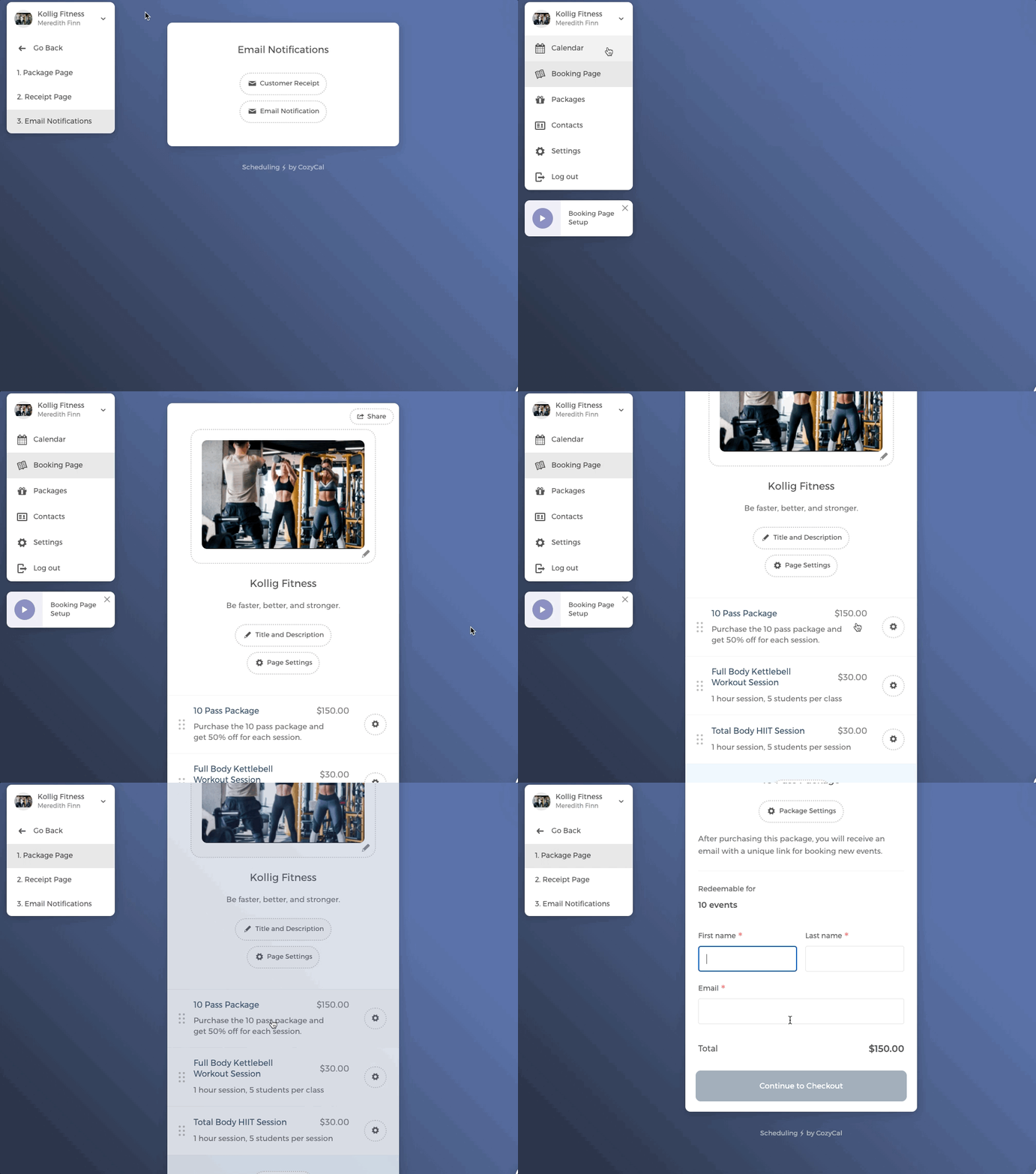
Client purchasing a package
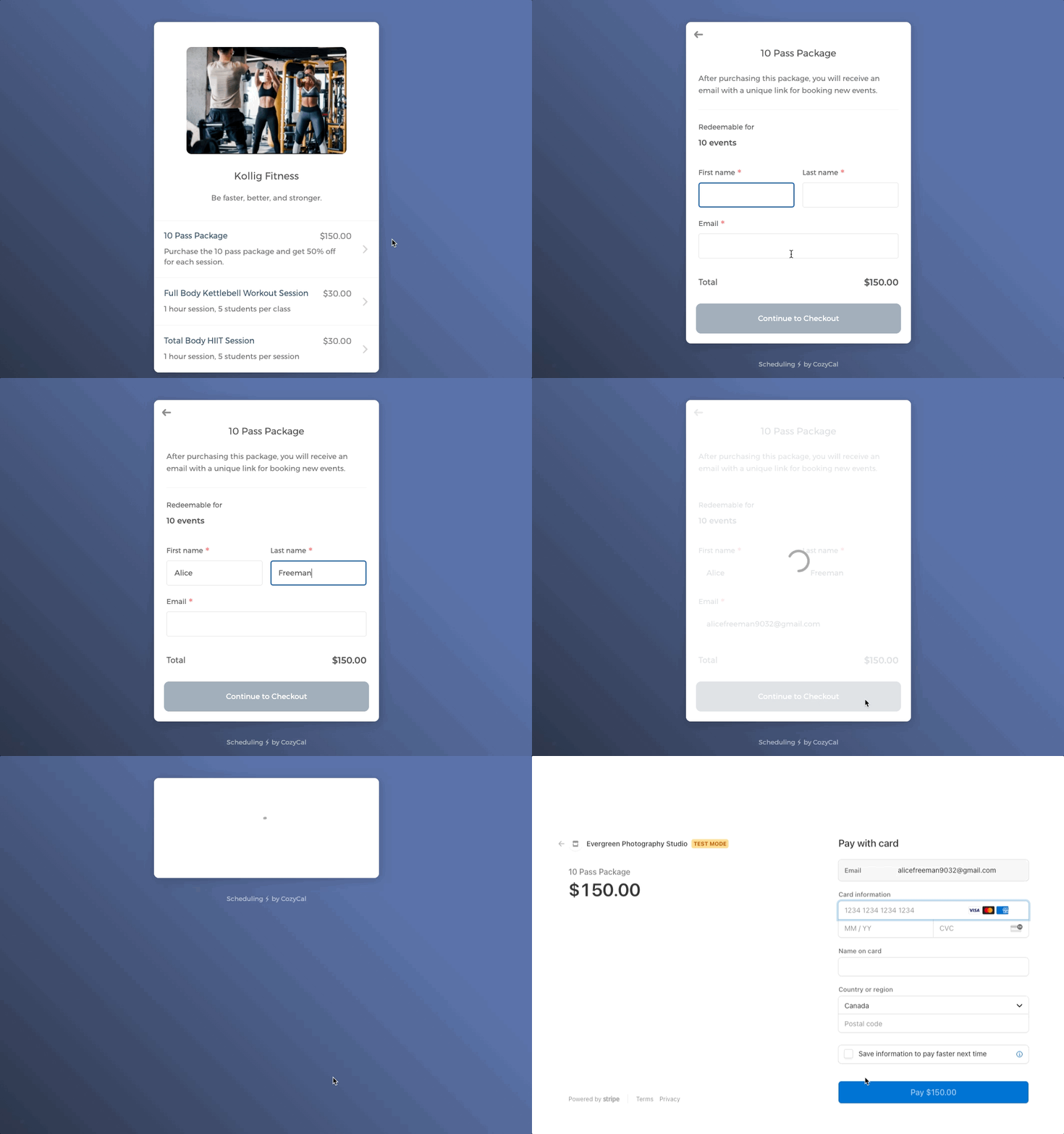
On your page, clients select the package they want to purchase, and make the payment through Stripe.
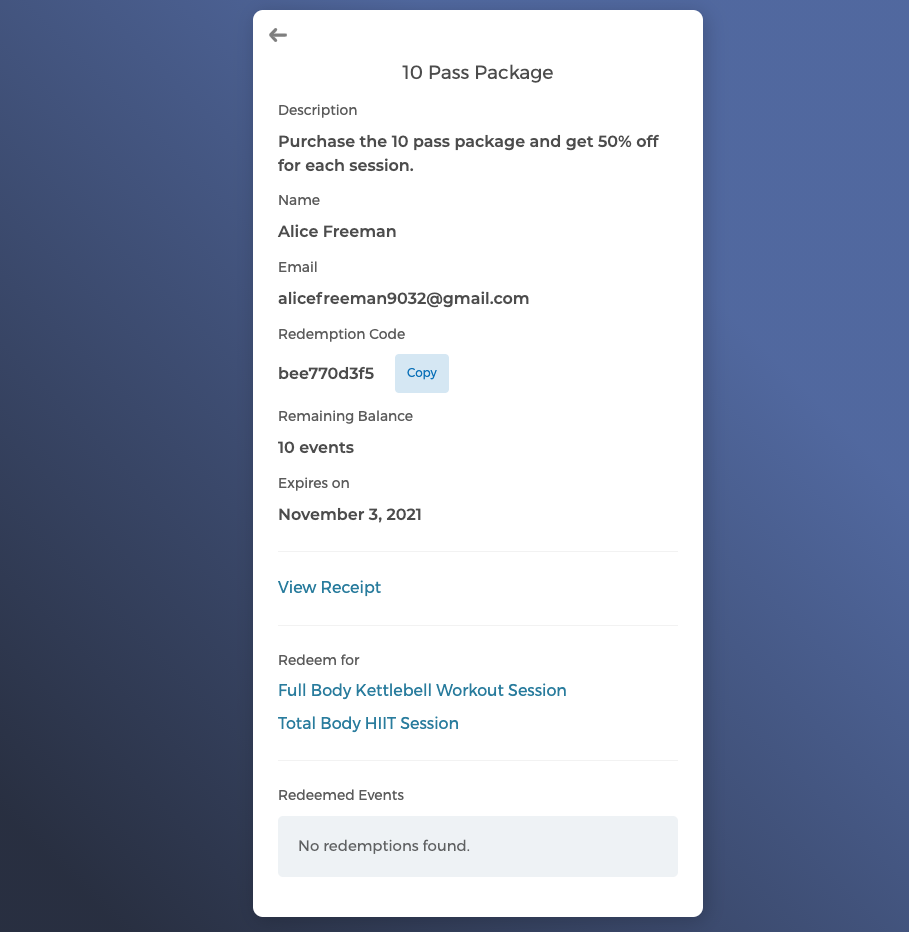
After clients make the purchase, they will see the package page showing the package information, including the receipt.
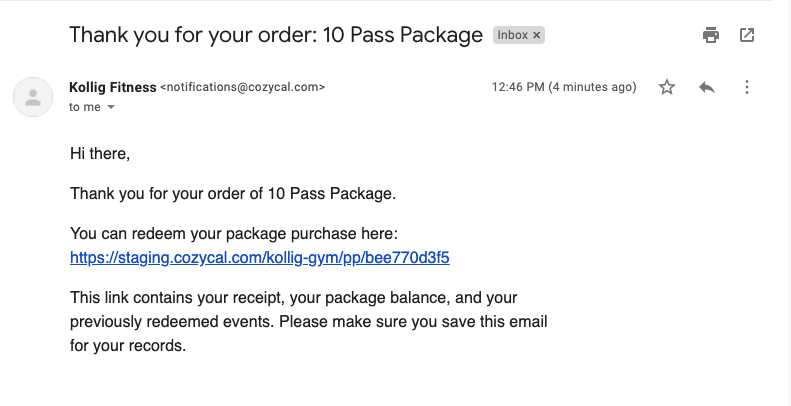
They will also receive an email notifying them that the package is purchased successfully. In the email, the package page's link is shared.
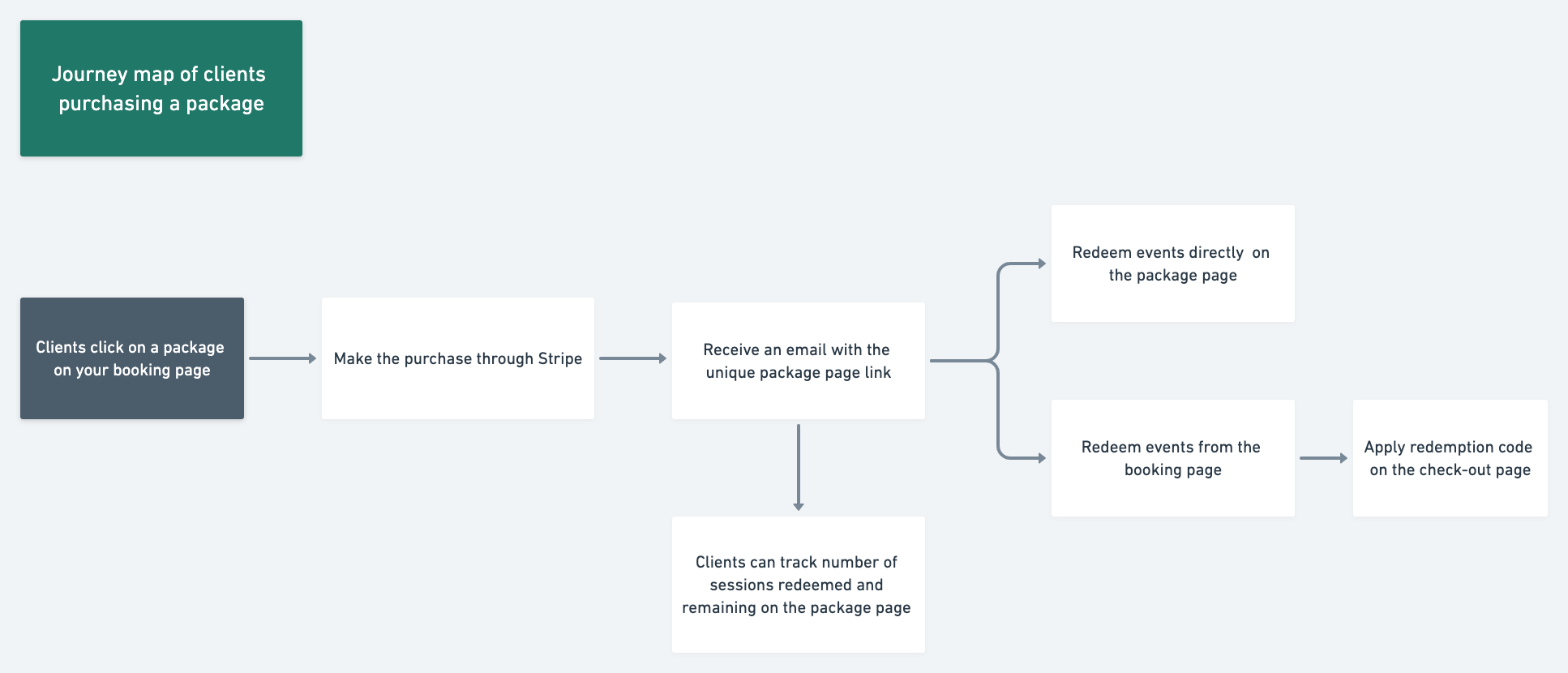
Clients redeeming an event through the package
There are two ways that a client can redeem the package.
1. Redeem an event from the package page
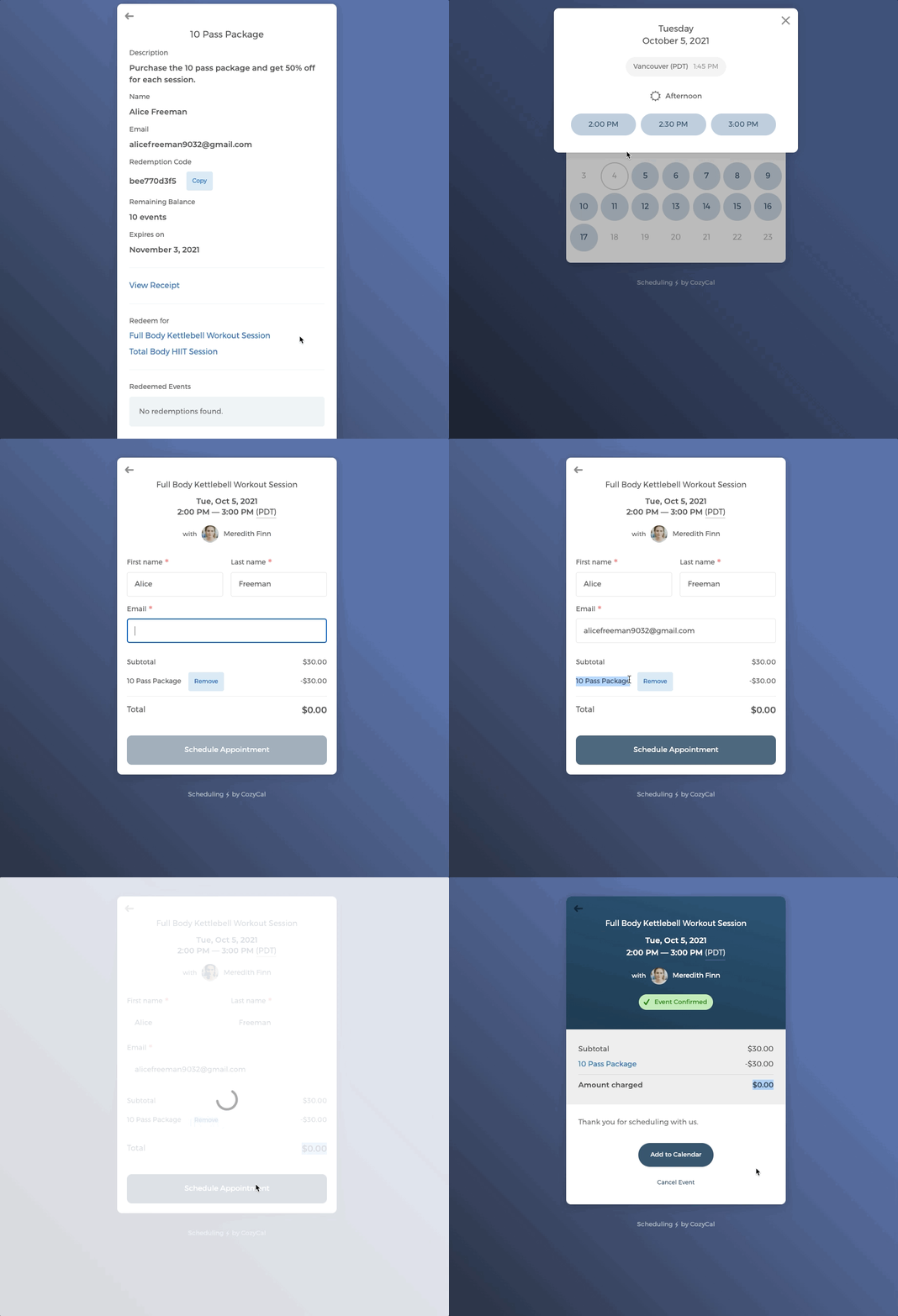
On a package page, clients can directly select which event type they want to redeem, and then pick the date and time.
On the intake form page, it will show that a they are redeeming an event with the purchased package.
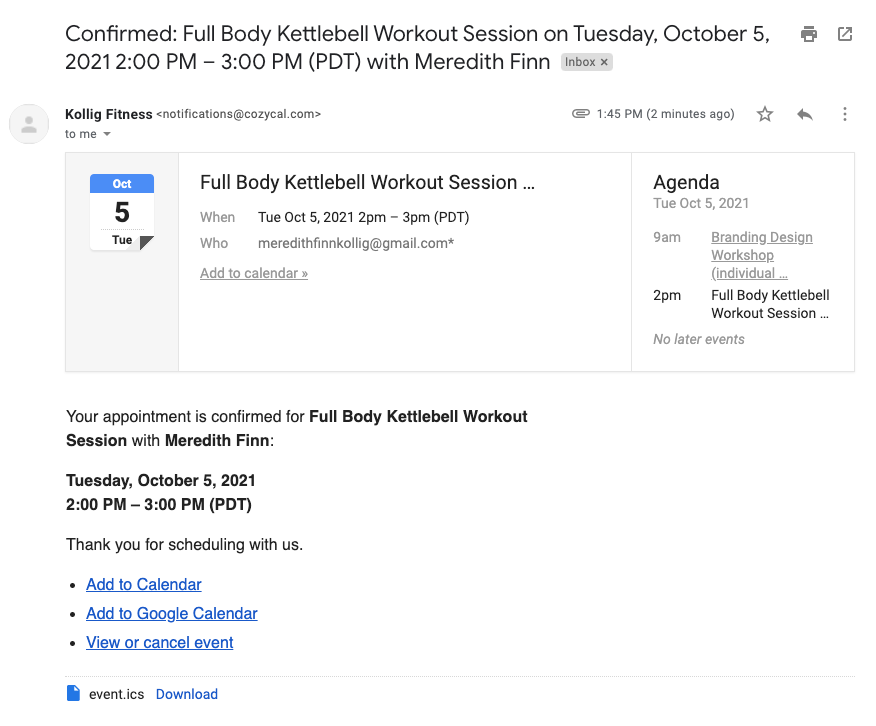
Booked clients will receive an event confirmation email.
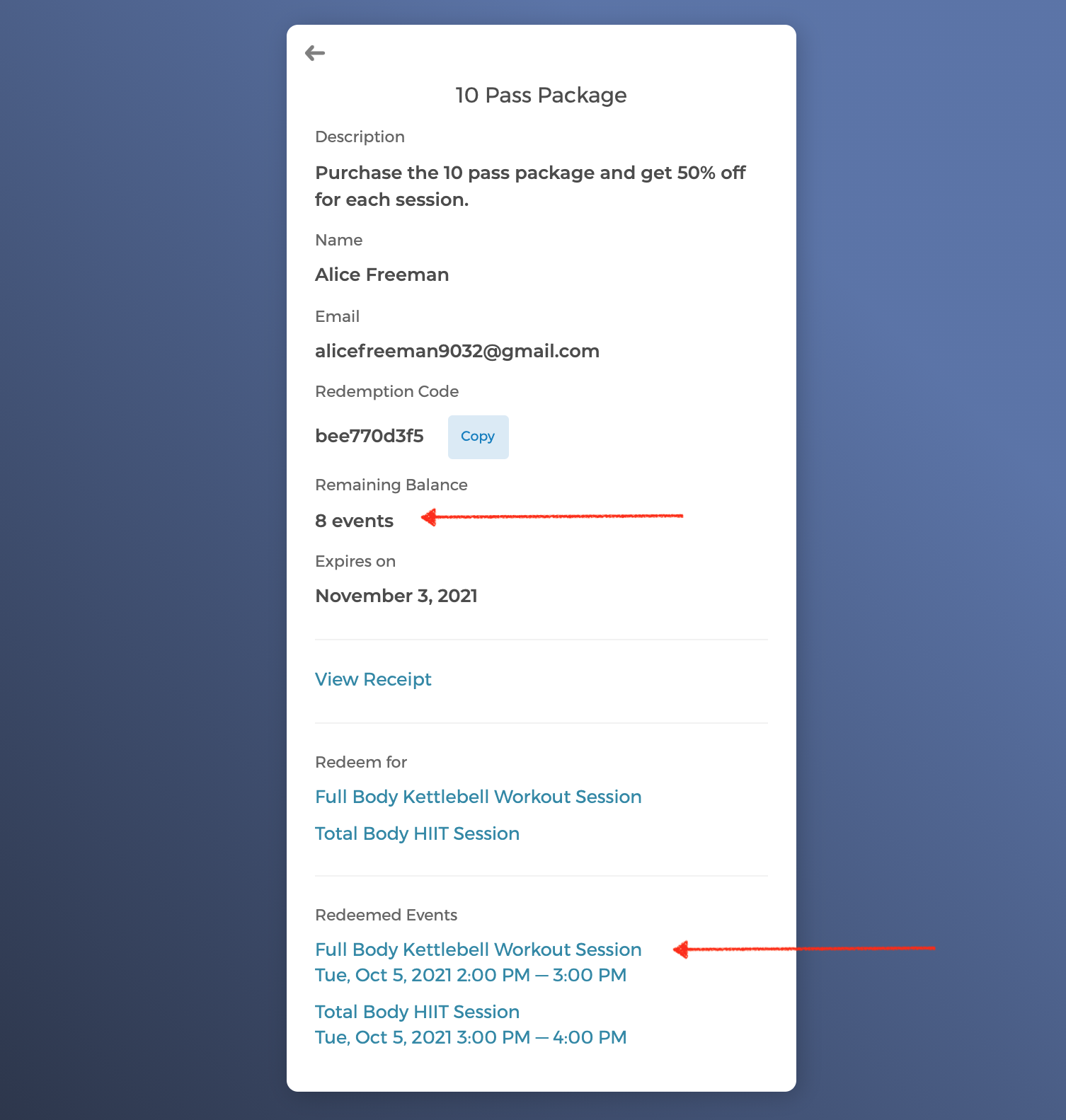
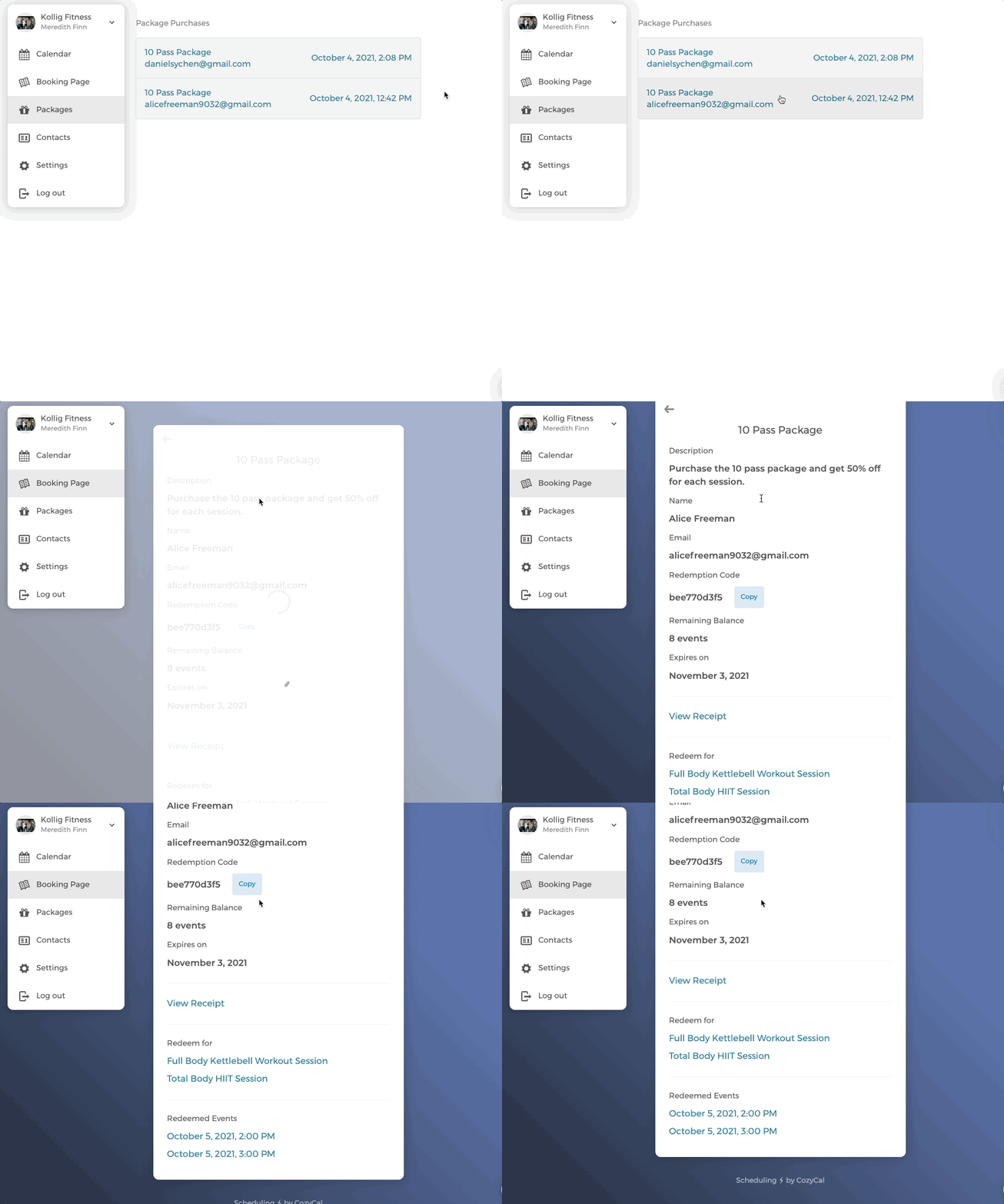
When they go the the package page again, it shows the redeemed events and number of remaining redeemable events.
2. Redeem an event by applying the redemption code
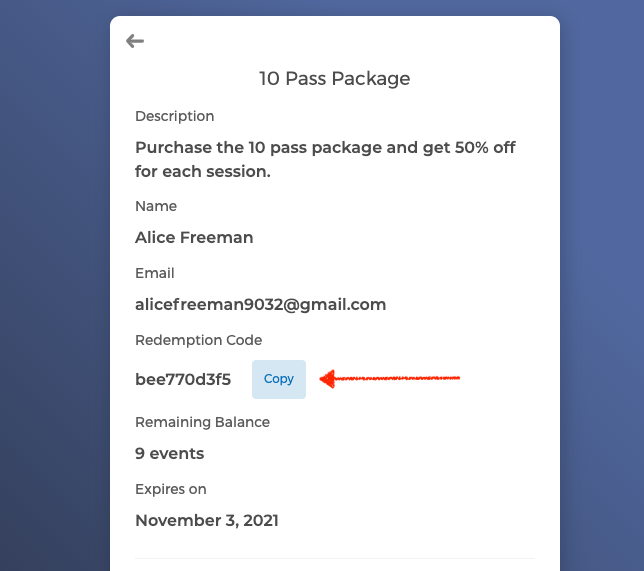
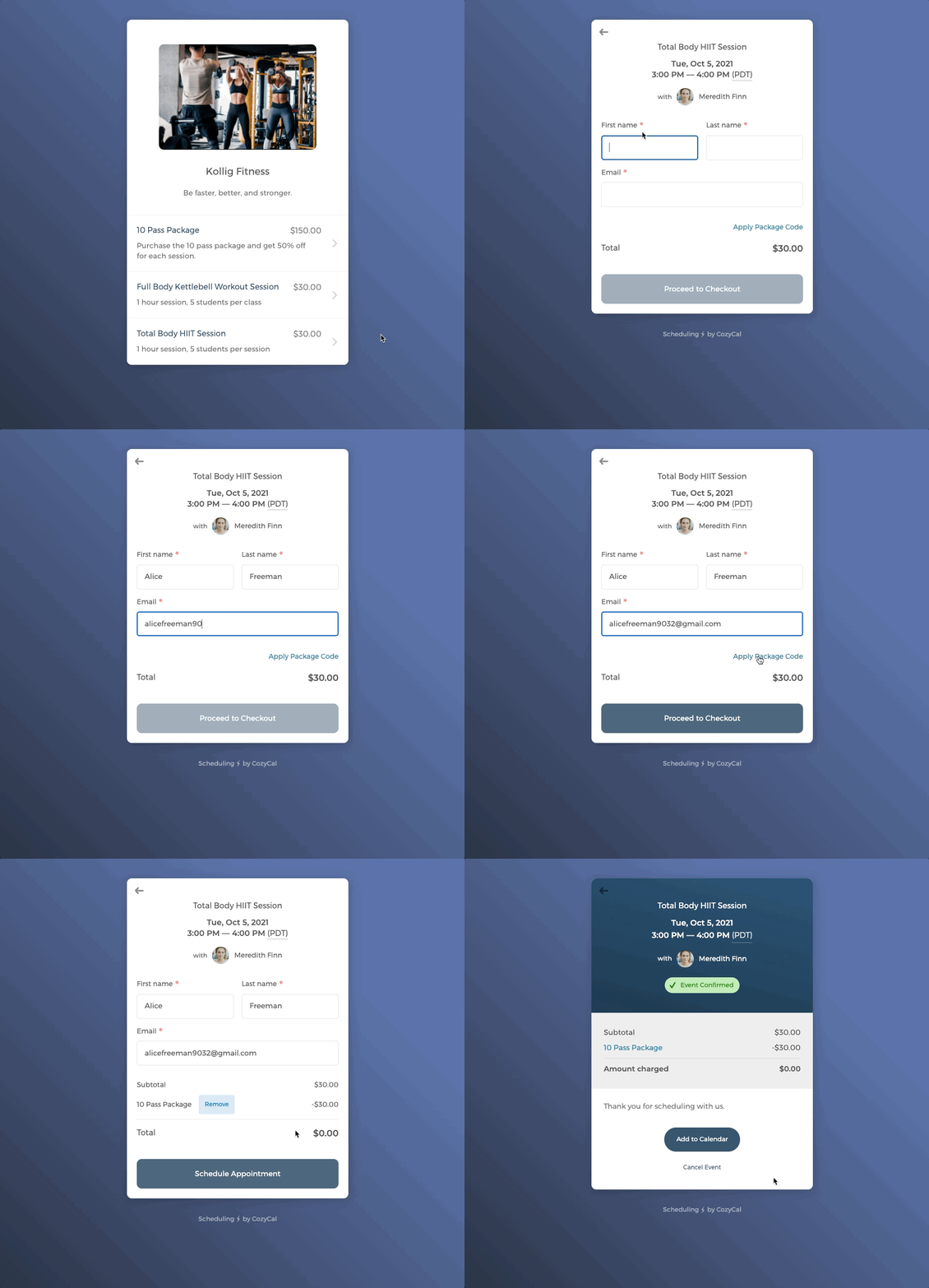
When clients schedule an event type directly your booking page, they will need to apply the uniquely generated redemption code (found on their package page) during check-out.
They can copy the code from the package page.
When clients are on the intake form ready to check out click on Apply Package Code and enter the copied redemption code to redeem the event. The total amount charged is deducted to $0.
Tracking packages purchased by clients
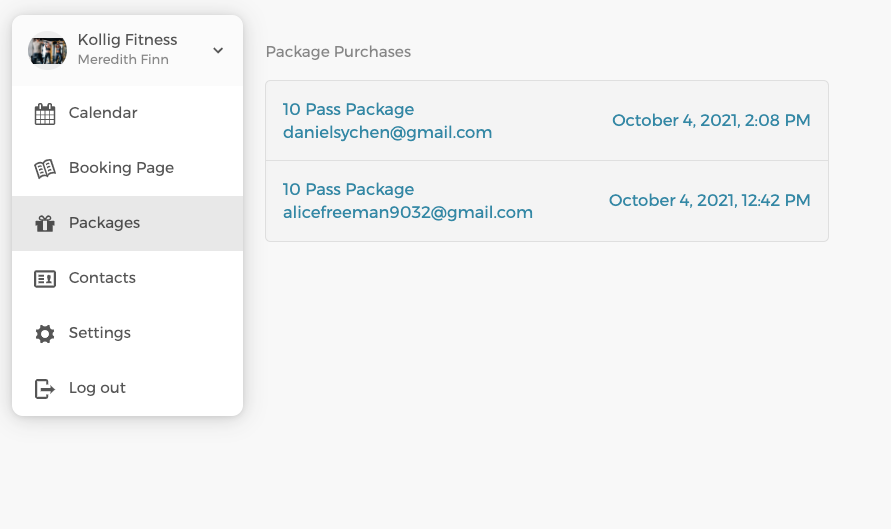
As the host, when you want to track packages purchased by clients, click on Packages on the main menu.
Note: The
Packageslink requires admin access. Only team admins can see it.
Click into each package to view the package page and see the package's detailed information.
That's package scheduling. We hope you find it helpful!
If you have feedback or need help, please reach out to us at support@cozycal.com