


Every scheduling tool user has had this moment: you open your booking page to double-check it, and a time you know you're free is missing. Is it a stray event on your Google Calendar? A buffer setting? A booking limit you set six months ago and forgot about?
Until now, answering that question meant clicking through your settings one by one — or emailing support. Today we're shipping something better: Troubleshoot Availability, a built-in way to see exactly why any day or time slot isn't bookable.
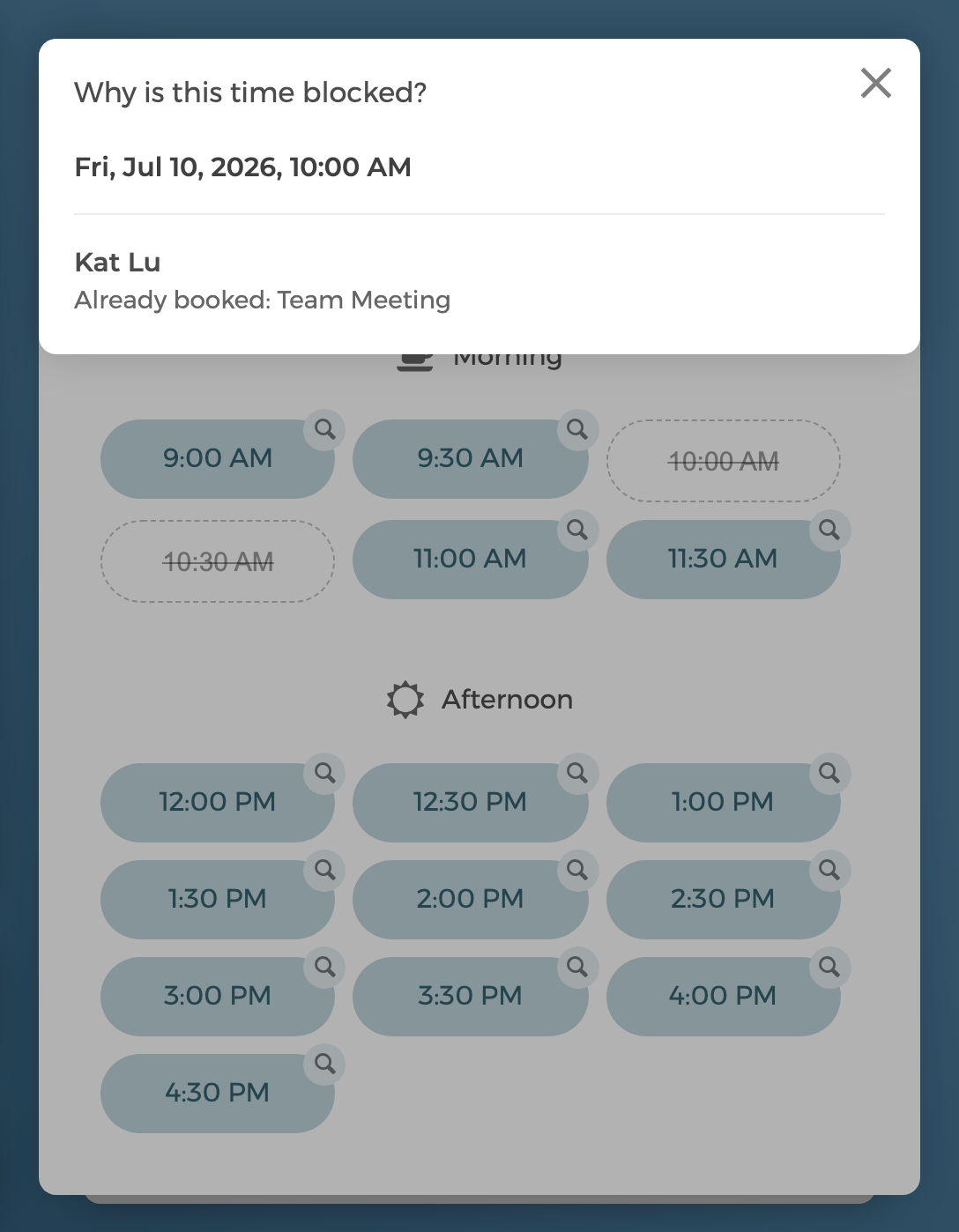
Click any slot, get the reason
When you're signed in to CozyCal and viewing one of your own event types, the calendar becomes an availability inspector:
- Open one of your event types while signed in to CozyCal
- On the event type's calendar (shown in edit mode), click any day
- Click any greyed-out time to see the reason it's unavailable
CozyCal will tell you precisely what's blocking the slot:
- Busy times from your CozyCal calendar or a connected external calendar (Google Calendar, Outlook, Clio)
- Padding/buffer time around existing bookings
- Booking window settings (e.g., "guests can't book less than 24 hours ahead")
- Booking limits for the day or week
- Blocked-off dates in your schedule
- Host availability — which team member is unavailable and why
And if no times are showing at all, click Troubleshoot Availability to load the calendar and inspect why each day is blocked.
Why we built this
"Why isn't my availability showing?" has long been one of the most common questions in our support inbox — not because something is broken, but because availability is the product of many settings working together: schedules, buffers, limits, time zones, and every connected calendar. When those interact, the result is easy to see but the cause isn't.
We could have kept answering those emails one at a time (and we still happily will!). But we'd rather give you the same diagnostic view we use, right in the product. It's the kind of transparency we think scheduling software should have — your availability shouldn't be a black box.
Guests never see any of this, by the way. The troubleshooter only appears when you're signed in and viewing your own booking page. Your guests just see clean, bookable times.
A few ways to use it
- Before sharing a new booking page, click through a few days to confirm your schedule, buffers, and limits behave the way you expect.
- When a client says "I couldn't find a time," check the slot they wanted and see what blocked it — often a busy event on a synced calendar.
- When managing a team, use it to see which host's availability is constraining a multi-host event type.
Troubleshoot Availability is live now on all plans — just open one of your event types while signed in and start clicking.
💡 Start your free trial now or book a demo session, we'll be happy to show you how CozyCal can automate scheduling for your business.