
A new event type shows no times until it has a host with a schedule. On the event type page, click Add availability, or Availability Settings once hours exist. Either opens the Availability Settings dialog; click Add availability inside it.
While the team has no schedules yet, the Create Schedule dialog then opens on its own, with you already set as the host. Give the schedule a name such as "Weekday hours". Tick the days you work and set the start and end times. Split a day into two ranges to keep a lunch break free.
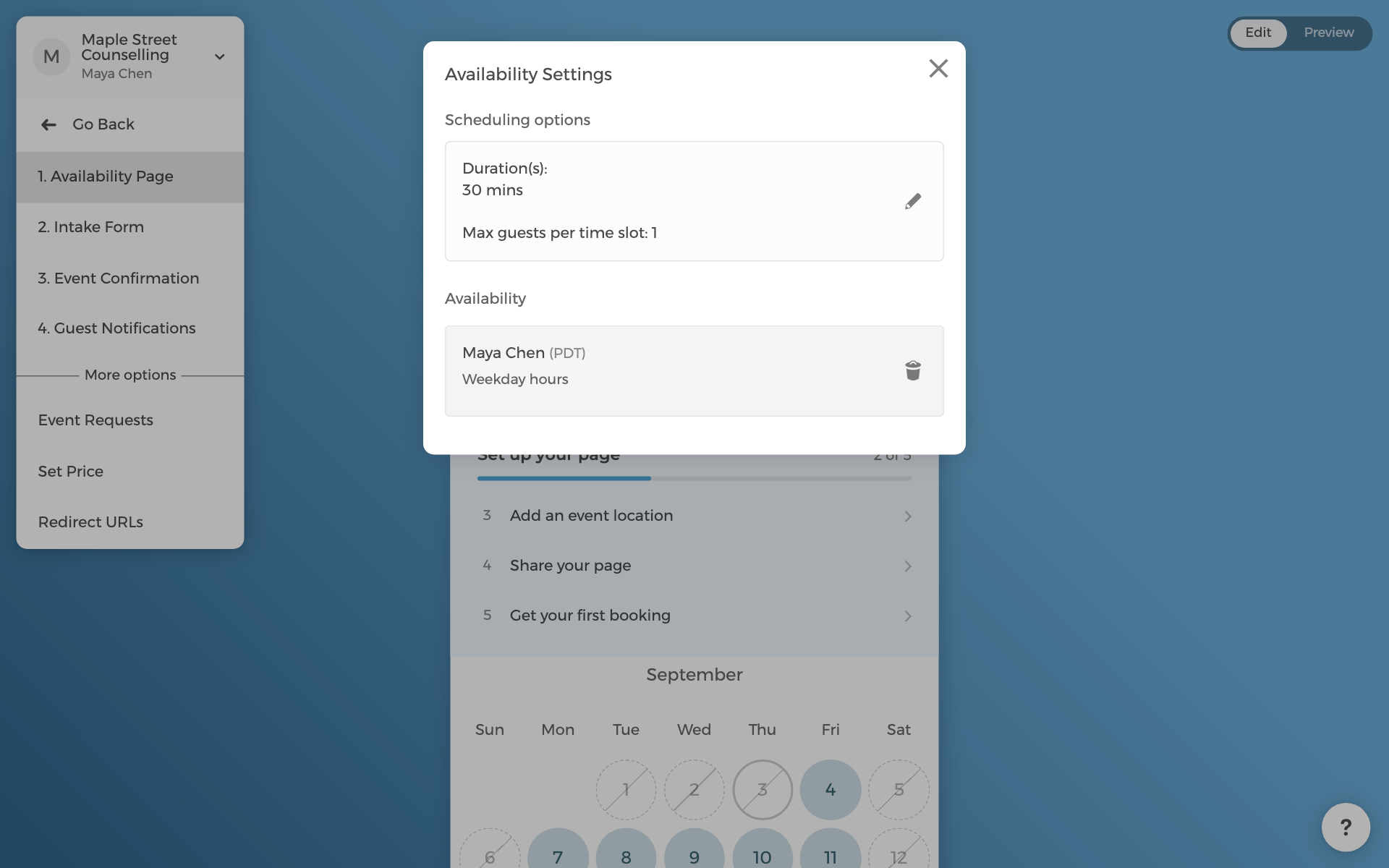
Save, and the dialogs close on their own; the calendar on the event type page fills with bookable days. Times are shown in each guest's own timezone. On a team you can add several hosts later; see How team scheduling works.
Schedules are reusable: every event type you create later can pick the same "Weekday hours", and a change to the schedule applies everywhere it is used. Booking windows, lead times, and blocked-off dates live in the same dialog; Add availabilities covers them in detail.