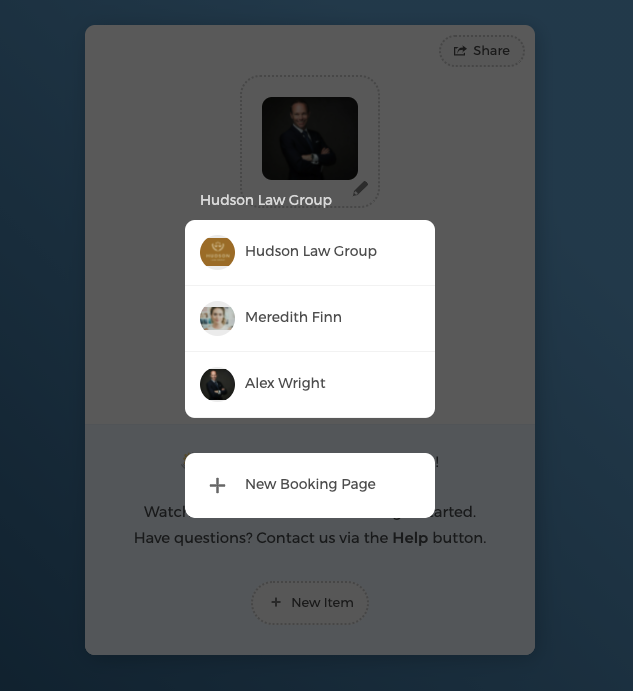
Team scheduling allows you to manage team scheduling and provide more availabilities for your clients.
Send invitation to team members
As the admin, you can invite other team members to join the team booking page:
- Click on Settings → Team members
- Here, you can click on
Send Email Inviteand enter team members' emails to send them an invitation or you can click onCopy Invite Linkto send them an invitation link directly.
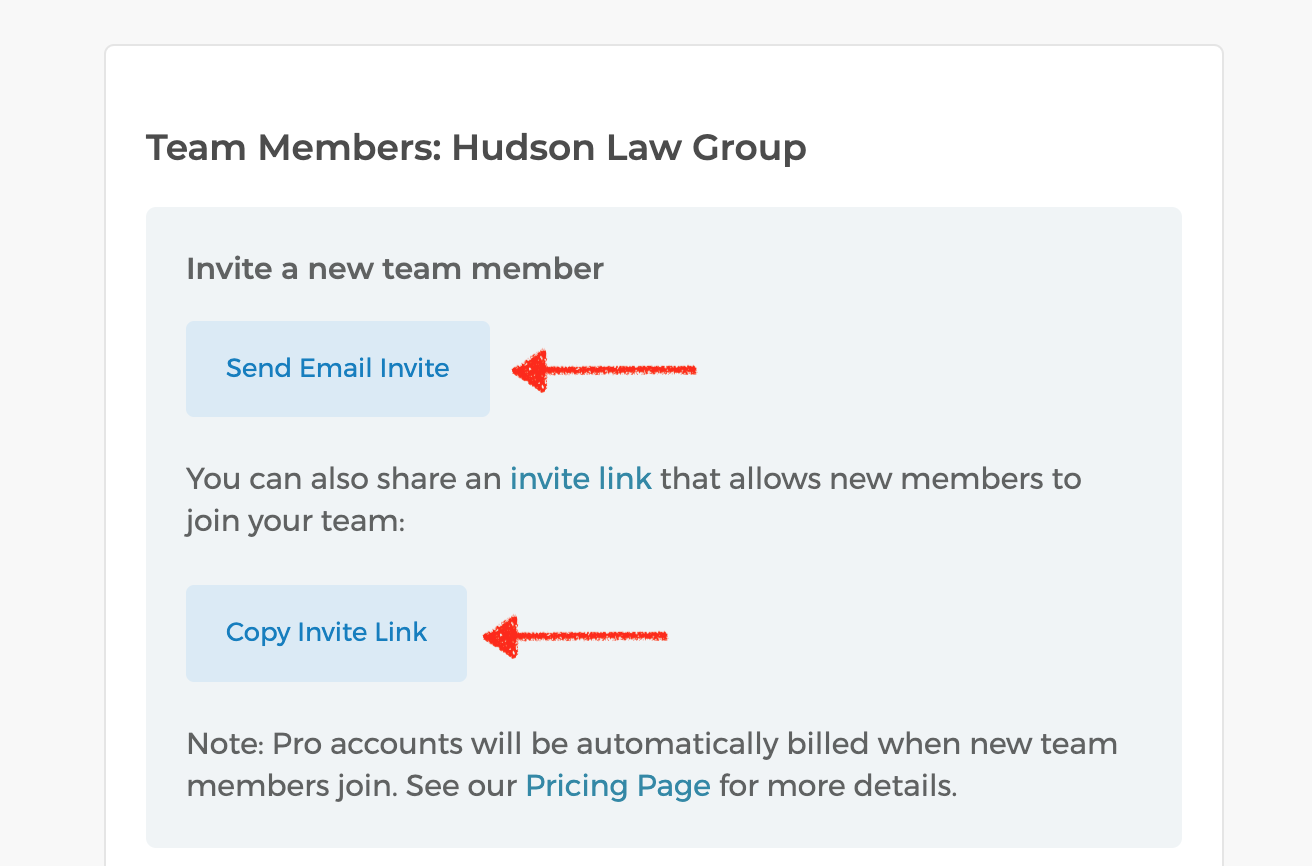
- Once team members receive the link, they can sign up to create their own CozyCal accounts and join the team booking page or create their own booking page.
Admin rights
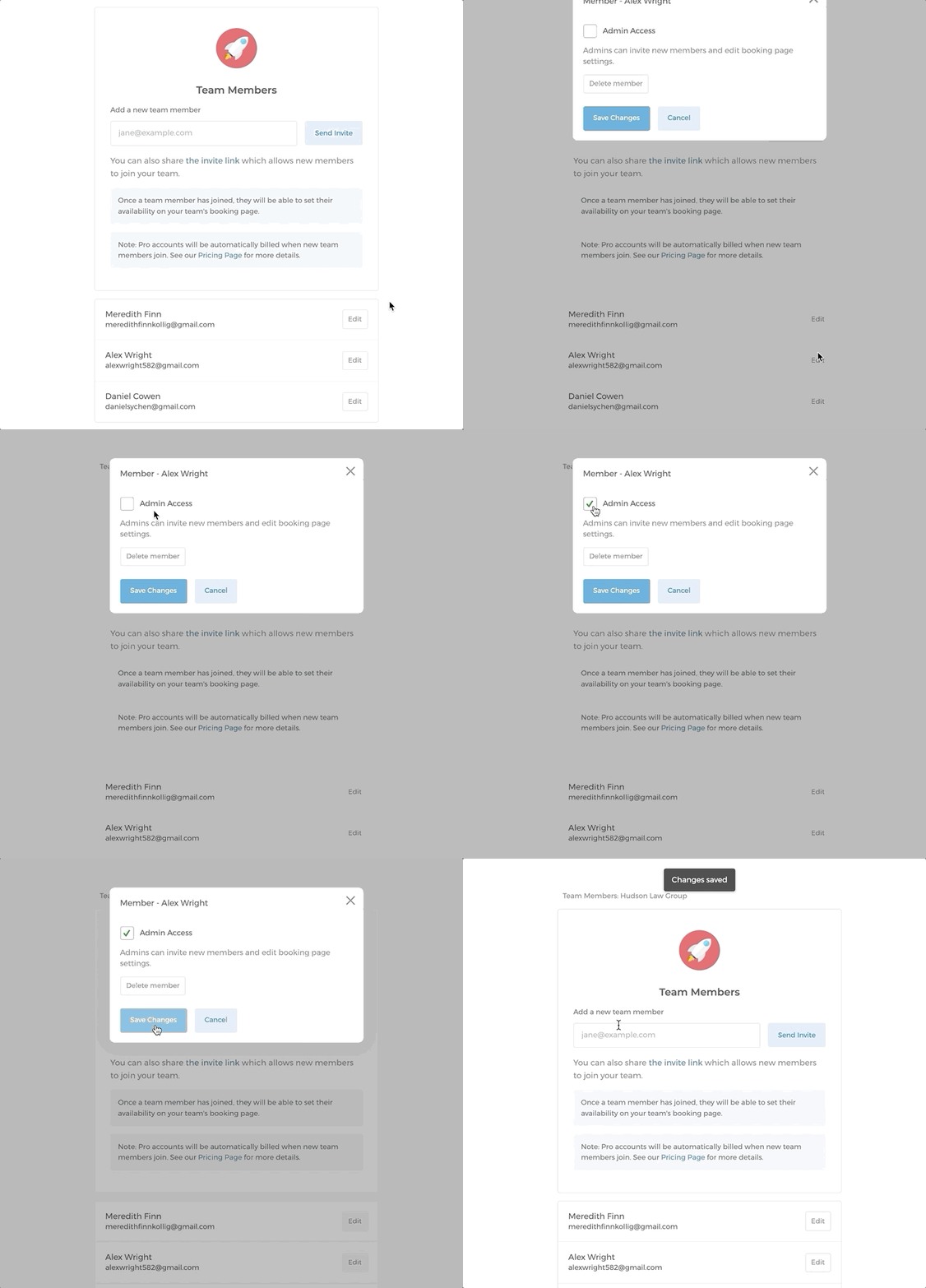
As the admin, you have the rights to invite/delete new members, edit booking page settings, and manage other team members' availabilities, events and settings.
- Edit other team member's availability
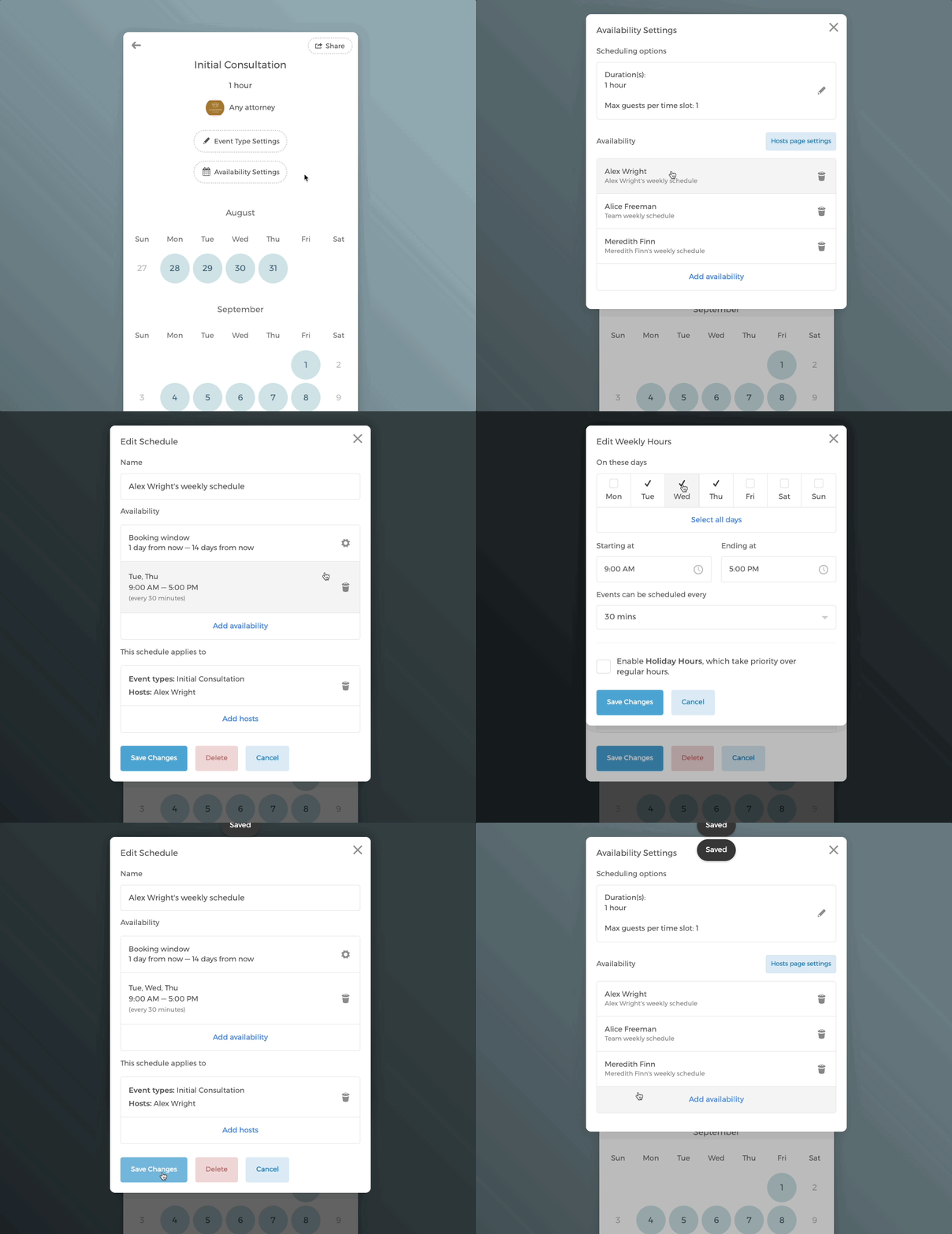
Tip: You can quickly copy an event's availability to other event types and team members.
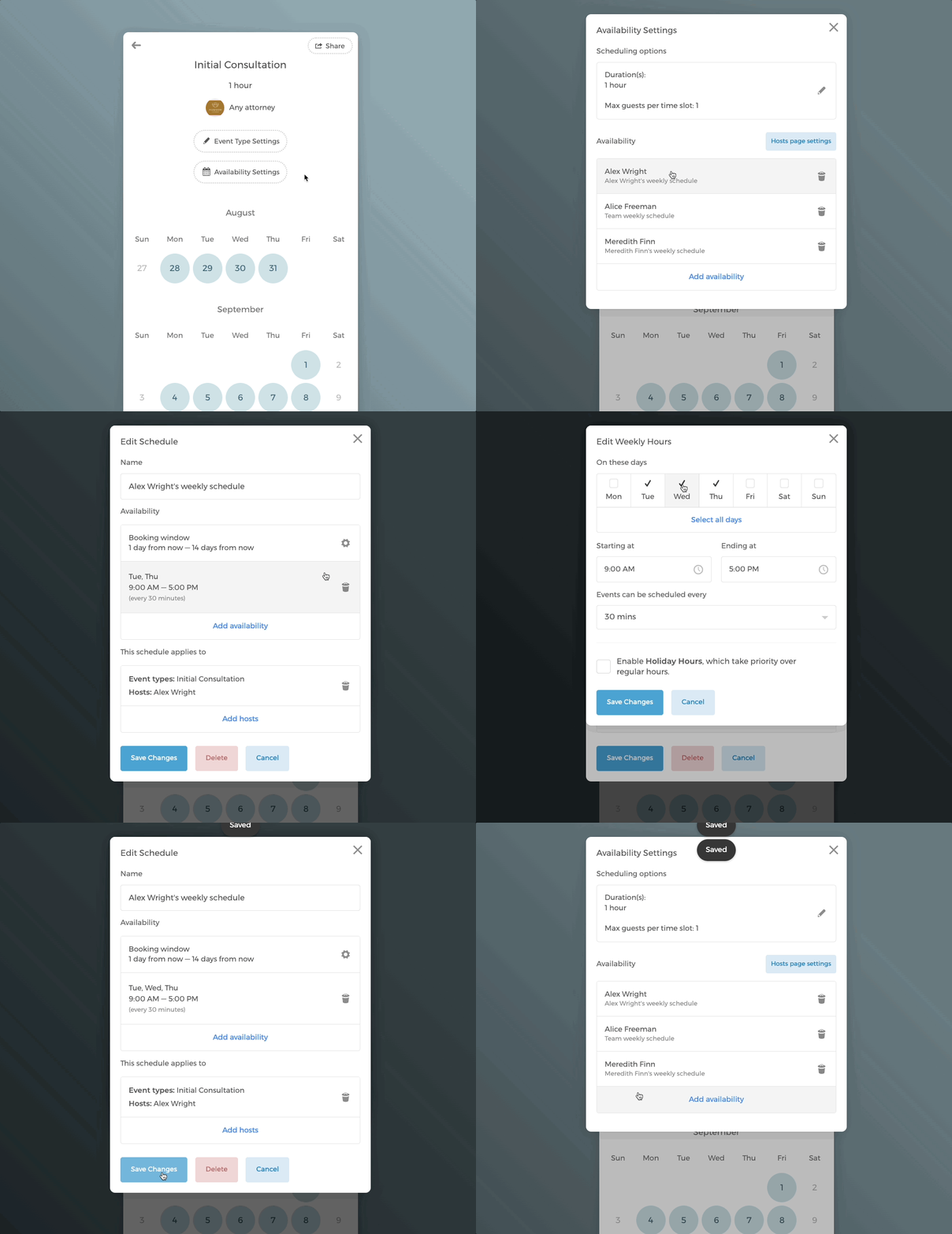
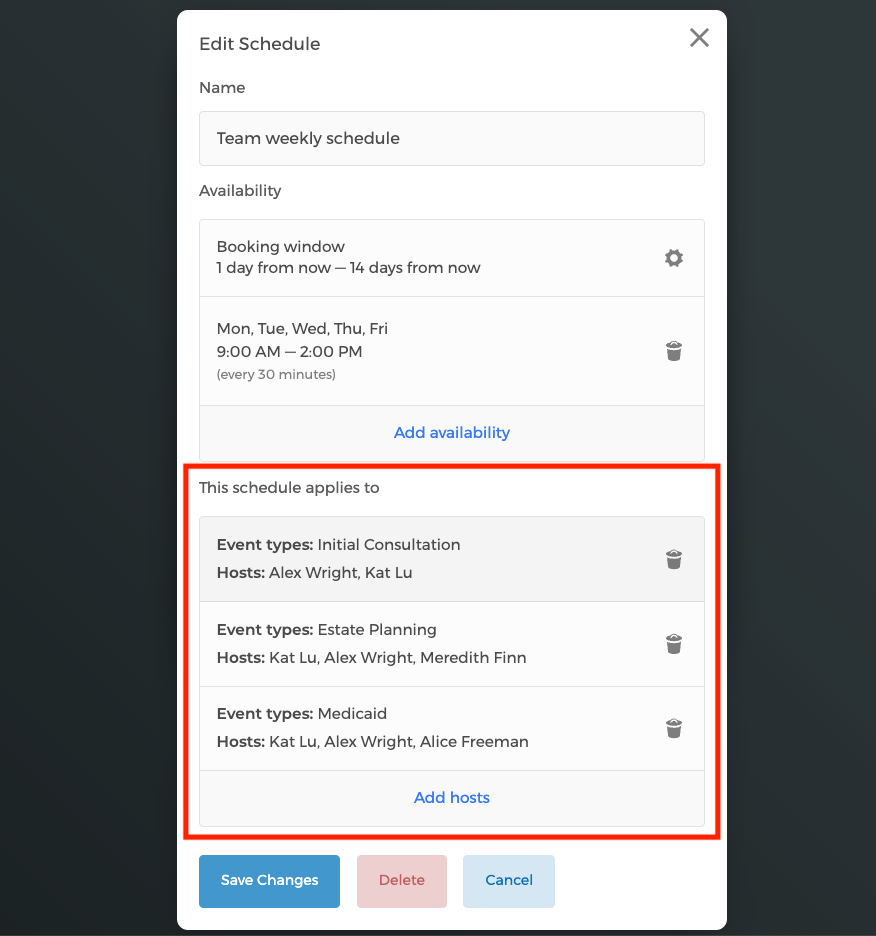
On the Edit Schedule modal, you can see the list of event types and team members to which this schedule Team weekly schedule has been applied to:
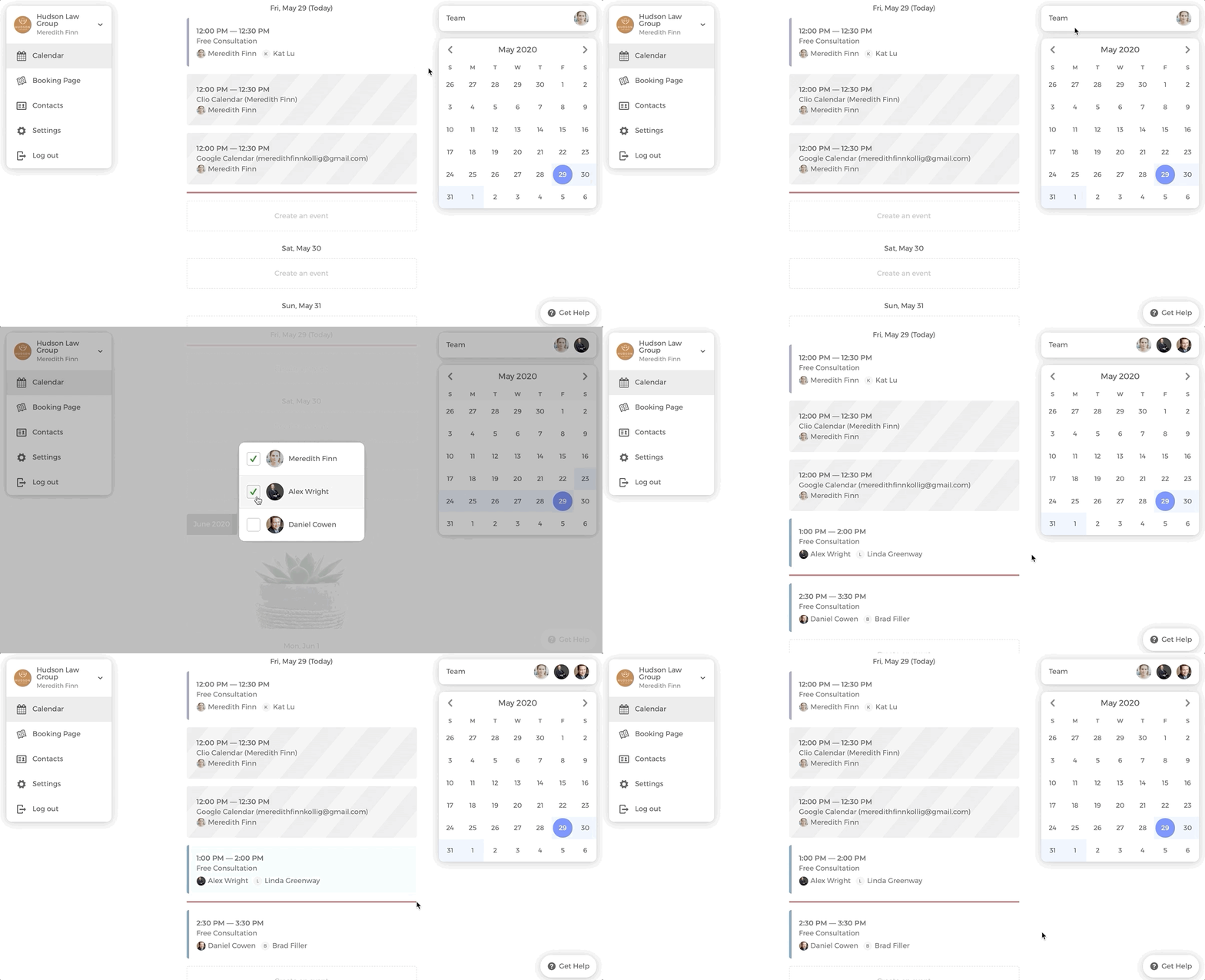
- View other team members' booked events on your calendar.
- You can grant Admin rights to other team members as well.
Scheduling events for multiple hosts
If you have more than one team member attending a scheduled meeting as hosts, you can pool the availability of all hosts and ensure that each team meeting is staffed efficiently and without conflicts.
- Adding availability for multiple hosts
- Set reserved hosts and resources
- Set round-robin booking for hosts and resources
- Round robin priority
Adding availability for multiple hosts
On your booking page, go to the event type that you want to edit.
On the "1. Availability Page", click on
Availability Settings, and add your availability. If you haven't added any availability, please follow instructions this guide "Add availabilities to event types".In this example, Alex Wright has added his availability to the event "Estate Planning". In multi-host mode, each group has an
Organizerradio toggle and aLocationradio toggle, so make sure to select which host should be set as the event organizer.Add the second host's availability by clicking on
Add availability. Under the Host drop-down menu, make sure you select the correct host, which is an important step.In this example, we're adding an additional host Meredith Finn to the event "Estate Planning".
Hosts are organized into groups in Availability Settings. Hosts placed in the same group are set to Round Robin (auto-assigned in rotation), while a host alone in its own group is Reserved (always attends). To add a host to the round-robin group, click Add to round robin. To create a separate reserved group, click Add new group.
Set reserved hosts and resources
To set a host as a reserved host, place that host alone in its own group by clicking Add new group.
Don't forget to click on the button Save Changes.
Then you will see a Reserved label as the header above that group, indicating that both of them will always be attending a scheduled meeting.
You can also add resources such as rooms to an event type. For instructions please follow this guide "Set up resource booking".
In this example, the Large Conference Room is set as a reserved resource, ensuring that the availabilities of both hosts and the room are pooled for bookings.
Set round-robin booking for hosts and resources
You can also assign hosts as round-robin, where a host is auto-assigned to the booked meeting in a rotational manner, ensuring balanced workload.
To do this, place the hosts in the same group. Click Add to round robin to add a host (such as Meredith Finn in this example) to the round-robin group.
Now, you will see a Round Robin label as the header above that group, indicating that they will be auto-assigned meetings in a rotational manner.
If you have more than 1 resource added to the event type, you can also set the resources to be round-robin.
In this example, the two hosts are reserved, but the two conference rooms are set to be round-robin so that only one room is assigned for a booked meeting.
Round robin priority
When setting round robin availability, Admins can set specific hosts or resources to one of these priority levels: Default (Lowest), Low, Medium, High, or Highest. This ensures your most critical team members or spaces are prioritized accordingly.
Note: Only admins can set priority levels.
To set round robin priority, go to the event type's Availability Settings, and click on the host's availability.
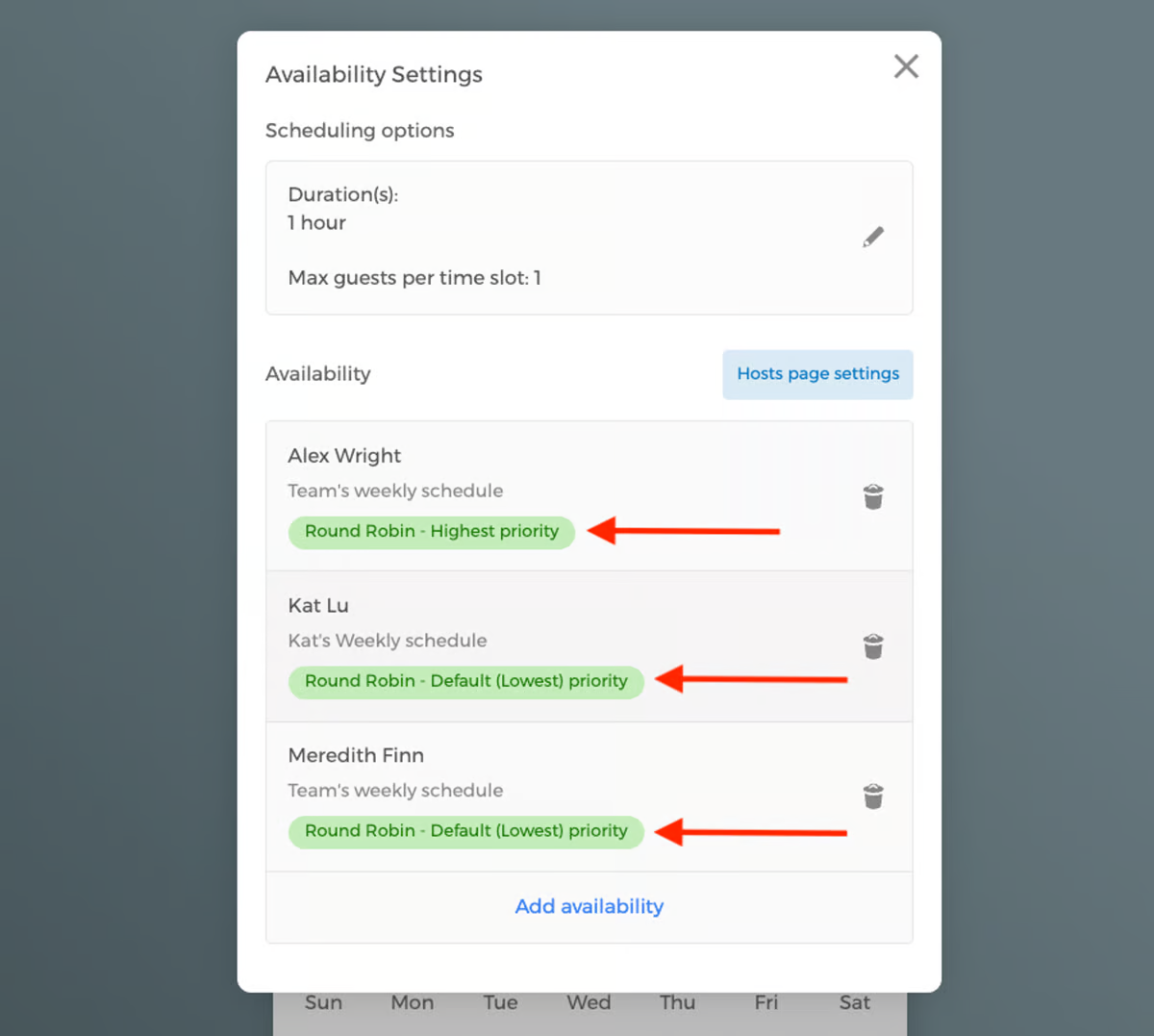
In the example below, there are 3 hosts added. Click on the host. Under Round robin priority, select the level of priority ("Highest" in this case).
Now, you will see each host's round-robin priority ranking labels under their names.
Create individual booking pages under the same team
With the same account, you can create as many team booking pages as you want and invite other team members to join.
Adding an individual booking page on behalf of a team member
For example, if you want to create an individual booking page for Alex Wright, you can follow the steps below. Please make sure that you select the right team for the new booking page.
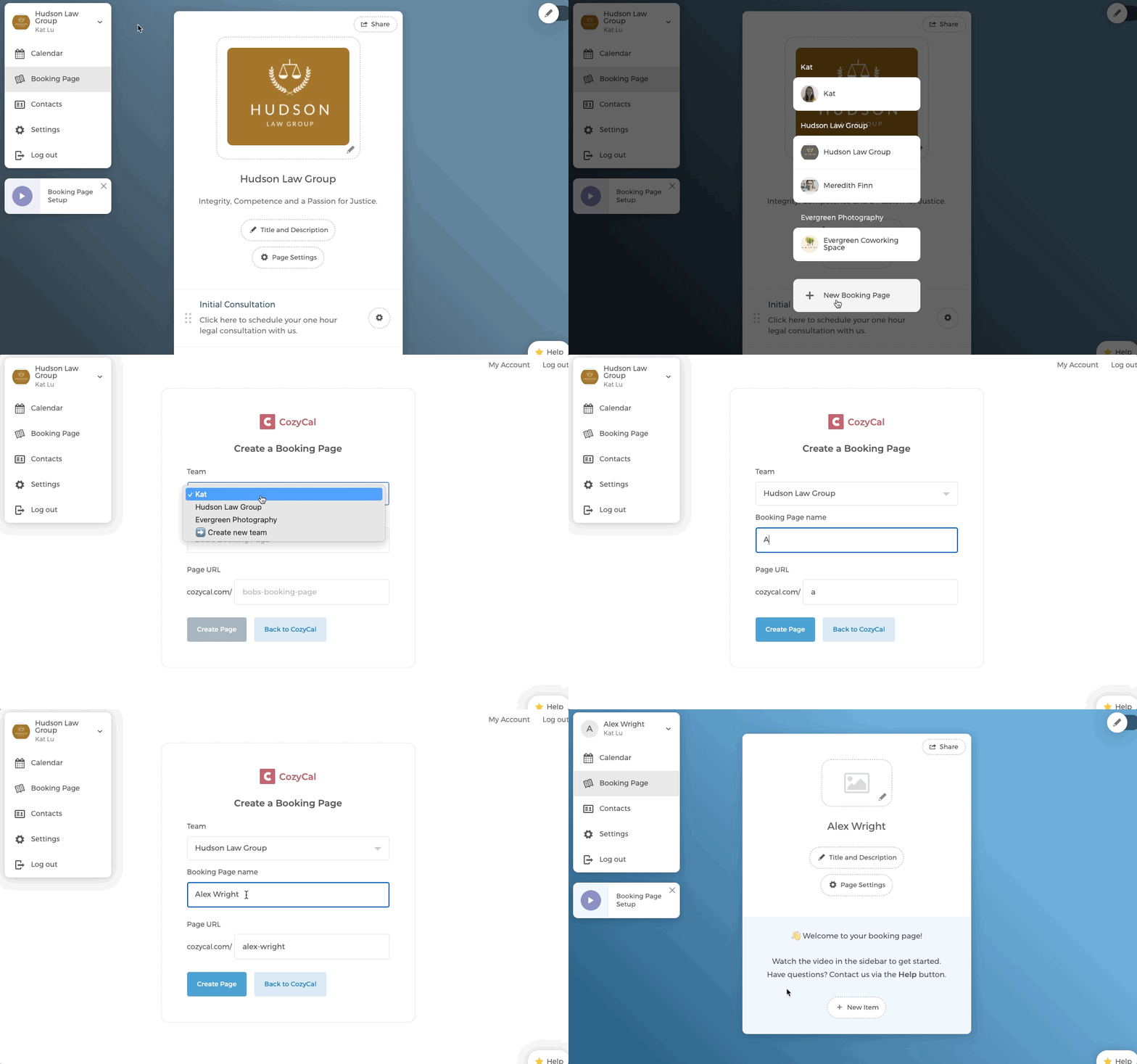
Allow a team member to create their own booking page
If you want a team member to create their own booking page, you will have to grant them admin access first. Then they can follow step 1 above to create individual booking pages.
Now, you'll see Alex Wright's individual booking page listed under the team Hudson Law Group.