


Not every client wants to meet you the same way. A new client on the other side of the country would rather join a video call than travel for a first conversation. A local client with a folder of paperwork would rather come by the office. And someone with a packed day often prefers a ten-minute phone call to either.
Most scheduling tools make you pick one format for everyone, or ask you to build a separate event type for each. CozyCal takes a different approach. You offer In person, Phone call, and Video on a single event type, and the person booking chooses the one that suits them. This guide covers how it works, how to set it up, how it behaves with team and round-robin scheduling, and the few situations where separate event types are still the better call.
Why one event type per format gets unwieldy
The usual workaround is to duplicate an event type for each format: "Consultation (In Person)," "Consultation (Phone)," and "Consultation (Video)." It looks tidy for about a week. Then the costs show up.
Your booking page gets longer, and clients have to commit to a format before they've seen a single available time. Any change to price, duration, intake questions, or reminder wording has to be made two or three times, and the copies slowly drift apart. Your numbers get split across event types, so it's hard to tell how many people want a given service, or which format they prefer. And for a team, every copy needs the same hosts, schedules, and rules set up again.
Some people try an intake form dropdown instead, asking guests how they'd like to meet. That records a preference, but it doesn't do anything with it. You still have to work out the meeting link, the address, and the reminders by hand for each booking.
Some tools leave you no other choice. Acuity's help center, in its article on video conferencing limitations and rules, explains that an appointment can't have both a physical location and a virtual link, and tells you to create two separate appointment types if you offer the same service in person and online.
With CozyCal you keep a single event type. The format becomes an answer the guest gives when they book, not a reason to maintain another page.
How to set up meeting location options in CozyCal
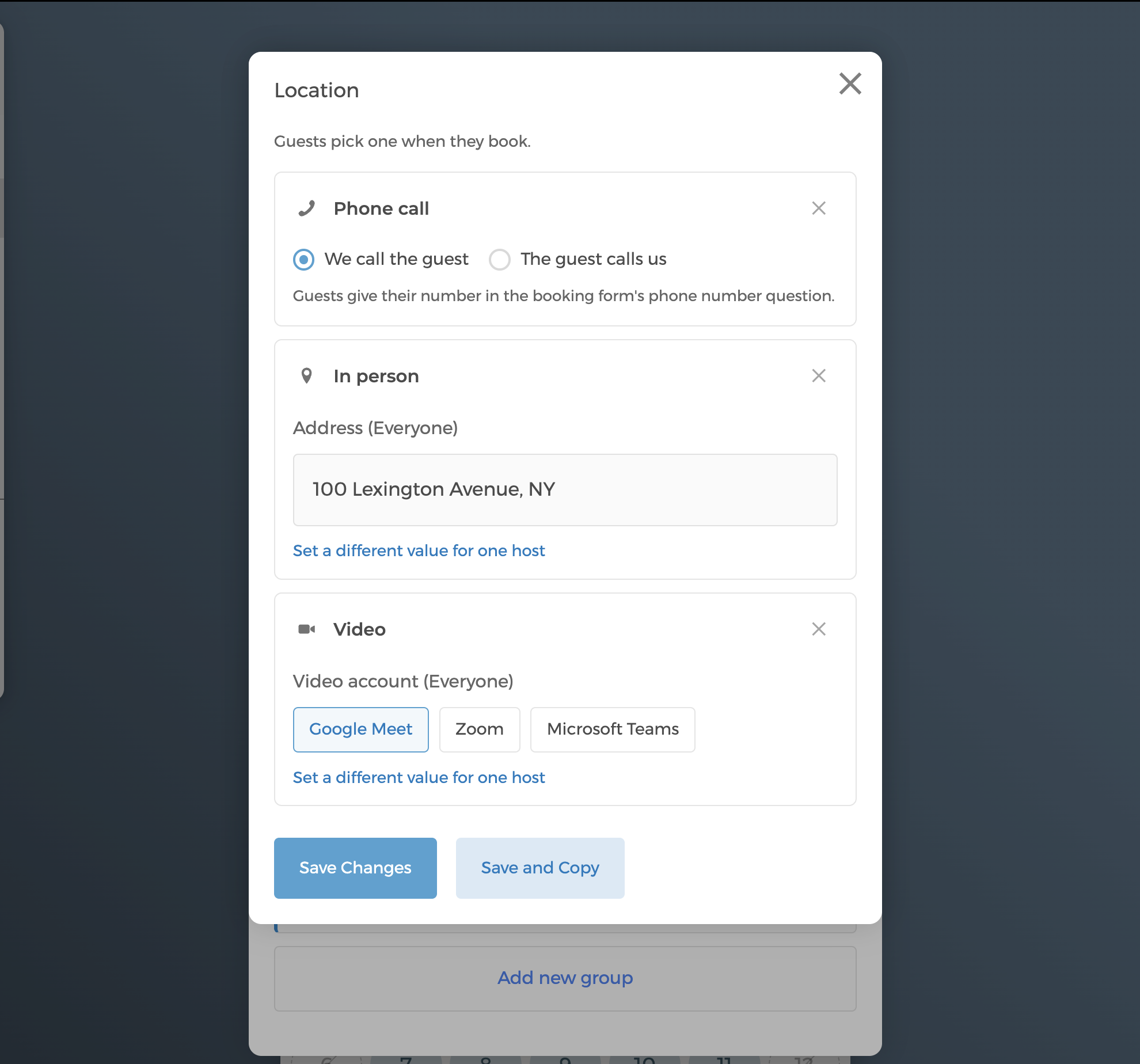
You set this up once per event type, in Availability Settings → Location.
- Open your event type's Availability Settings and go to Location.
- Add the formats you want to offer: In person, Phone call, and Video.
- For In person, enter the address, such as your office or a neutral meeting venue.
- For Phone call, choose We call the guest or The guest calls us. If you're the one calling, CozyCal asks guests for their number on the booking form, and adds the phone number question for you if your form doesn't already have one.
- For Video, choose Google Meet, Zoom, or Microsoft Teams. Each host connects their own account, so meeting links are created under the right person.
- Optional: if a host needs something different, such as another office or a personal video account, click Set a different value for one host.
- Click Save Changes.
Once you've offered two or more formats, the booking form asks guests how they'd like to meet. If you offer only one, there's nothing to ask, and guests simply see that format.
Three common ways to set it up
The right configuration depends mostly on how your team is spread out.
A solo practitioner offering all three formats. Add In person with your office address, Phone call with whichever direction suits you, and Video with your preferred platform. This takes a couple of minutes, and a single booking link now covers every kind of client you see.
A team that shares one office. Enter the office address once under Everyone, and choose a video platform for everyone. Each host still connects their own video account. Because every host meets at the same place, guests see the address on the booking form before they book, which saves a lot of "where do I park?" emails.
A team with several offices or remote members. Set the shared values under Everyone, then use Set a different value for one host for anyone who works from another office, has a different phone number, or uses their own video account. The location always comes from the event's organizer, so it's worth entering each host's values before you share the booking page.
What your guests see
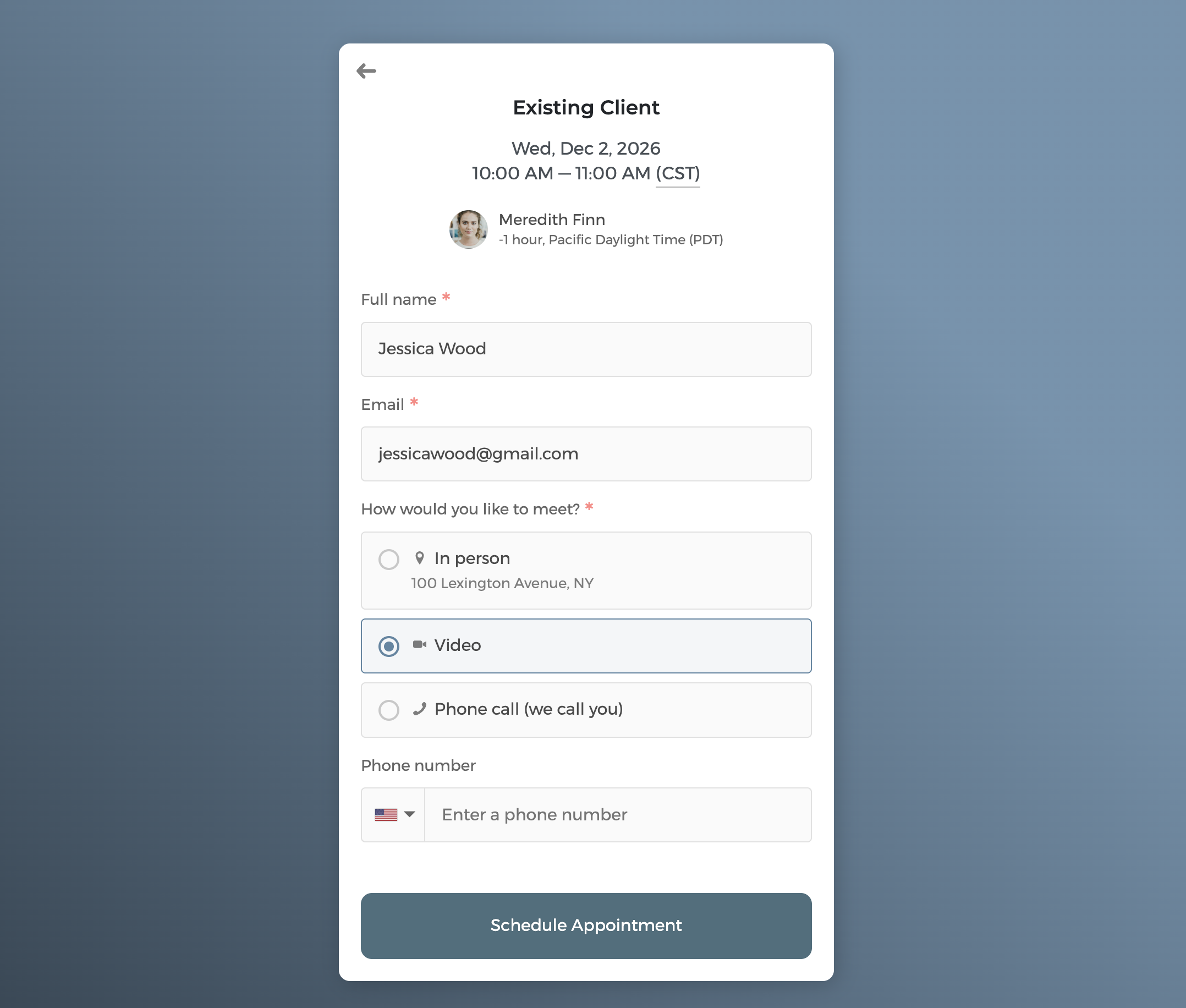
The booking form asks "How would you like to meet?" and shows the formats you've turned on.
- In person shows the address, so guests know where to go before they commit. This appears when every host meets at the same place.
- Video means a meeting link is generated automatically and included in the confirmation and reminder emails, so there's nothing for the guest to set up.
- Phone call (we call you) adds a phone number field, so guests can tell you where to reach them.
What you and your team see
The details of each booking travel with it, so nobody has to chase the guest to find out how the meeting will run. For video bookings, CozyCal creates the meeting link for you. For phone calls where you call the guest, their number arrives with the booking. And the event CozyCal adds to your Outlook, Google, or Clio calendar shows the address or phone number, so a glance at your day tells you who's coming in, who's dialing in, and who you need to call.
[IMAGE 4 GOES HERE: a calendar event created by CozyCal, in Google, Outlook or Clio, showing the address or phone number. Alt text: Calendar event created by CozyCal showing the meeting address in the location field.]
Using it with round-robin and multi-host scheduling
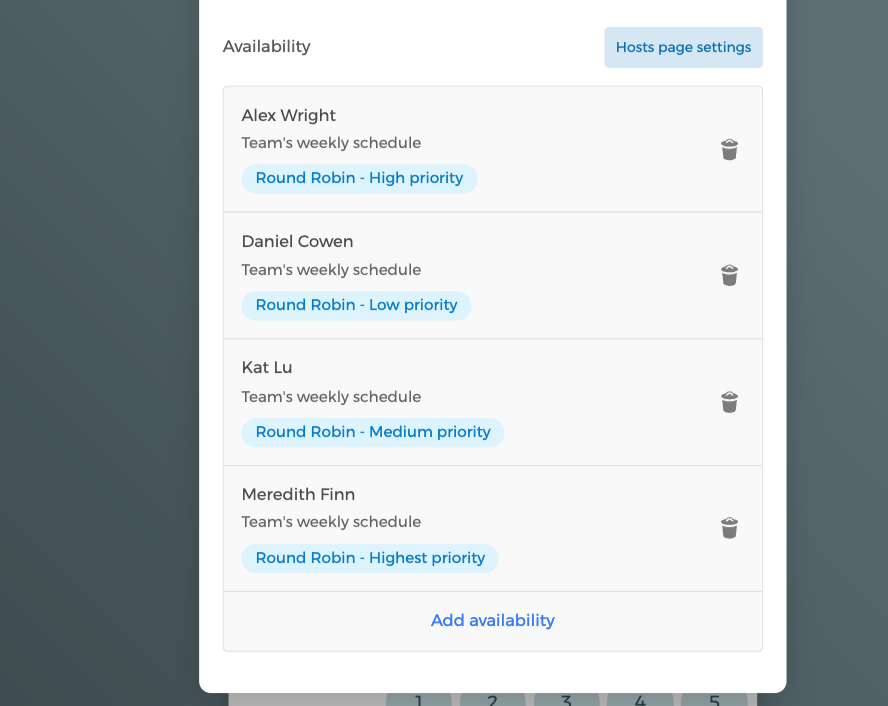
This is where the feature earns its keep for teams. Set one address, phone number, or video account for everyone, then override it for any individual host. Guests still choose how they'd like to meet, and with round-robin scheduling the booking goes to the next available host.
Picture a three-attorney firm that rotates new-client consultations. A prospective client picks a video call, or phone, or an in-office visit, and CozyCal assigns the next available attorney. There's no separate "location host" to configure, because the location always comes from the event's organizer.
It's worth knowing that not every tool works this way. Calendly's help center, in its article on round robin meeting location options , says each host in a round-robin event sets their location ahead of time, and invitees don't get to choose. The workaround it suggests is a custom location combined with a required question for the invitee, followed by manually updating the calendar invitation with their answer. It also notes that location options are available for event types that include at least one always-attending host. In CozyCal, the guest simply chooses on the booking form, and the booking still goes to the next available host.
If you'd like to see how the rotation options themselves work, our guide to round-robin scheduling for teams walks through them.
Who this helps most
Law firms
A client who lives across the country shouldn't have to travel for a first consultation, while a local client may want to come in and bring documents. With one consultation event type, each picks the format that suits them, and your team knows how to prepare. The same approach works well for mediation sessions, where the parties don't always agree on how they want to meet. You can read more about CozyCal's legal scheduling software.
Healthcare and wellness practices
A practice might see patients in person for exams and offer phone or video for follow-ups. Instead of separate booking links, one appointment type can offer the formats you deliver for that service. If you handle sensitive health information, check that the phone and video tools you connect meet your own privacy requirements. See healthcare scheduling and wellness scheduling.
Consultants, advisors, and accountants
A prospective client may want a quick call before committing to an office visit. Offering all three formats on one intro-call event type gives prospects the easiest possible way to get started, and your intake form can capture what they'd like to discuss. See professional services.
Coaches, tutors, and educators
Run sessions at a studio or classroom and online without maintaining separate booking links. Students or parents choose when they book, and your calendar shows how each session will run. See education.
Choosing which formats to offer
You don't have to offer all three. Start with the formats your clients already ask for, and add another when requests come in.
In-person meetings suit work that needs physical presence, signed paperwork, or conversations people prefer to have face to face. Make sure the address you enter is one clients can find easily.
Phone calls suit short check-ins and clients who simply like to talk. "We call the guest" means the guest only has to be available at the booked time, while "The guest calls us" means you share your own number instead.
Video suits clients who can't travel, and sessions where seeing each other or sharing a screen helps. Choose the platform your clients are most likely to already have, and remember that each host connects their own account.
If you're not sure where to begin, look back over the last few months of appointments and note how clients actually met with you. That tells you which formats to offer first.
A few habits that make it smoother
- Offer only what you can deliver. Every format you add is one clients can pick, so keep the list to formats you can run during the hours you've opened for that event type.
- Check the phone number question. If you plan to call guests, confirm the question on your intake form works the way you want.
- Ask what the meeting is about. A short intake question lets you prepare differently for a phone call than for an office visit.
- Book a test appointment in each format. See what you and your guest see, including the address on your calendar and the video link in the confirmation.
- Set host overrides early. If team members meet at different offices or use their own video accounts, enter those values before you share the booking page.
When separate event types still make sense
One event type per service is the goal, but a few situations still call for separate ones.
If the price differs by format, keep separate event types. Price is set on the event type, so one price applies to every format, and an in-person session that costs more than a phone call needs its own page. The same goes for intake questions: if a format needs its own set of questions, a separate event type lets you ask only what's relevant. And if only certain team members can deliver a format, keep a separate event type that includes just those hosts.
For everything else, offering all formats on one event type means fewer pages to maintain and a simpler booking page for your clients.
Try it on your own booking page
If you're still maintaining a separate event type for every meeting format, this is a quick one to simplify. Add In person, Phone call, and Video to one event type, and let your clients choose.
Start a 10-day free trial with all features and no credit card required, or schedule a demo session and we'll walk you through it.
Related reading: What's new: let guests choose how to meet · How to schedule legal mediation sessions with multiple parties · Round-robin scheduling for teams